Forklift
Last updated: September 2, 2026
Conduit's Forklift module is built to streamline communications between the office and dock team. When the office team checks in an appointment, Forklift Operators on the dock will see the new work assignment appear on tablets or phones mounted in their forklifts.
This view is optimized to only show trailers that are on site and ready to be worked, meaning that your forklift operators do not get bogged down with information about trailers that aren't ready to be worked.
There are 2 ways to use forklift mode:
the office team can assign forklift operators to appointments
forklift operators can self-select which appointments to work
These two approaches can be used interchangeably or you can pick one for your facility. Both are covered in the instructions below.
Instructions
Forklift View
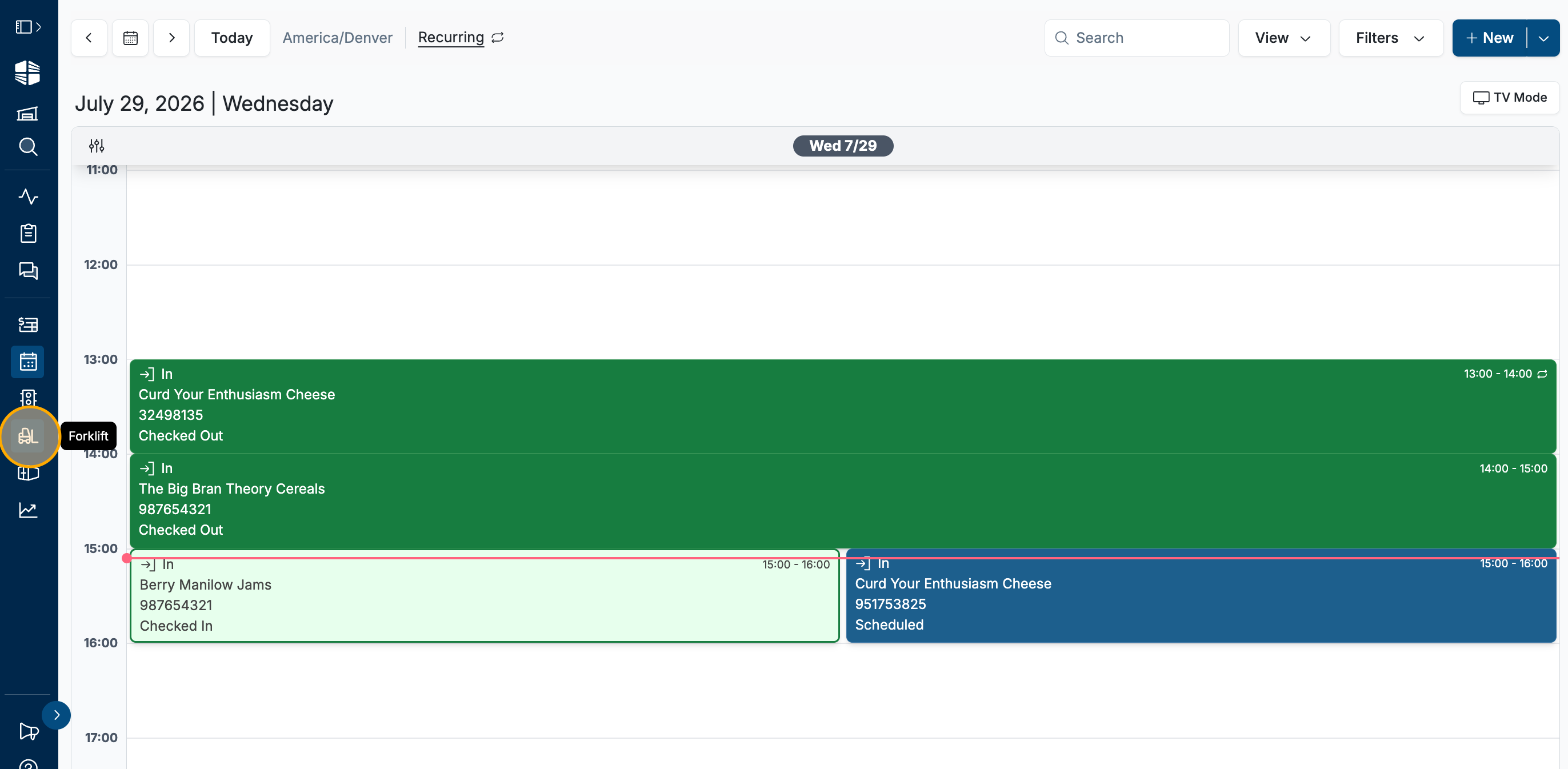
Click the Forklift icon to open Conduit's Forklift page.
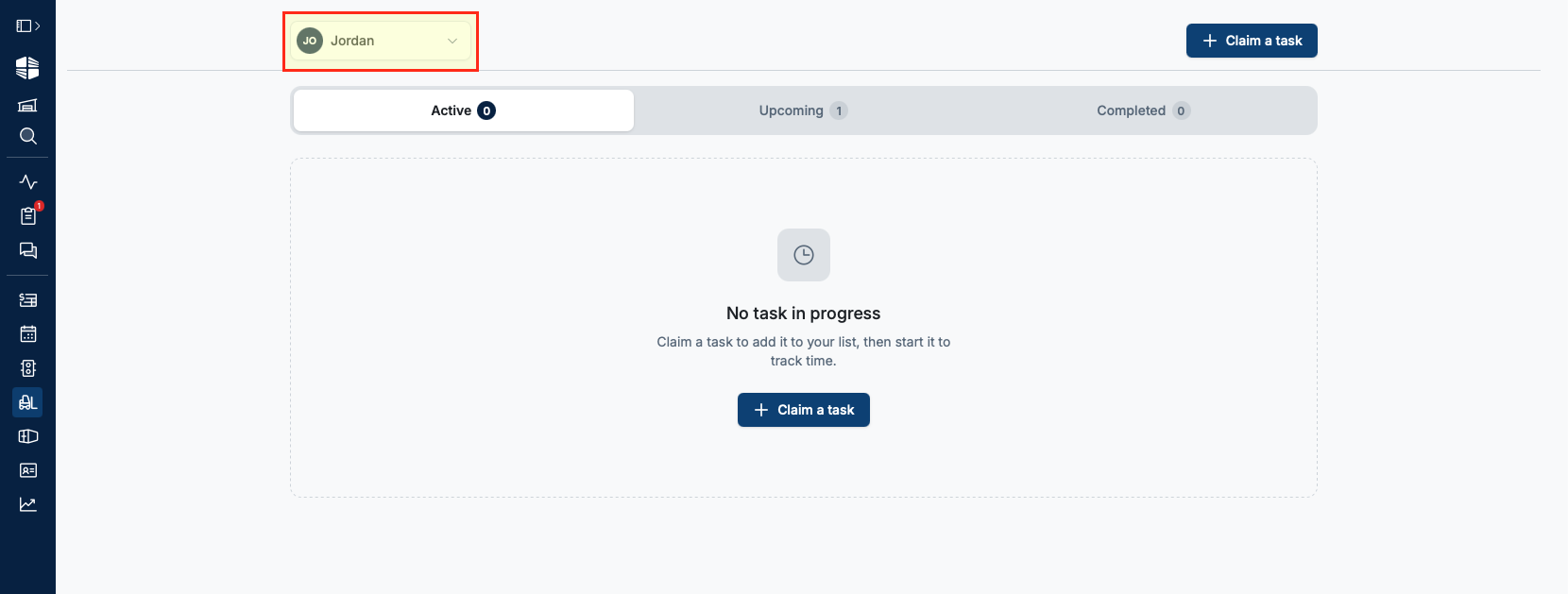
Select your name from the user list to see appointments assigned to you and to begin claiming appointments.
Assigning a Forklift Operator
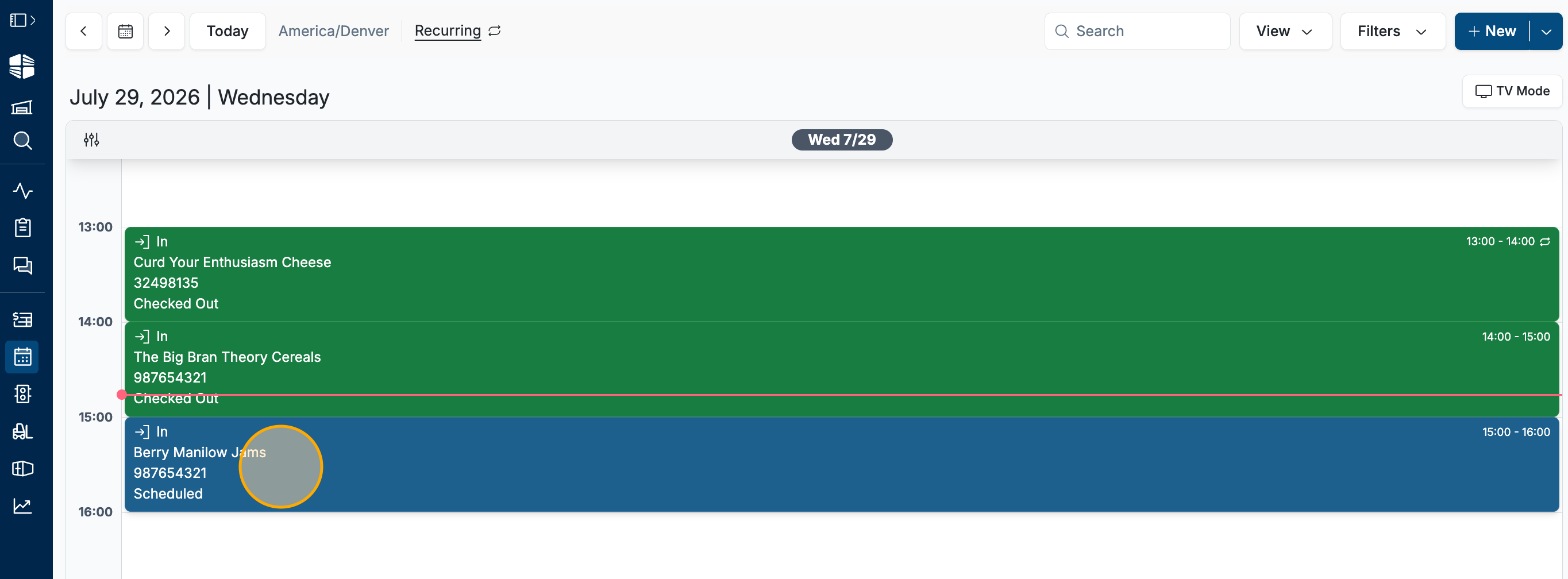
To assign a forklift operator from the office, go to your Schedule and click into an appointment.
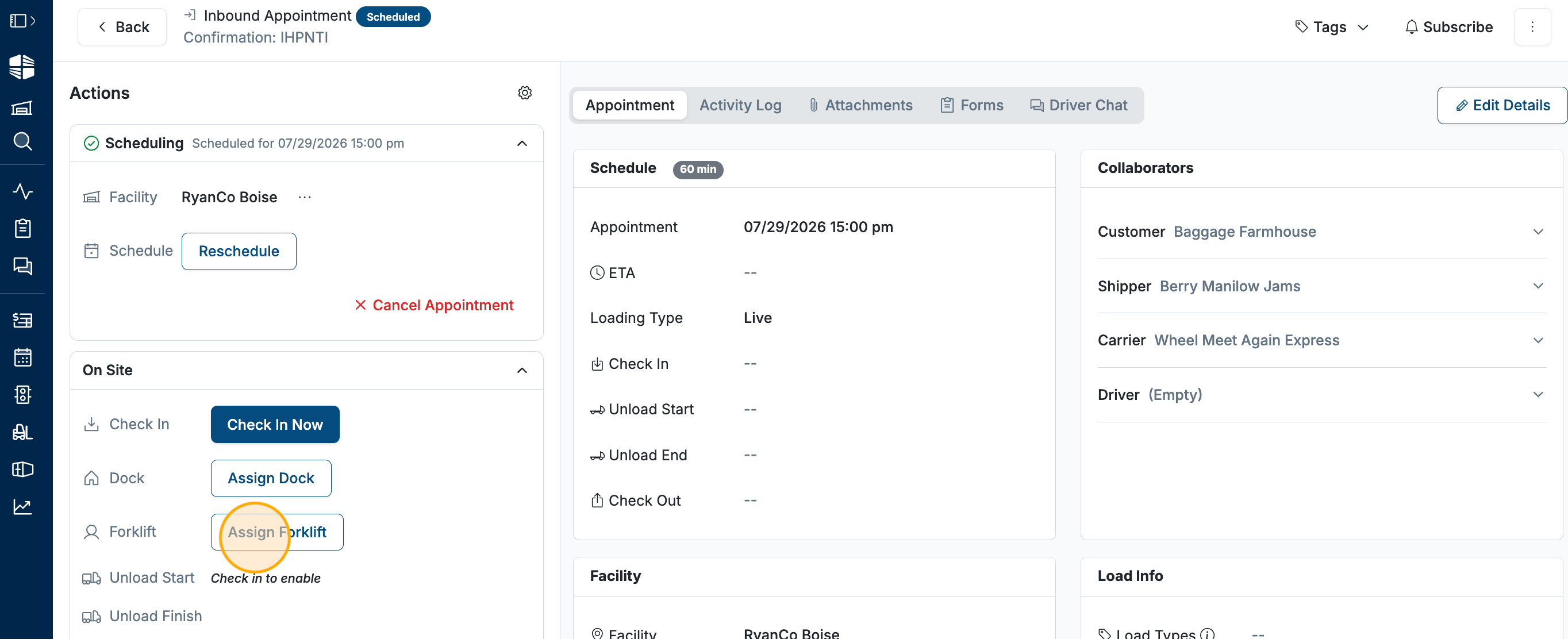
Click
Assign Forkliftto see a dropdown of your forklift operators, or to add a new one.
Select the operator and click
Finish Assignmentto save.
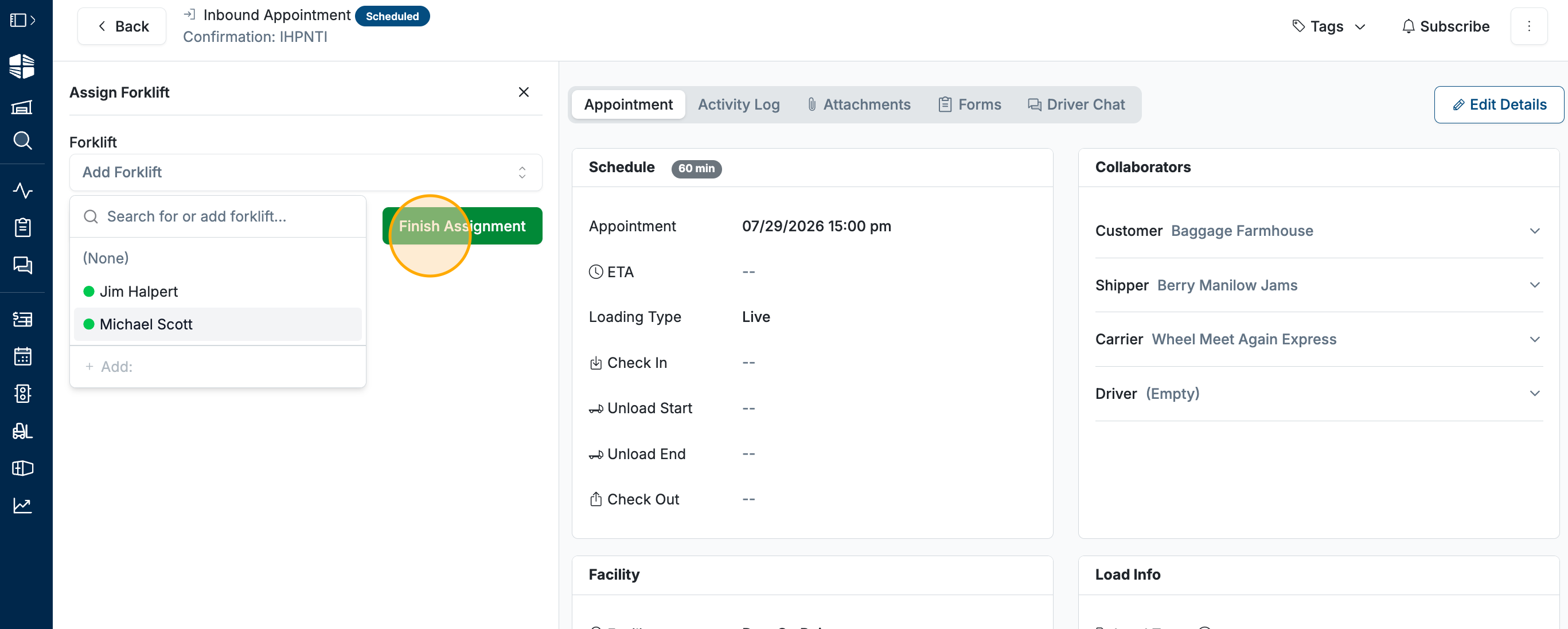
On the Forklift page, the operator (e.g., "Michael Scott") will now see the appointment assigned to them. Other operators will not see this appointment.
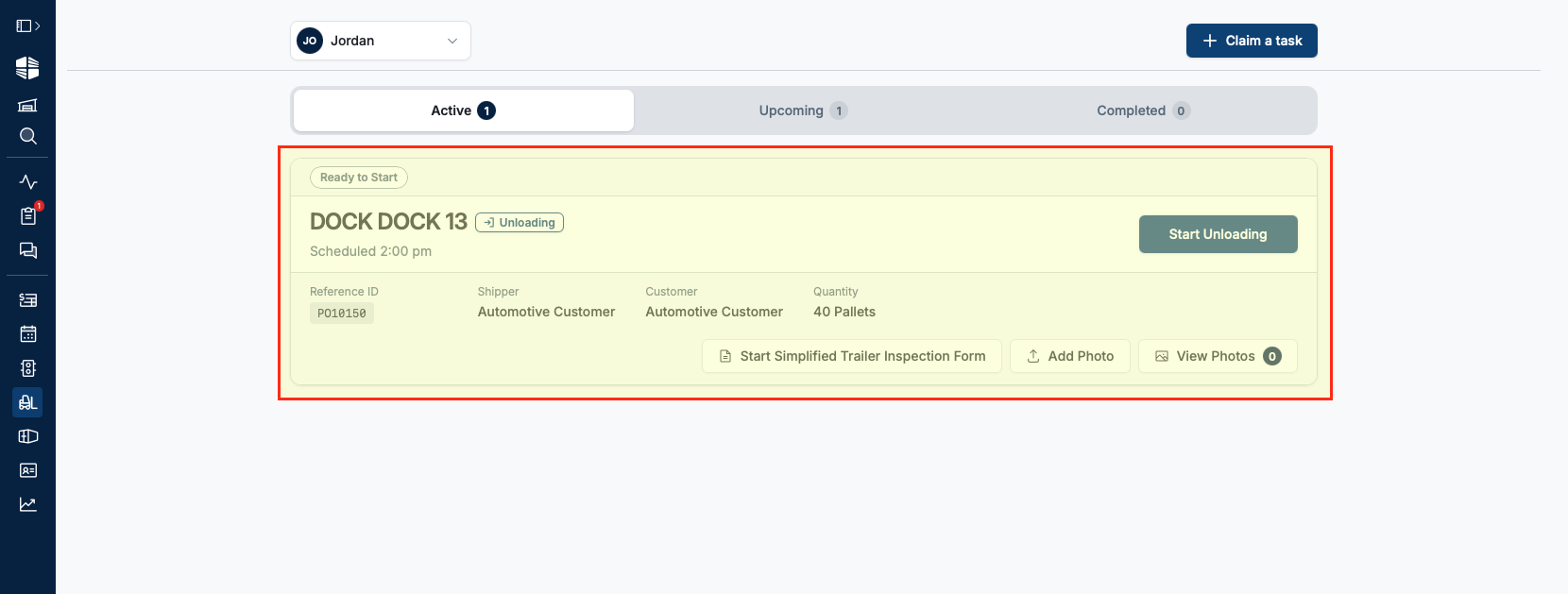
An appointment must be Checked In before any forklift operator can see it.
Claiming an Appointment as a Forklift Operator
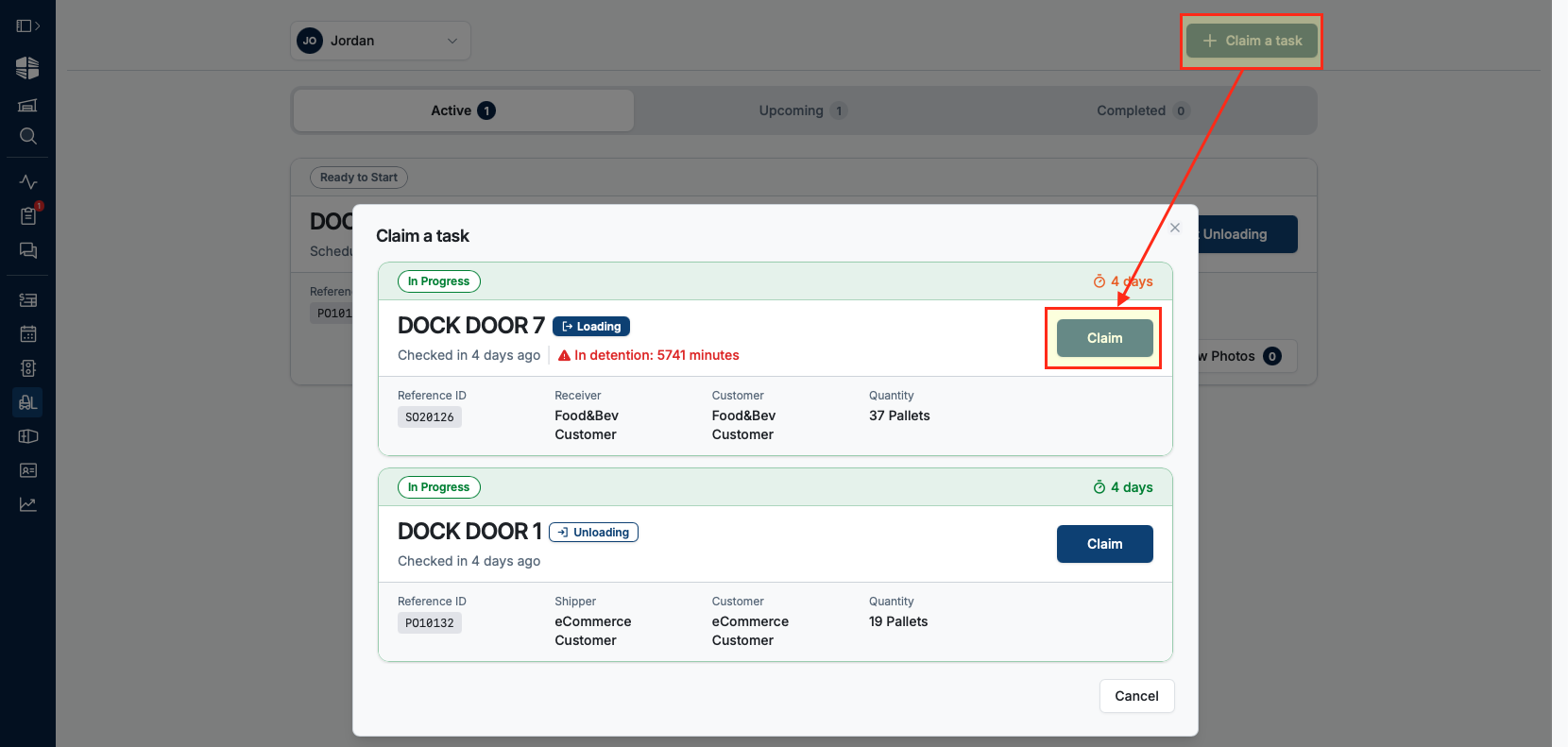
Unassigned appointments appear under "Claimable Tasks", visible to all forklift operators. Clicking
Claimassigns that forklift operator to the appointment. This updates on the Schedule page as well. Appointments must be checked in AND have a dock assigned in order to be claimed.
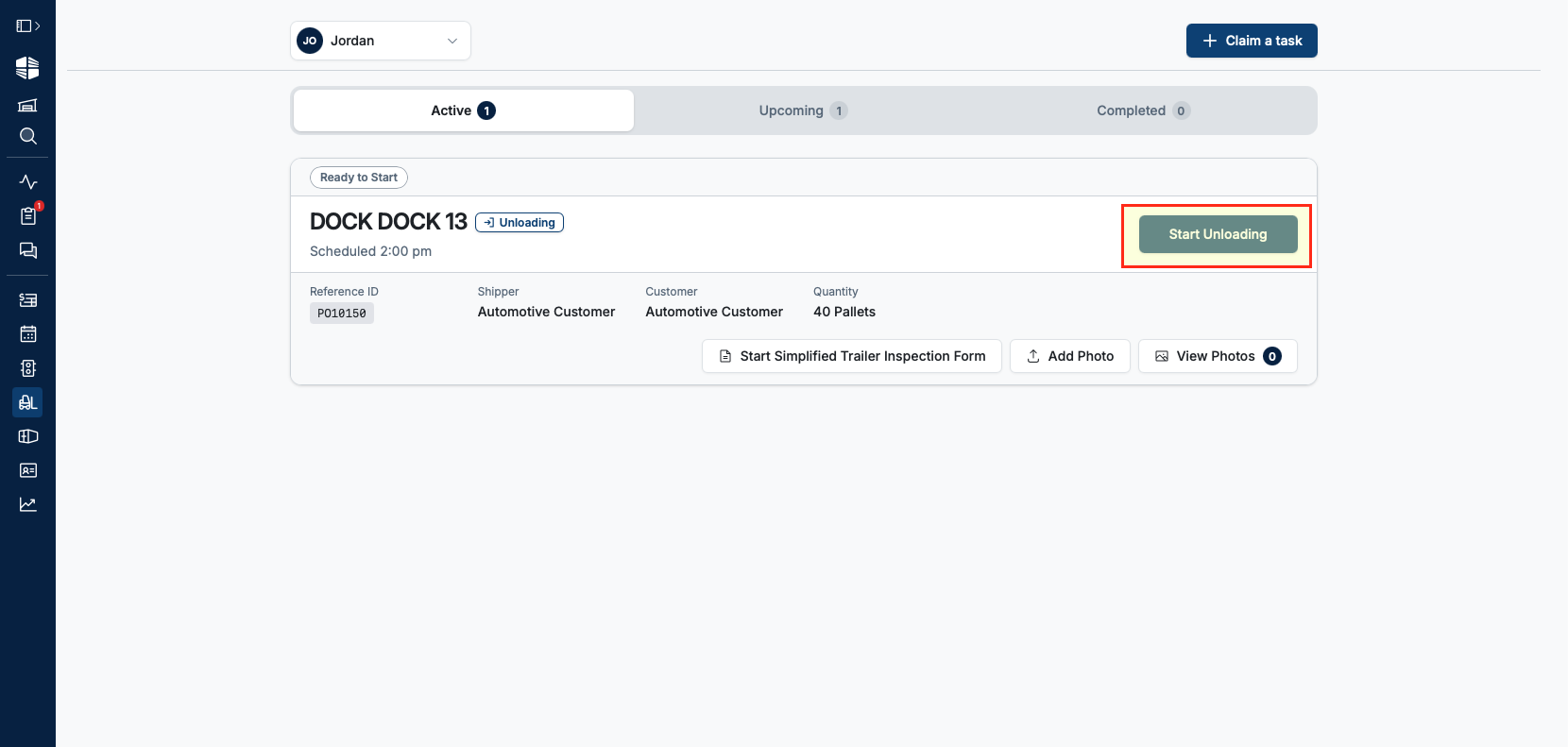
Unloading or Loading a Trailer
Click
Start Unloadingto begin.
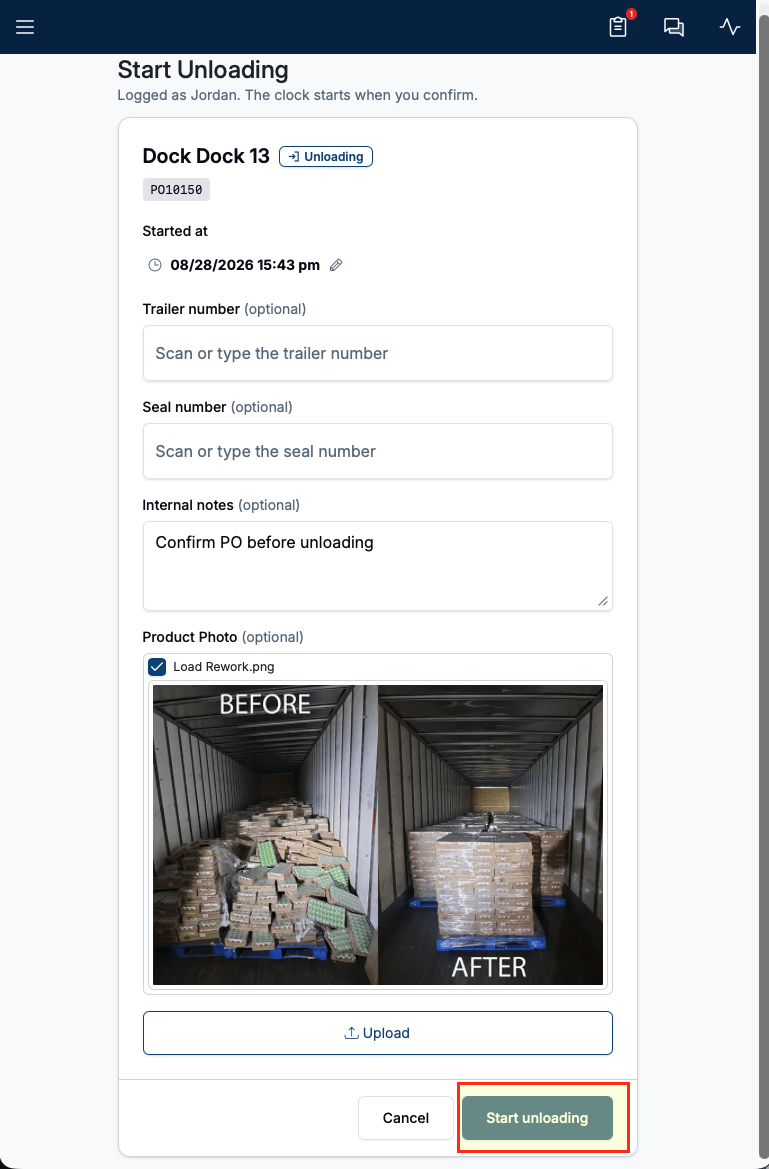
This opens the unload workflow, where Attachments can be uploaded or additional fields can be configured in order to allow operators to enter prior/during unload/loading. We recommend photographing the seal before breaking it, and the trailer contents if anything has shifted or toppled. Photos uploaded here automatically appear on the appointment's "Attachments" page. Additional fields can be added via the Appointment Actions under Facility Settings
This page can be configured to collect things such as Seal Number, Trailer Number, or other information about the trailer — see FAQ for configuration details
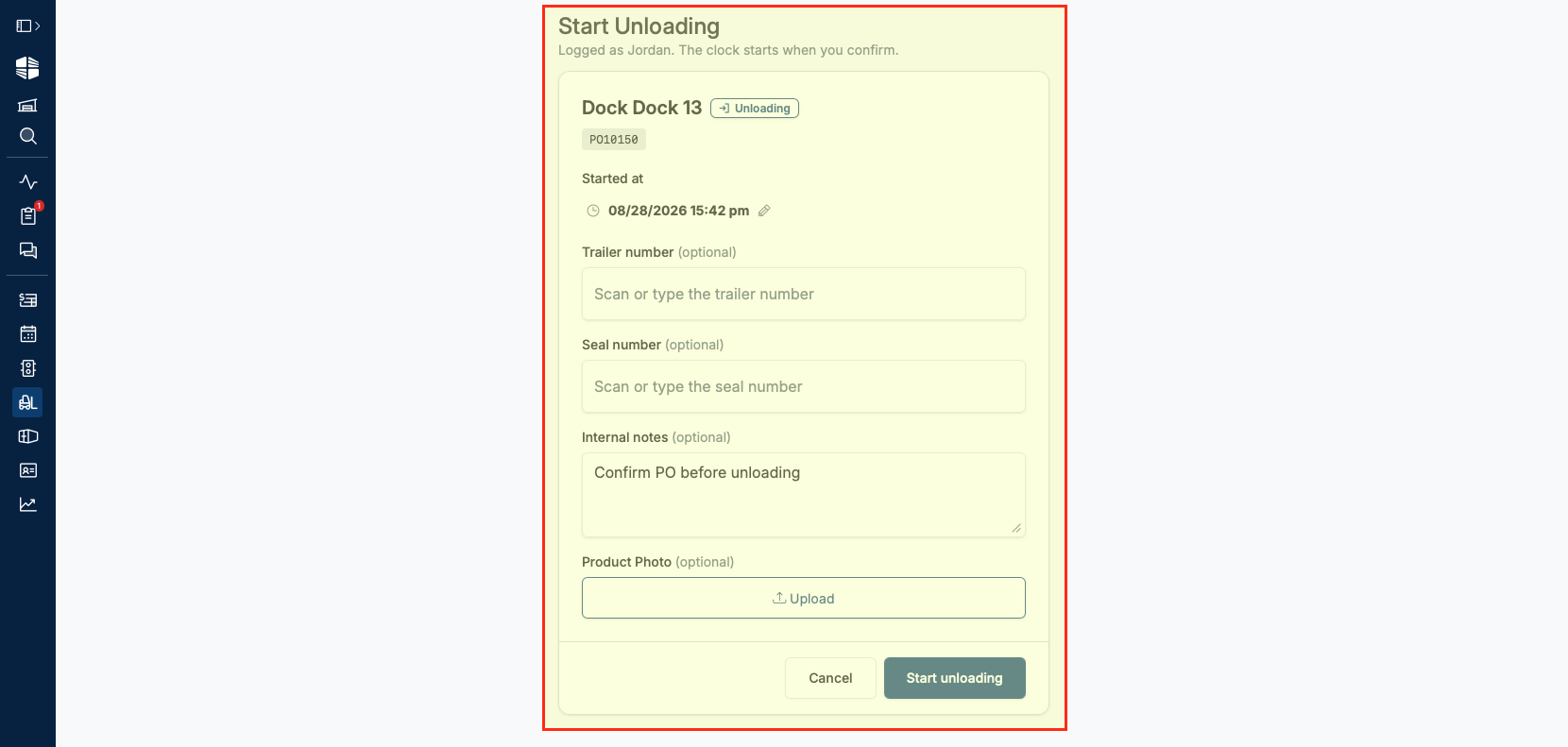
Once the operator has opened the trailer and captured any required information, click
Start unloadingto begin unloading.
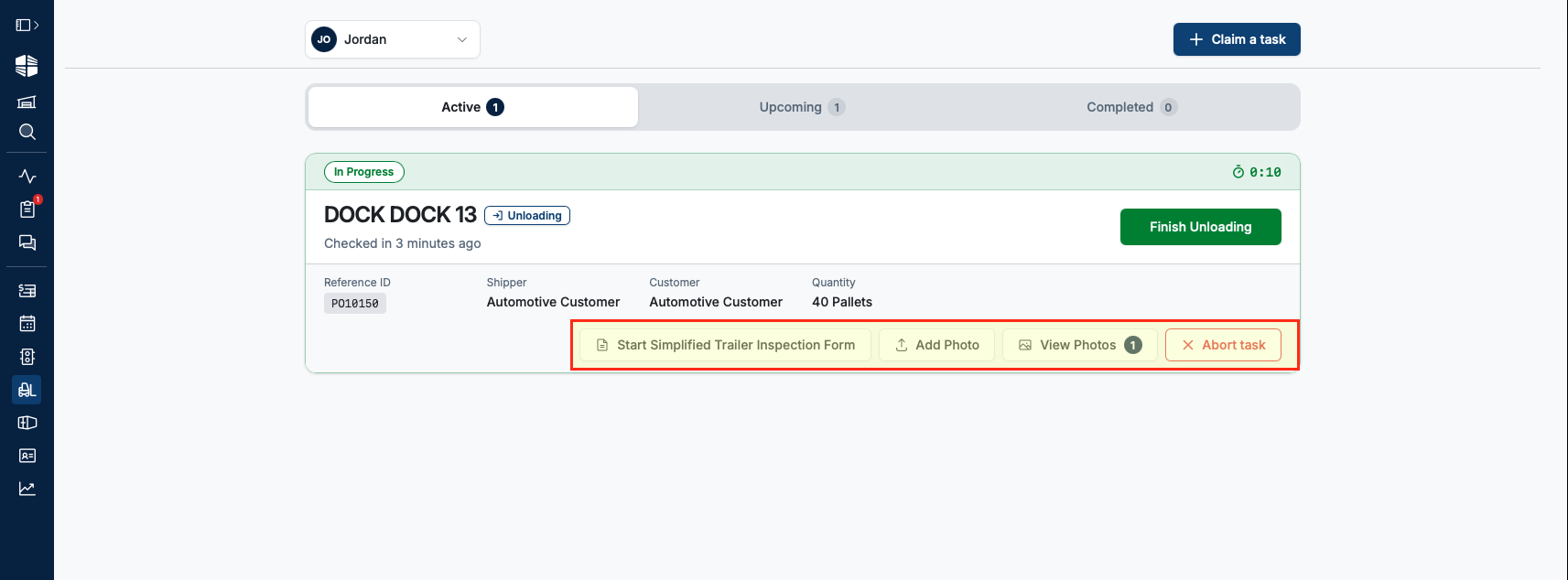
While unloading, operators can:
Add more photos (
Add Photo) if they find damage or other issues in the contents of the trailerComplete any enabled forms (
Start Trailer Inspection) — see FAQ for configuration details
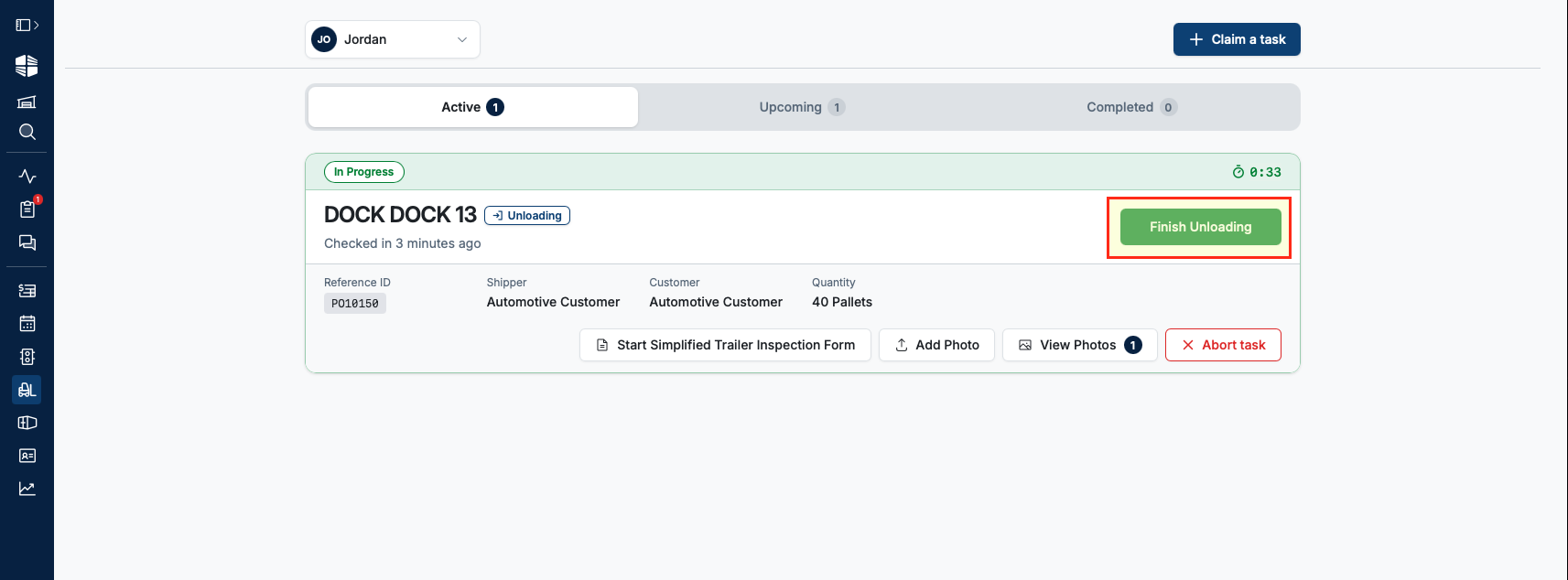
Click
Finish Unloadingwhen done.
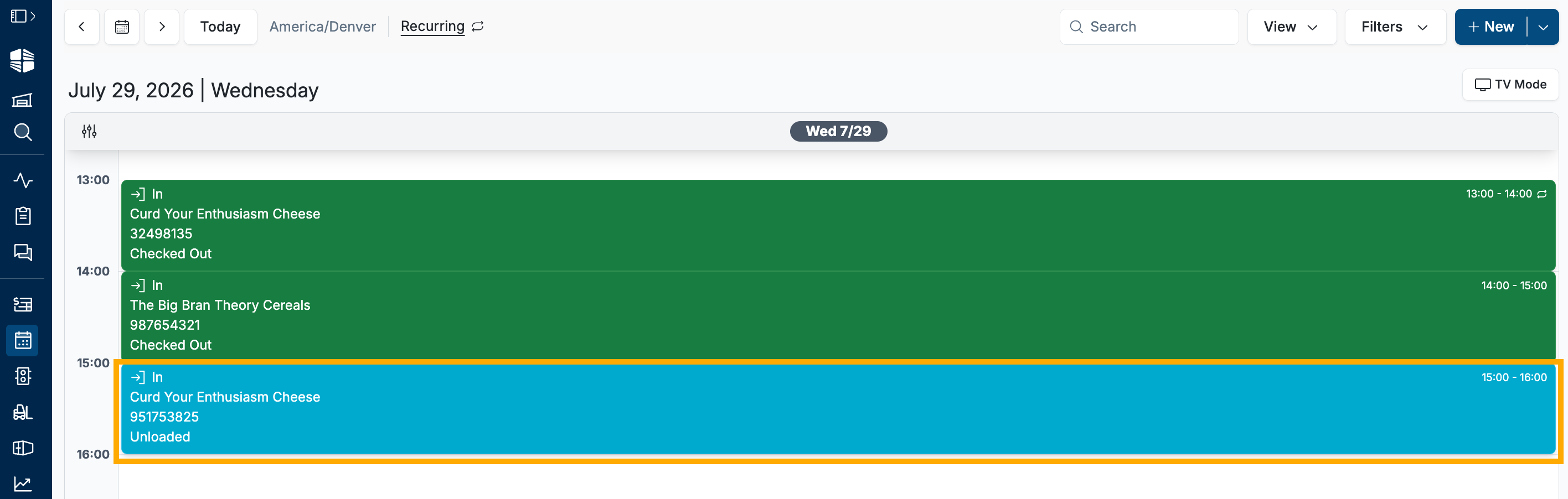
On the Schedule page, the appointment now shows as "Unloaded" in light blue. The office team can now prep paperwork for the driver, and check the driver out of the facility.
Frequently Asked Questions
Where do I manage a list of forklift users? I don't see them in the user settings?
Forklift operators are distinct from users. Forklift Operators are added in the workflow (see "Assigning a Forklift Operator" above), and remain available as long as they're associated with an appointment within 30 days (past or future).
In the future, we plan to add a Forklift User type that allows for stricter management of forklift operators. If this is important to you, please email us at [email protected] to be notified when it's released.
Can I delete a forklift operator?
No. Forklift operators are tied to appointments. Names disappear off the list if they're are not associated with any appointments within 30 days (past or future).
Can I assign multiple forklift operators to a single appointment?
No. Only one forklift operator can be assigned per appointment. This is for traceability — it allows you to know exactly who submitted images and other information related to the appointment.
Configuring Unloading to collect Seal Number, Trailer Number, or other trailer information
Admin's can configure this under "Appointment Actions" in Facility Settings. Under "Start Unload", select the fields you'd like to collect and save your changes.
Enabling Forms
Conduit is able to digitize the forms you are currently using, for collection during your load/unload process. This is a paid feature — contact [email protected] if you're interested.
See our Forms article for more details.