Smart Dock Assignment
Last updated: September 24, 2026
Smart Assign ranks your facility's docks whenever you assign a door to an appointment, and recommends up to three when there are good fits available. Rankings are based on the appointment's direction, load types, and customer, plus what is scheduled at each door during the appointment's window. If no door is a good fit, no recommendations are shown.
Instructions
Opening the Dock Selector
Open an appointment and click Assign Dock, or click Check In as the driver arrives. You can also change the door from the Details tab, or set one while creating a new appointment.
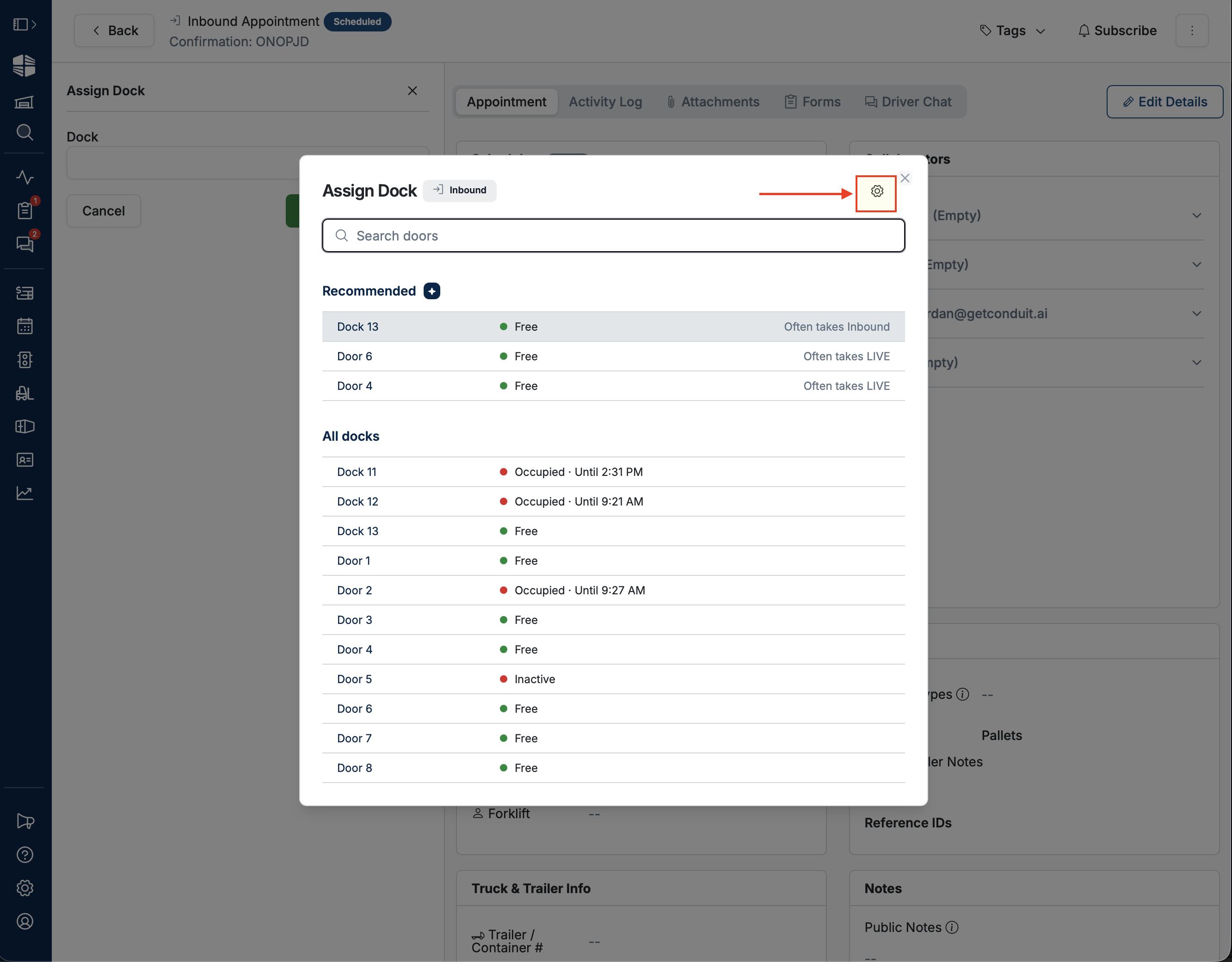
The Assign Dock window opens with docks already ranked.
Chips at the top of the window show what Conduit is matching against: the appointment's direction, load types, and customer. NOTE that this reflects the appointment as saved, so save any unsaved edits first to see the ranking update.
Reading the Dock List
The window has two sections:
Recommended: Up to three docks Conduit considers good choices.
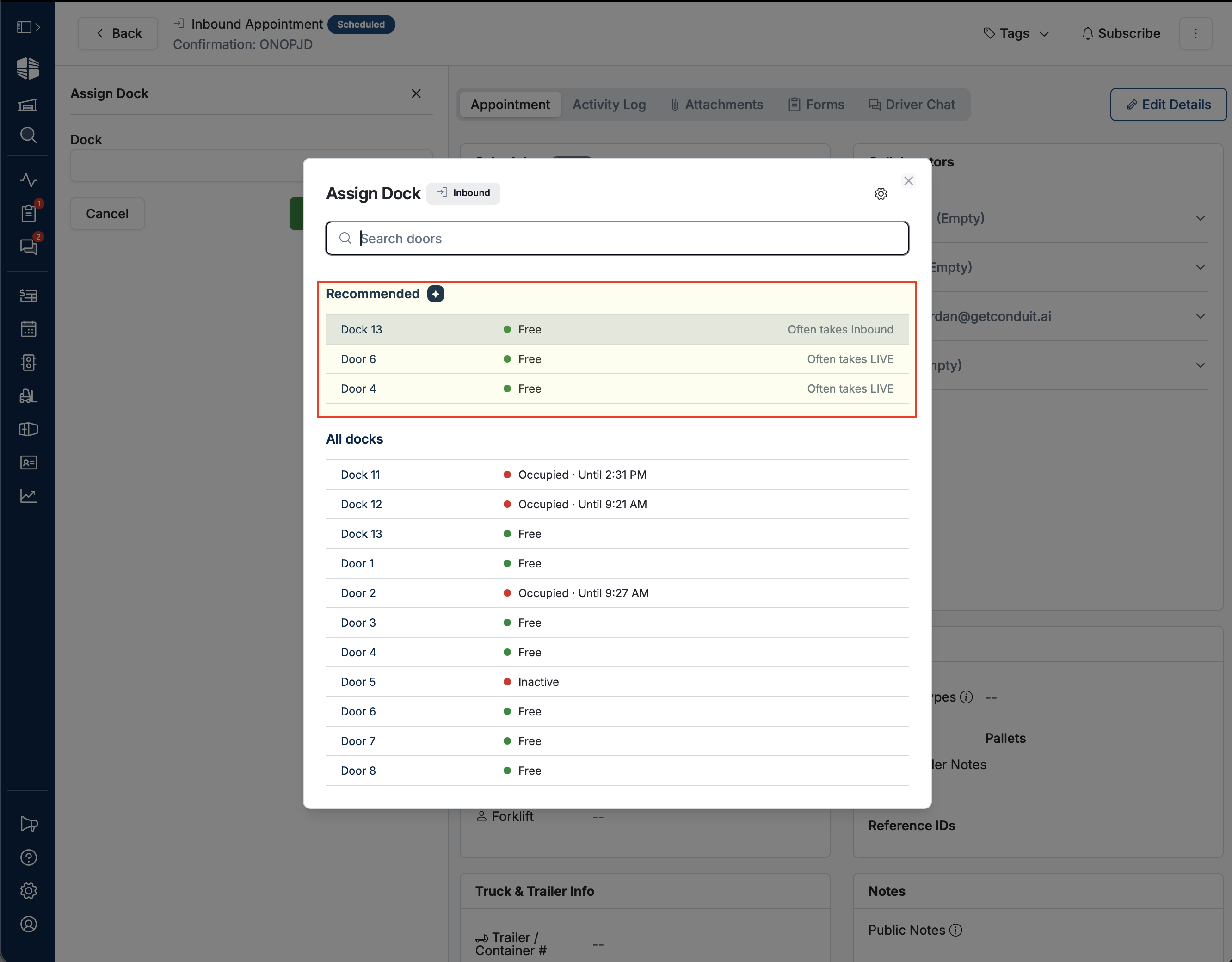
All docks: Every door at your facility sorted A–Z, including the recommended ones and any that are out of service. Use this section to find a specific door by name.
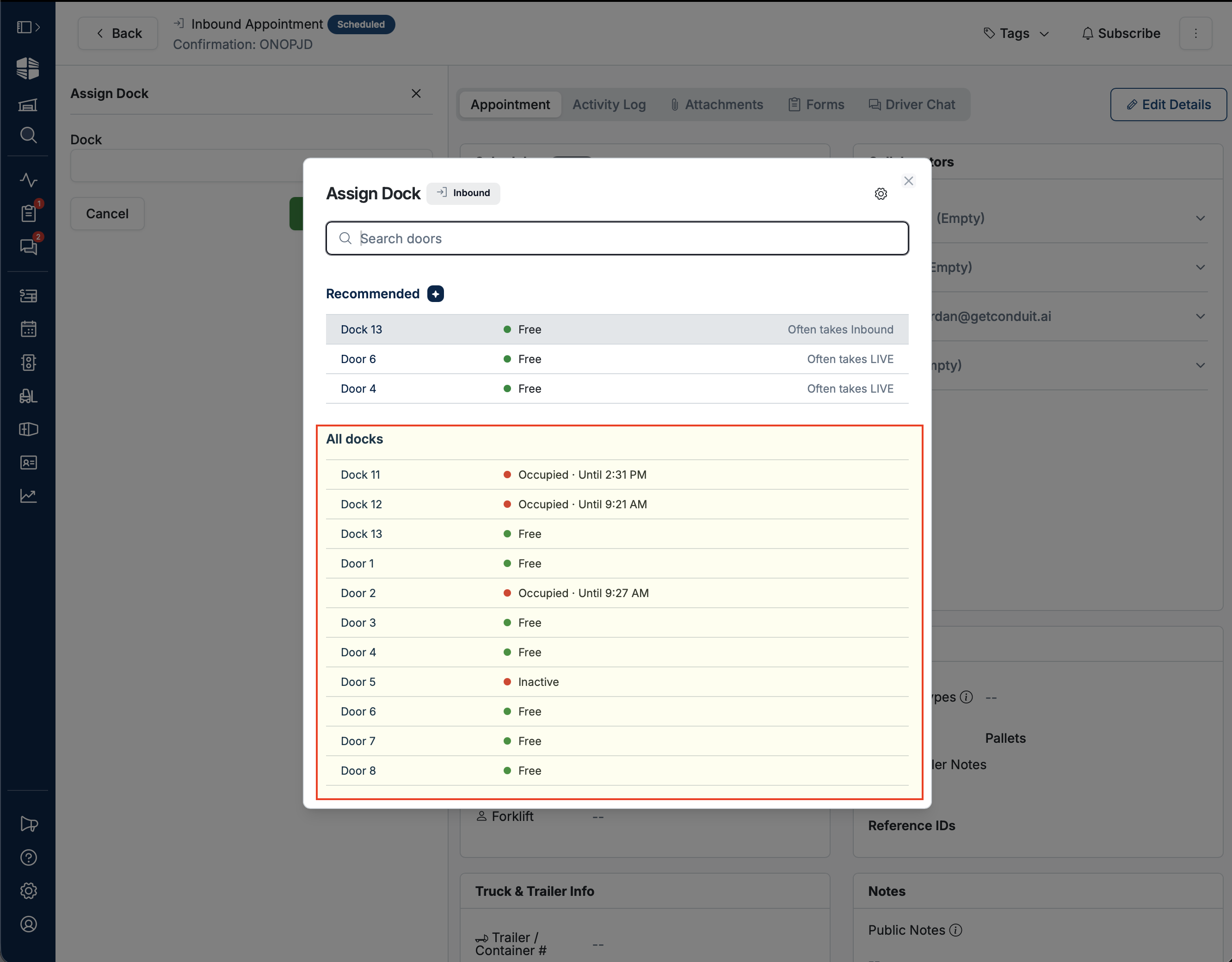
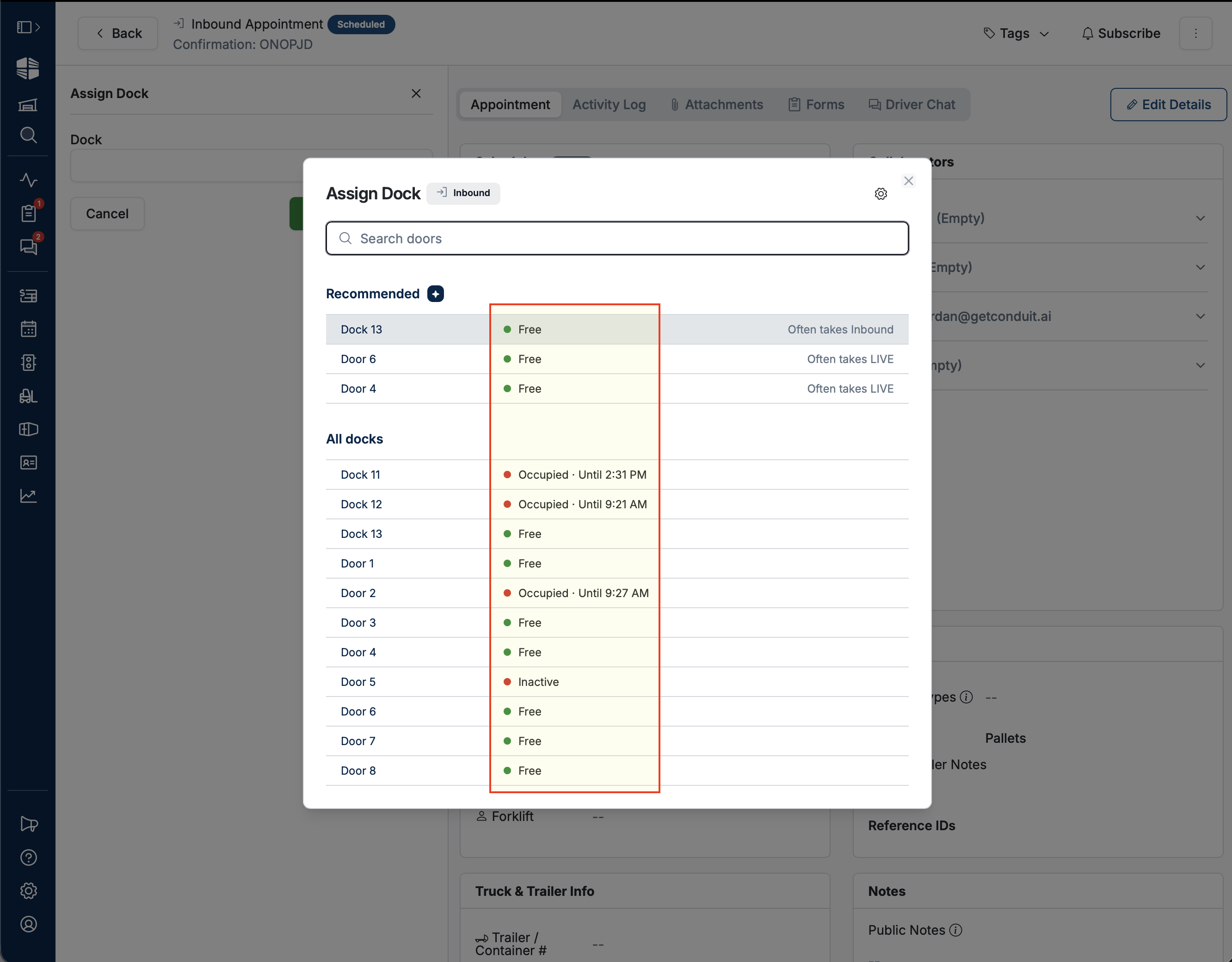
Each row shows the dock name, its status, and why it does or does not fit.
The status dot tells you whether the door is usable during the appointment's window:
Free: Available.
Upcoming: Something is booked nearby, or the door has room to spare. A multi-spot door reads as "3 of 4 free."
Occupied: No room during the window. The detail explains why, such as "Trailer 5521 parked" or "42 min left · until 2:50 PM."
Inactive: Marked out of service, but still selectable.
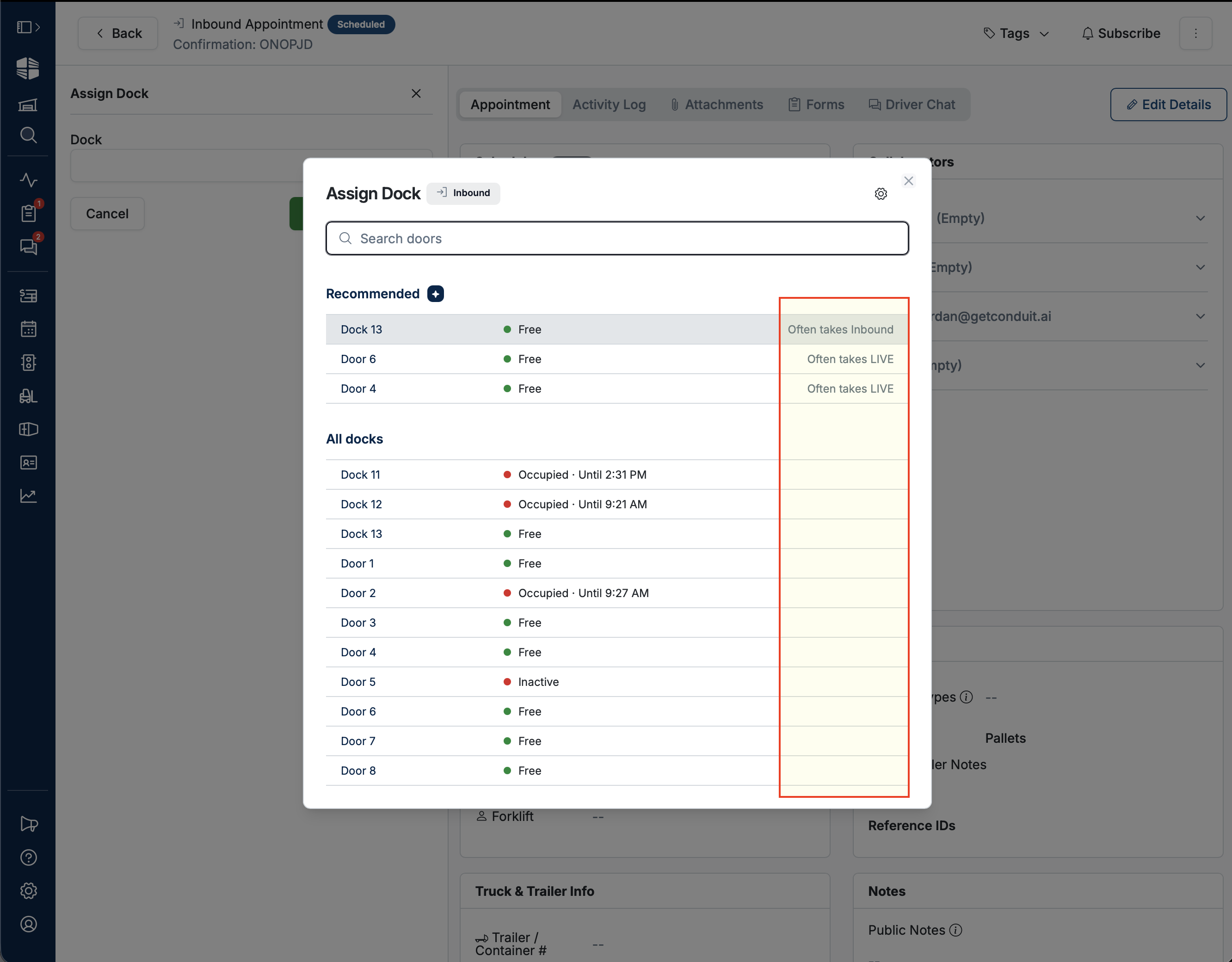
Tags on the right of each row show what Conduit matched:
Green tag with a check: Something the door is set up for, like a load type, customer, or direction.
Red tag with an X: A restriction the appointment falls outside of, such as "Outbound only" on an inbound load.
No tags: Conduit shows what the door's recent history resembles instead, such as "Often takes FTL." This is how Smart Docks works at facilities that have not configured their doors.
A dock is only recommended when it has no mismatches, has a spot free during the appointment's window, and has a positive reason to prefer it (an explicit match or comparable recent work). If no door meets all three, the Recommended section is hidden and you pick from All docks.
Assigning a Dock
Click any row to assign that door and close the window.
To search, type into Search doors. Both sections filter as you type.
Use the up and down arrow keys to move through the list and press Enter to assign the highlighted door.
Creating a Dock From the Window
If you search for a door that does not exist yet, Conduit offers to create it:
Type the new door's name into Search doors.
Click Create dock "76" in the empty state.
Fill in the dock's details and save. The new door is assigned to the appointment.
Setting Up Assignment Criteria
Smart Docks works without any setup, but adding criteria to your doors makes recommendations sharper.
Click the gear icon in the top-right of the Assign Dock window, or go to Settings → Docks and Locations.
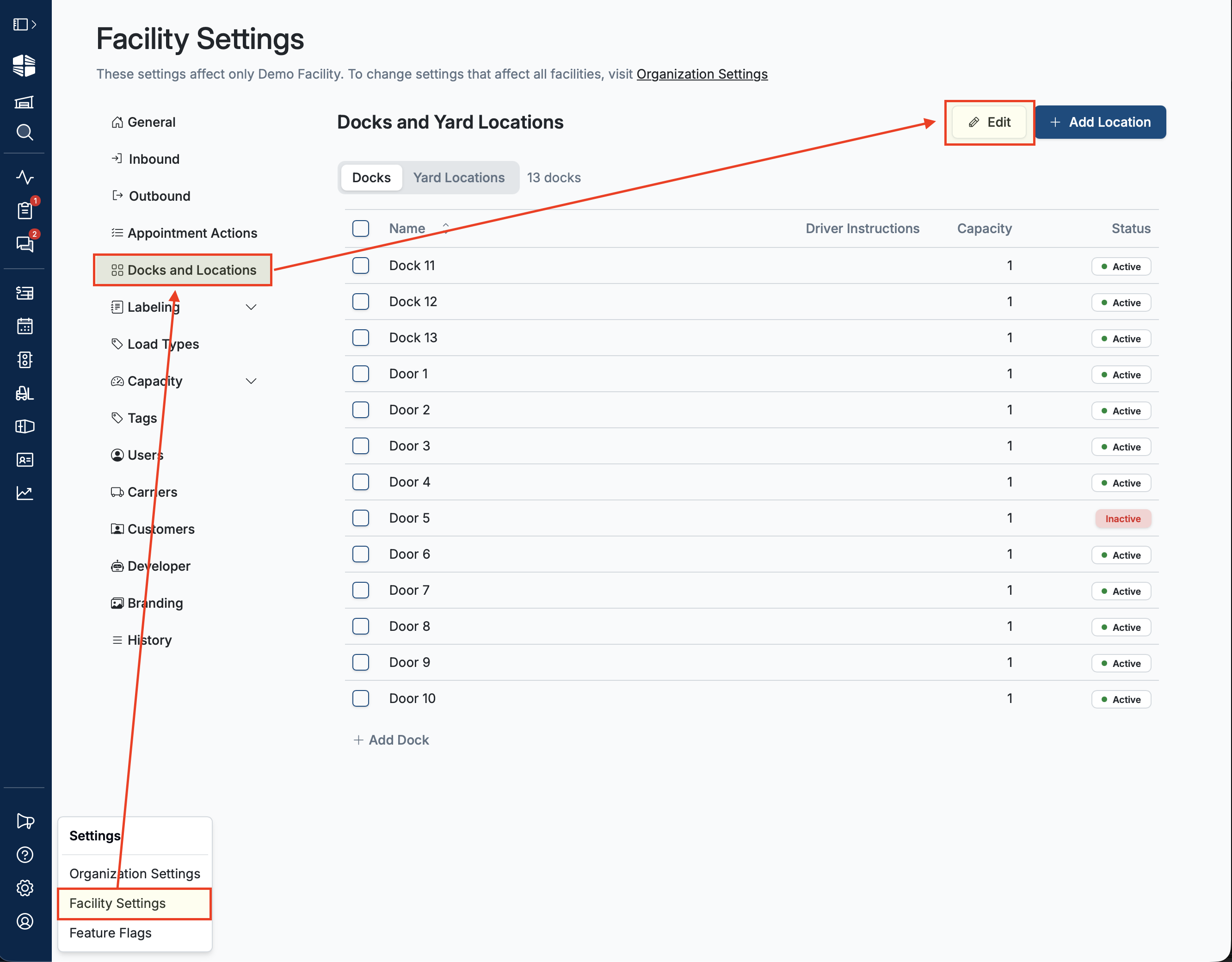
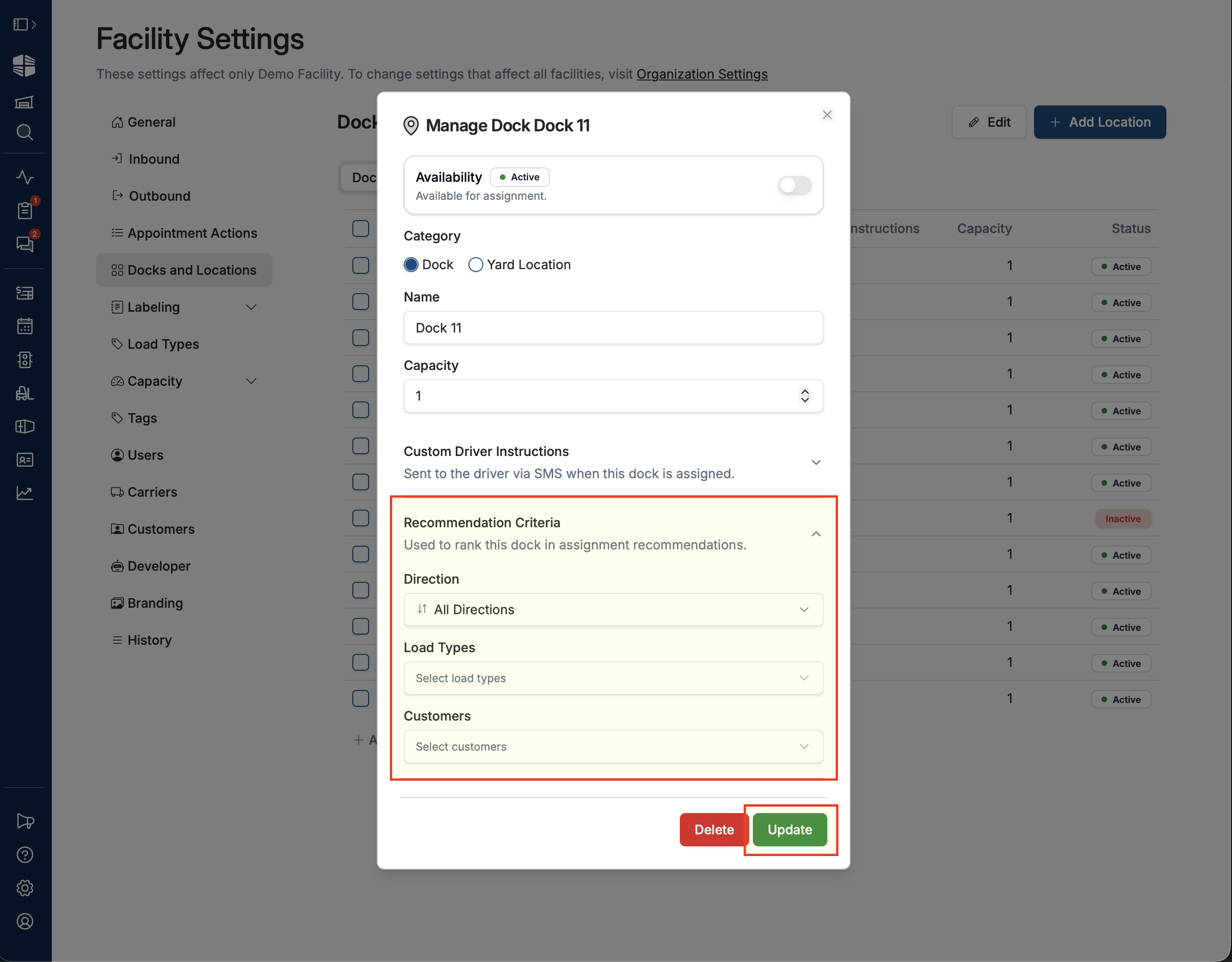
Open a dock and expand Check-in Assignment Criteria.
Set any of the following:
Direction: Whether the door handles Inbound, Outbound, or All.
Load Types: The load types the door is equipped for.
Customers: Customers the door is dedicated to.
Save. Docks with criteria set show an ENABLED badge on the section.
NOTE that Customers works differently from the other two. Listing customers on a door makes it exclusive to them, and it will not be offered for anyone else's appointments. Direction and Load Types are preferences: a door that does not fit still appears in All docks with a red tag, ranked below the ones that do.
Disabling Smart Dock Recommendations
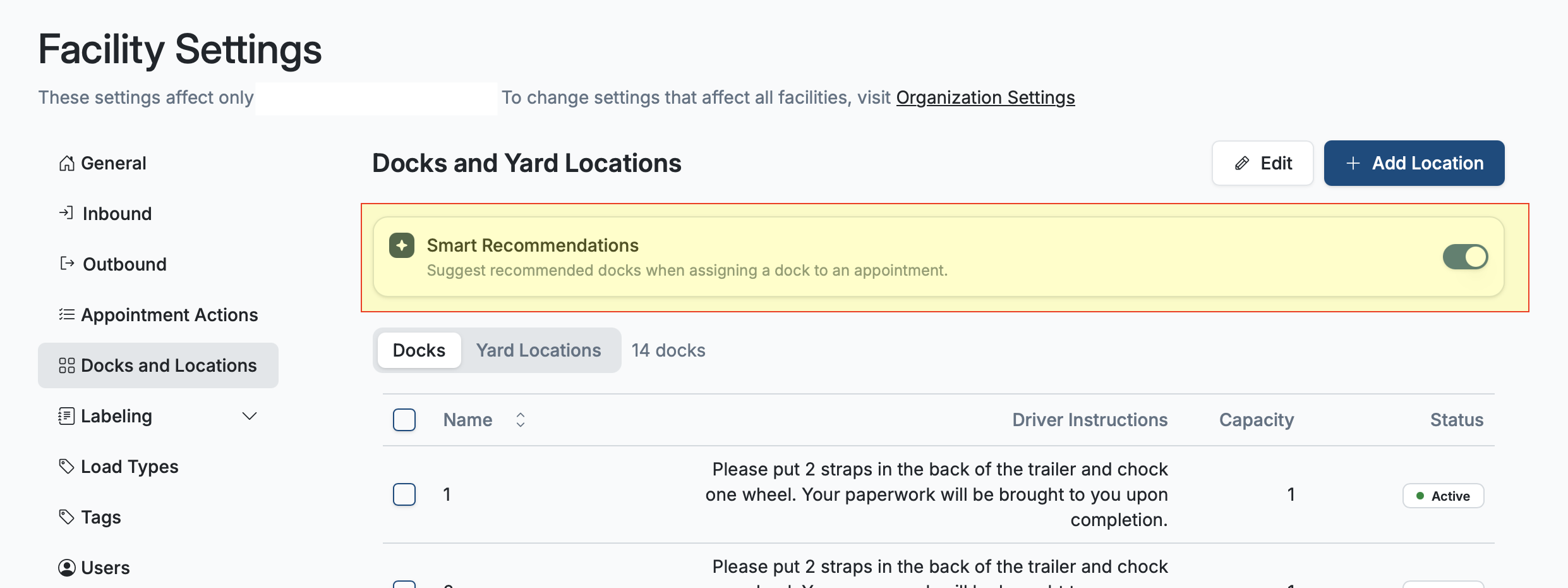
Smart dock recommendations are on by default, but to disable the feature you can navigate to your Dock and Locations settings. Once there click the toggle to disable or enable smart dock recommendations.
Frequently Asked Questions
Do I have to configure my docks to use this?
No. With nothing configured, Conduit ranks doors by availability during the appointment's window and by how your team has been assigning docks recently. Criteria make the ranking sharper but are not required.
Why was a dock recommended when it has no matching setup?
Because your facility has been using it for this kind of work. When a door has no explicit criteria, Conduit falls back to recent assignment history: the last 30 days, up to the 500 most recent assigned appointments. A door that has not been used in months will not be recommended on history alone.
Can I still choose a dock Conduit did not recommend?
Yes. Every door remains selectable, including occupied and out-of-service ones. The ranking is a recommendation, not a restriction.
Does assigning a dock this way notify the driver?
Yes. Assigning a door works exactly as it always has, including the driver SMS and any check-in instructions set on that dock.
How do I turn Smart Docks on?
Smart Docks is enabled via a toggle under your Docks and Locations settings.