Smart Document Suggestions
Last updated: October 7, 2026
BETA — This feature is still in active development. It's available to customers who want early access, and behavior may change as we refine it. Interested? Email [email protected].
When a document is attached to an appointment — by your team, or by the driver during scheduling or check-in — Conduit reads it in the background and pulls out the details it recognizes — the BOL number, the carrier, the shipper, the receiver. Where what it reads does not match what is already on the appointment, it flags the field and offers you the value it found.
Nothing changes on the appointment until you accept a suggestion. Conduit surfaces the difference and leaves the decision to you.
Instructions
Uploading a Document for Scanning
Open the appointment and go to Attachments.
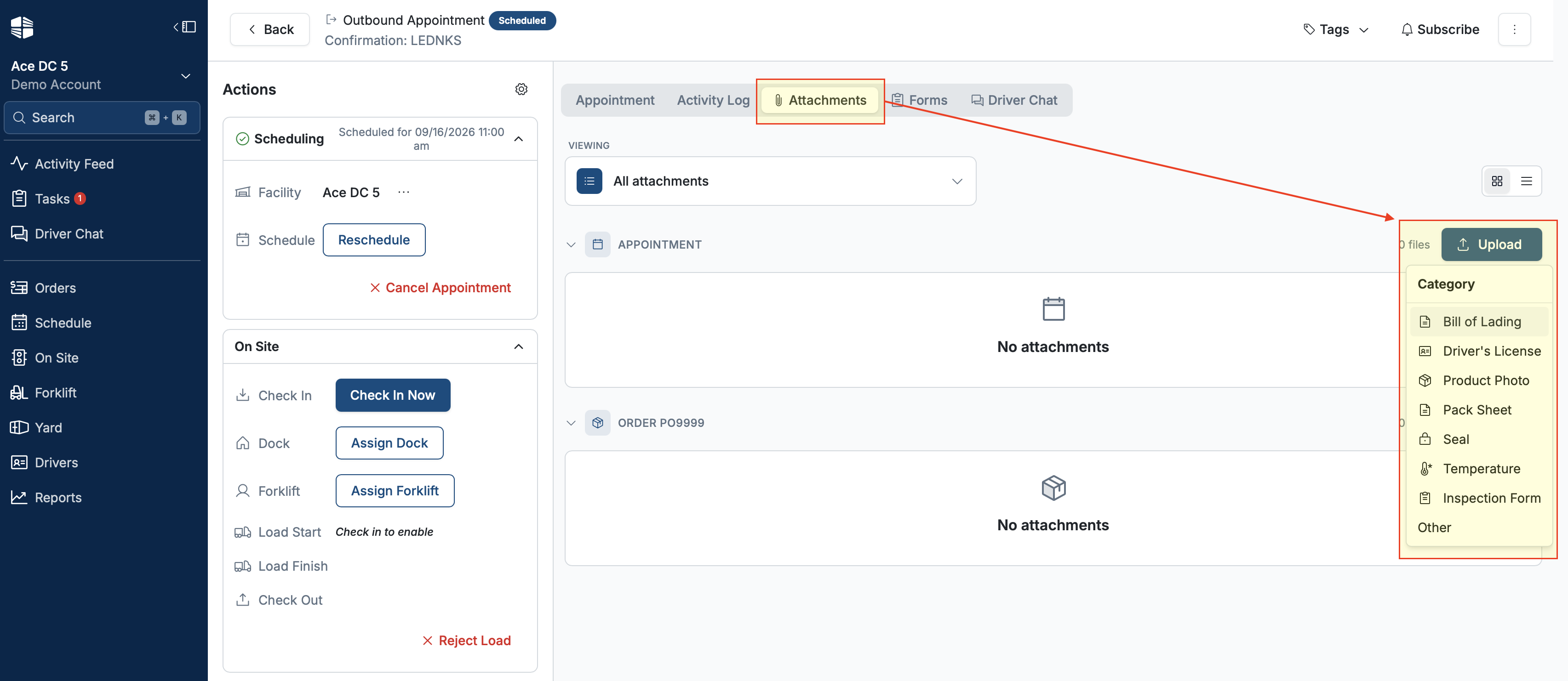
Upload the document.
A progress indicator shows while Conduit processes it.
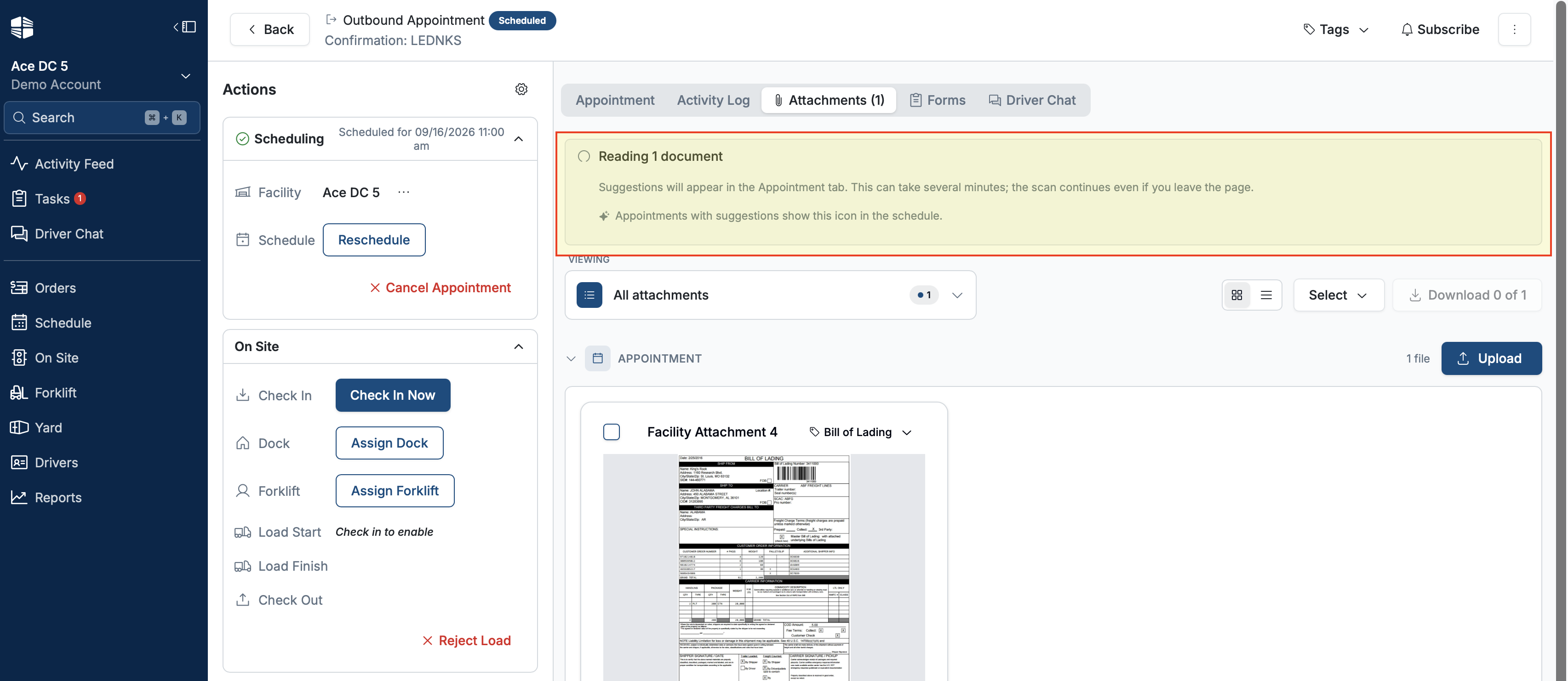
When the scan finishes, the attachment shows a successful scan and any fields Conduit read from it.
NOTE that processing happens in the background. You can leave the attachments view and keep working; the appointment updates when the scan completes.
Documents the Driver Uploads at Check-in
A BOL the driver uploads during check-in is scanned the same way as one your team uploads. Nothing extra is required from you.
This means suggestions can appear on an appointment without anyone at your facility having touched it. Check the appointment for a flag icon before you work the load — the driver's paperwork may disagree with what was booked.
What Conduit Reads From Each Document
Conduit reads every document attached to an appointment. What it does next depends on whether it recognizes the document type.
Where it recognizes the type, it pulls the fields that document normally carries and offers them as suggestions:
Document | Fields Conduit reads |
|---|---|
BOL | BOL number, shipper, consignee, carrier, ship-from and ship-to address, ship date |
ASN | ASN number, BOL number, carrier, ship-from and ship-to address, ship date, expected delivery date |
POD | Delivery receipt number, BOL number, carrier, consignee, delivery date, received-by name |
Packing slip | Packing slip number, shipper, consignee, ship-from and ship-to address, ship date |
Seal | Seal number |
Where Conduit does not recognize the document type, it still reads the document, but there are no structured fields to offer, so no suggestions appear.
Documents Conduit Does Not Pull Fields From
Two kinds of attachment are never read for field values:
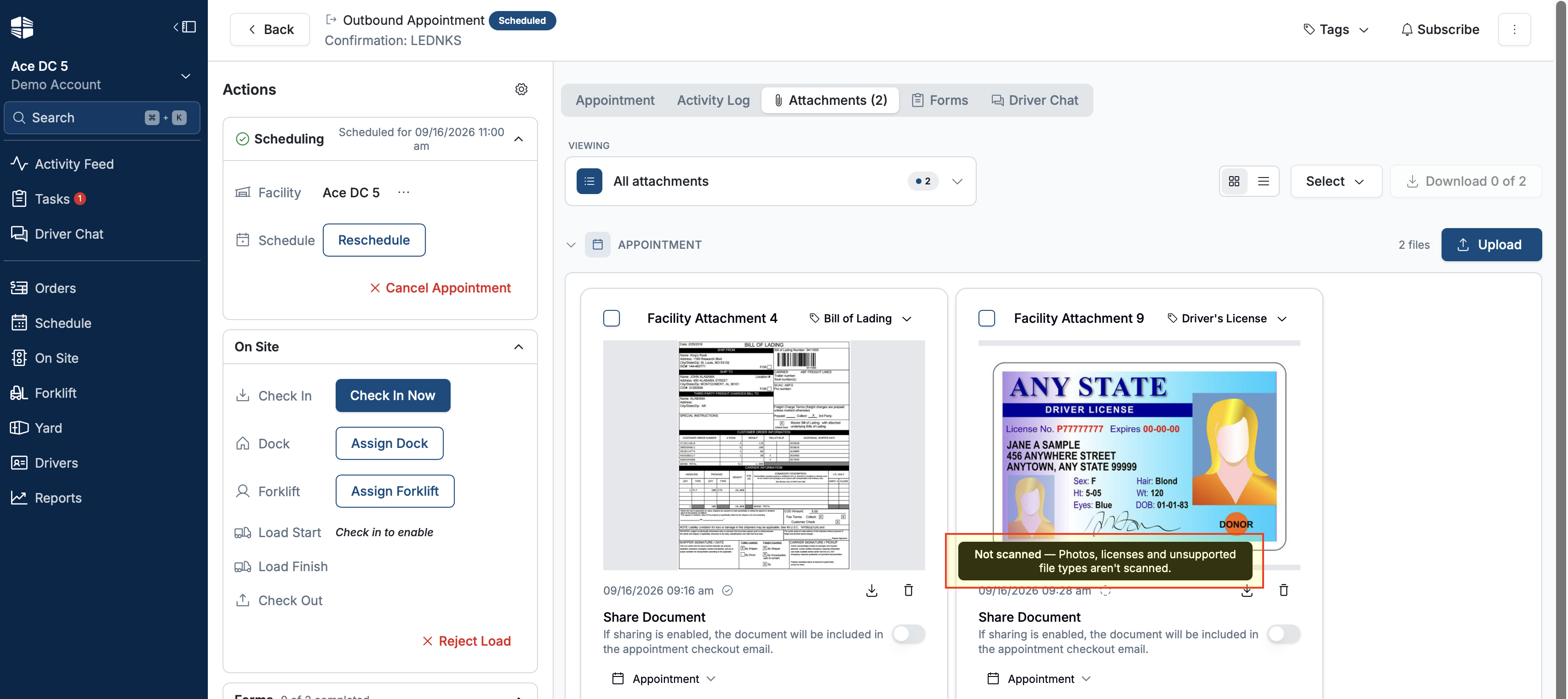
Driver licenses. Conduit does not extract anything from a license, by design — it is personal information about the driver, not appointment data.
Product photos. Not read for fields.
These show a Not scanned banner on the attachment. This is expected, not an error, and the file is stored and viewable as normal.
Spotting a Suggestion
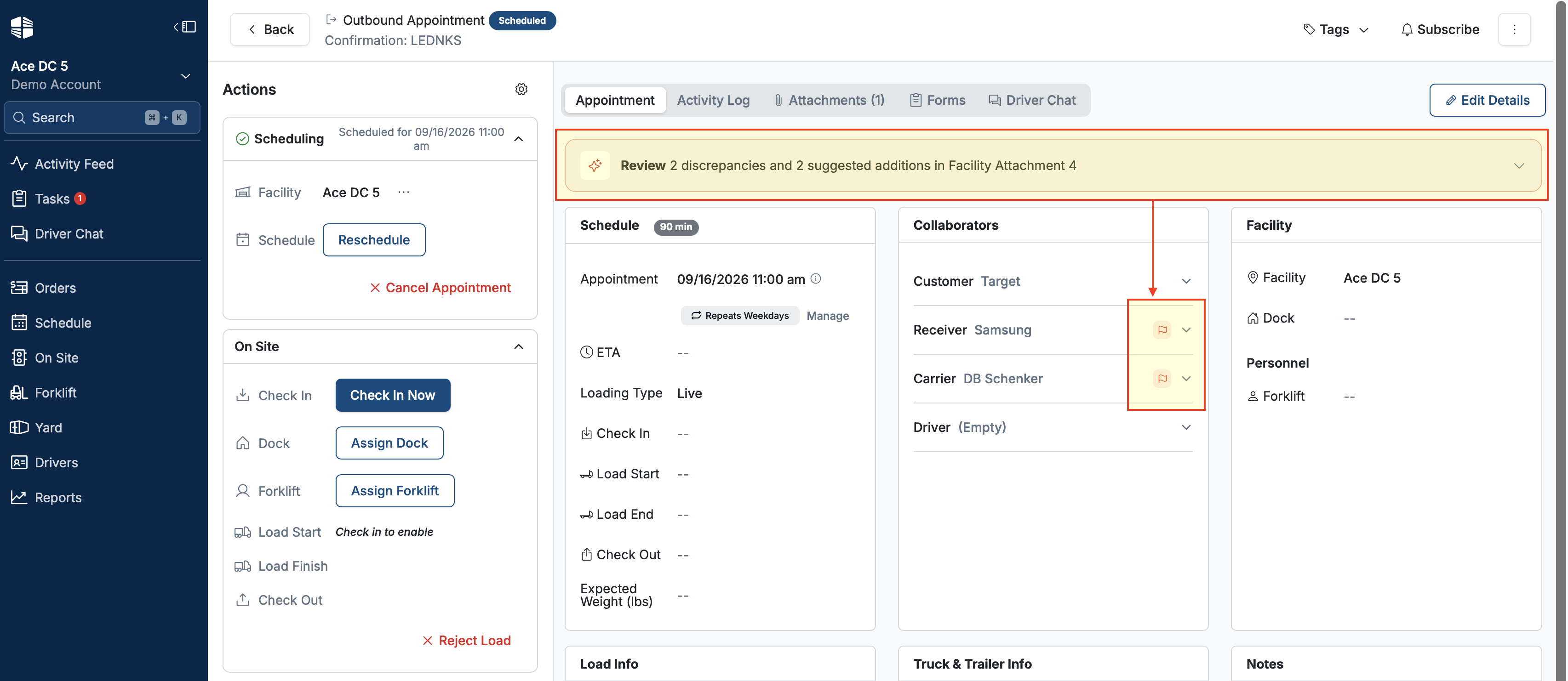
A field with a detected difference shows a flag icon next to it on the appointment. Click the icon to jump straight to the suggestion for that field.
On the Attachments page, an icon appears where a suggestion is still pending.
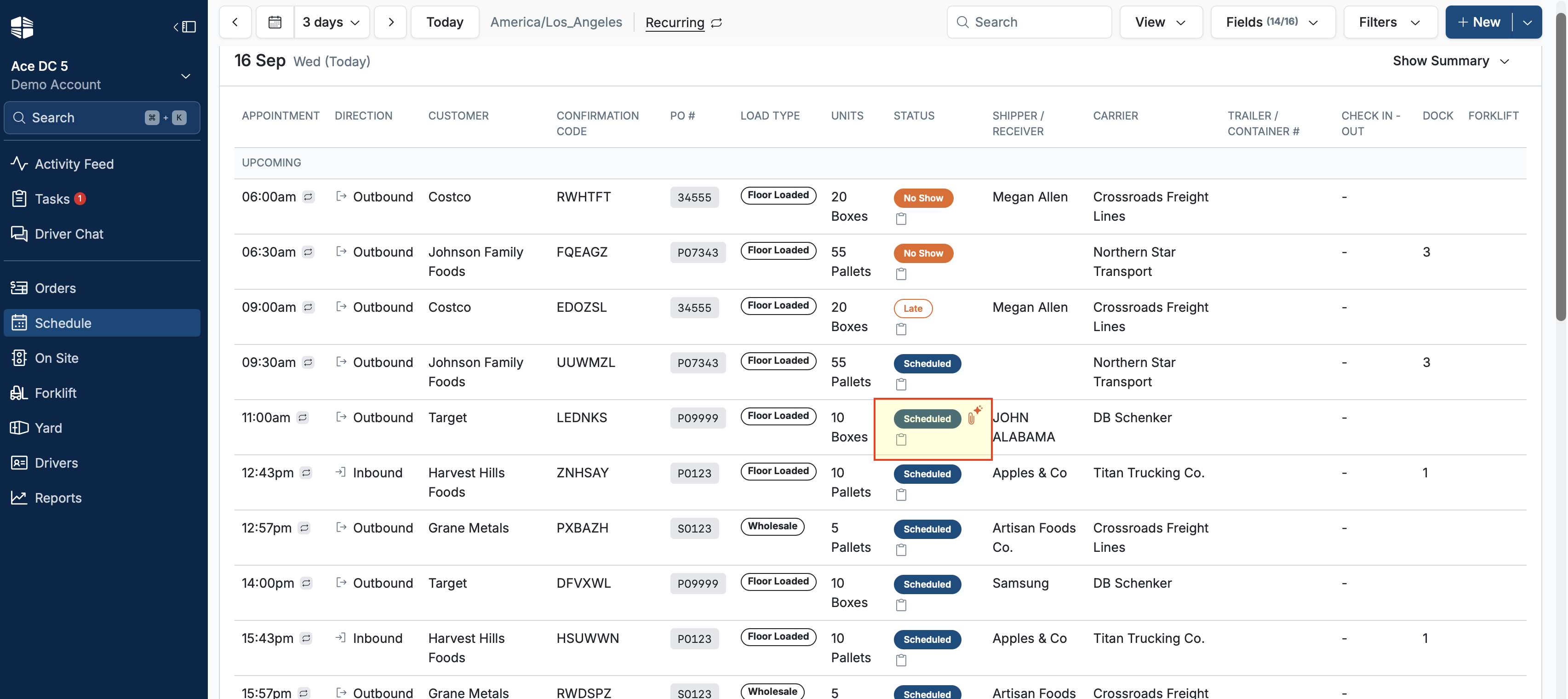
In the appointments list, an appointment with conflicting documents shows a red icon. Hover it to see what the conflict is — for example, two conflicting documents.
Reviewing Suggestions
You can review the same set of suggestions two ways:
By attachment: every difference Conduit found in one document.
By field: every value any document offered for one field, side by side.
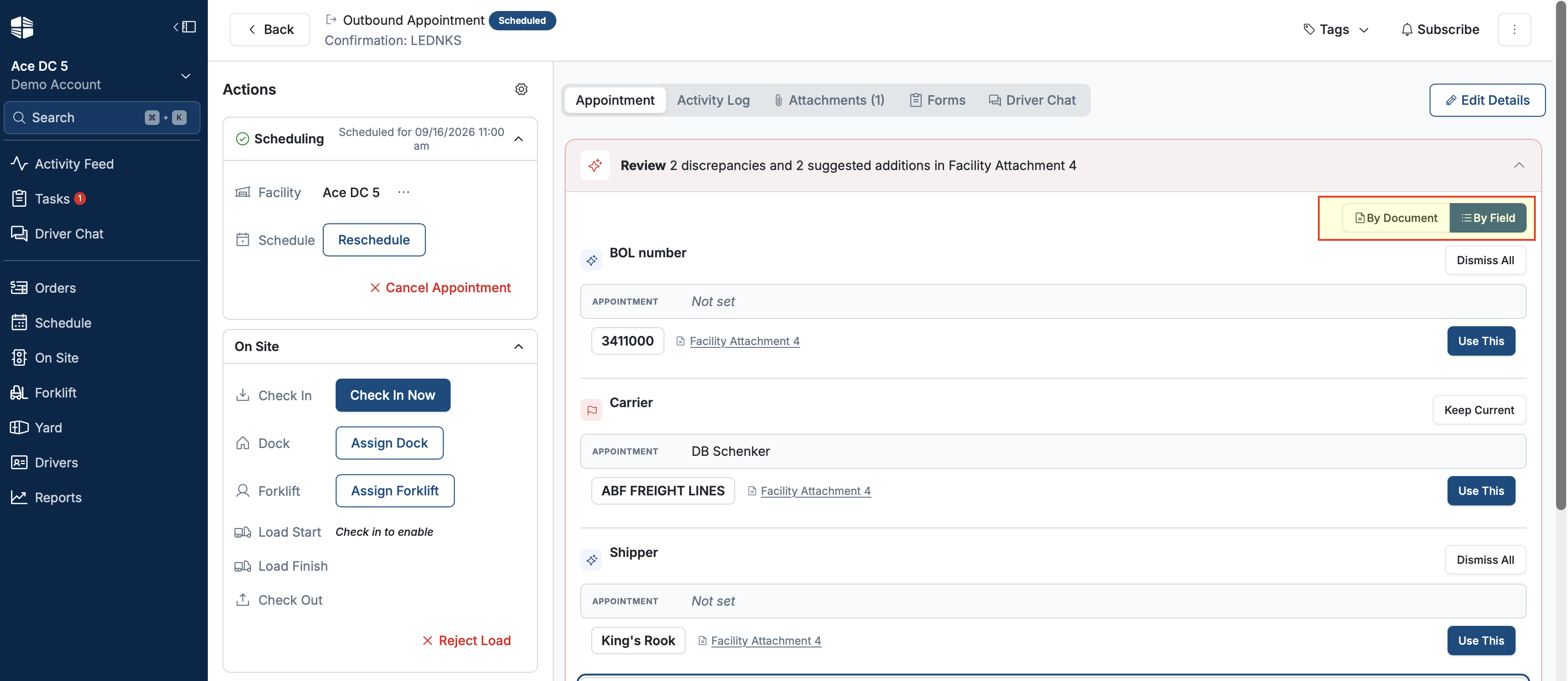
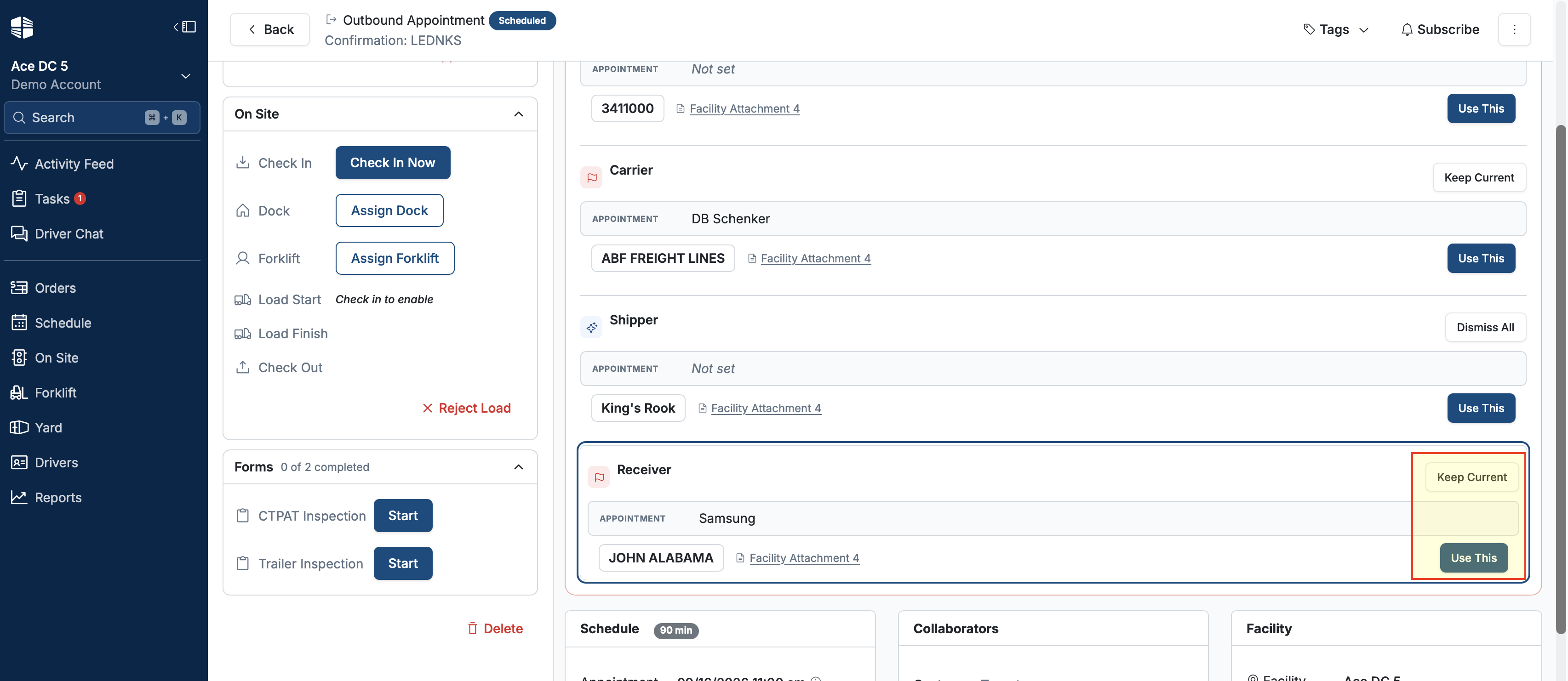
Reviewing by field is the faster way through when you have uploaded more than one document and they disagree with each other. A field can show the current value as not set, with two attachments each offering a different number.
Accepting or Dismissing a Suggestion
Open the suggestion, either from the flag icon on the field or from the review view.
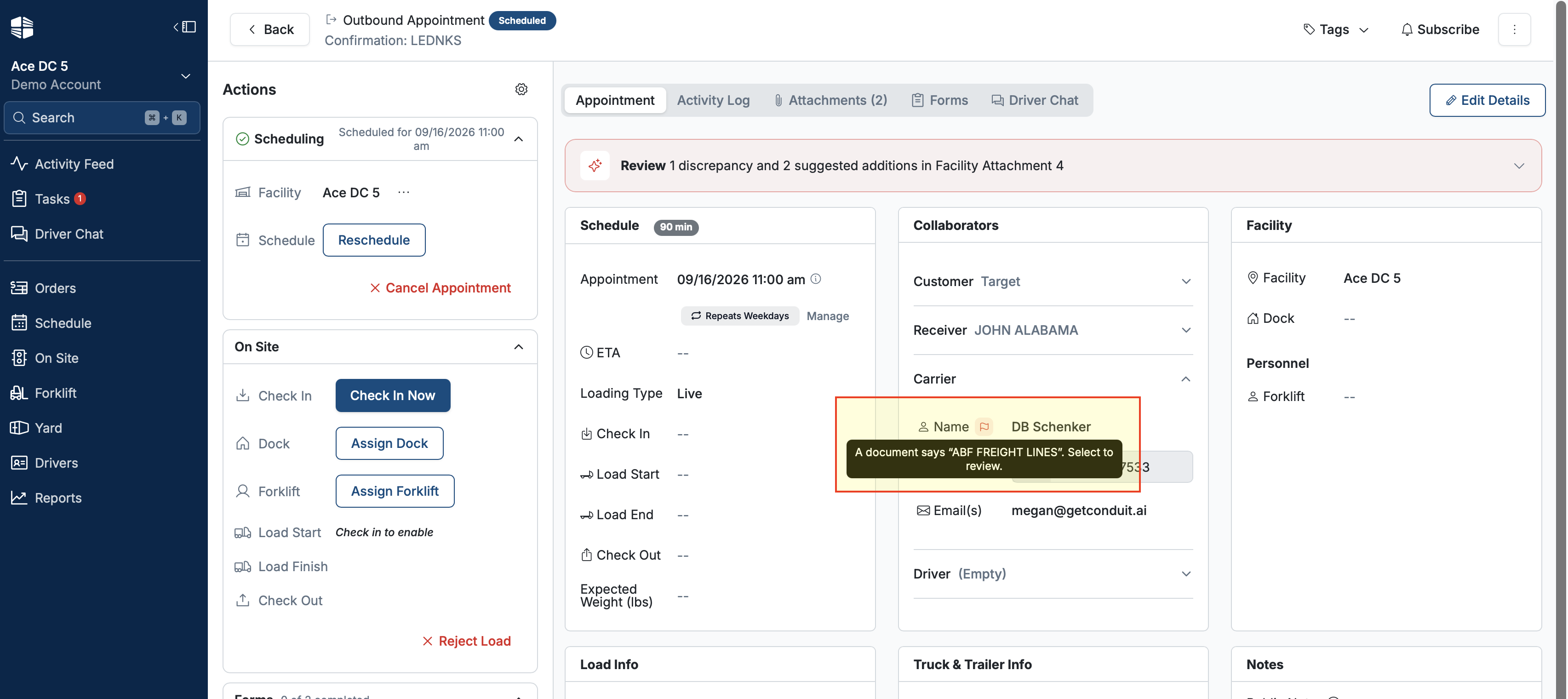
Compare the current value against what each document says.
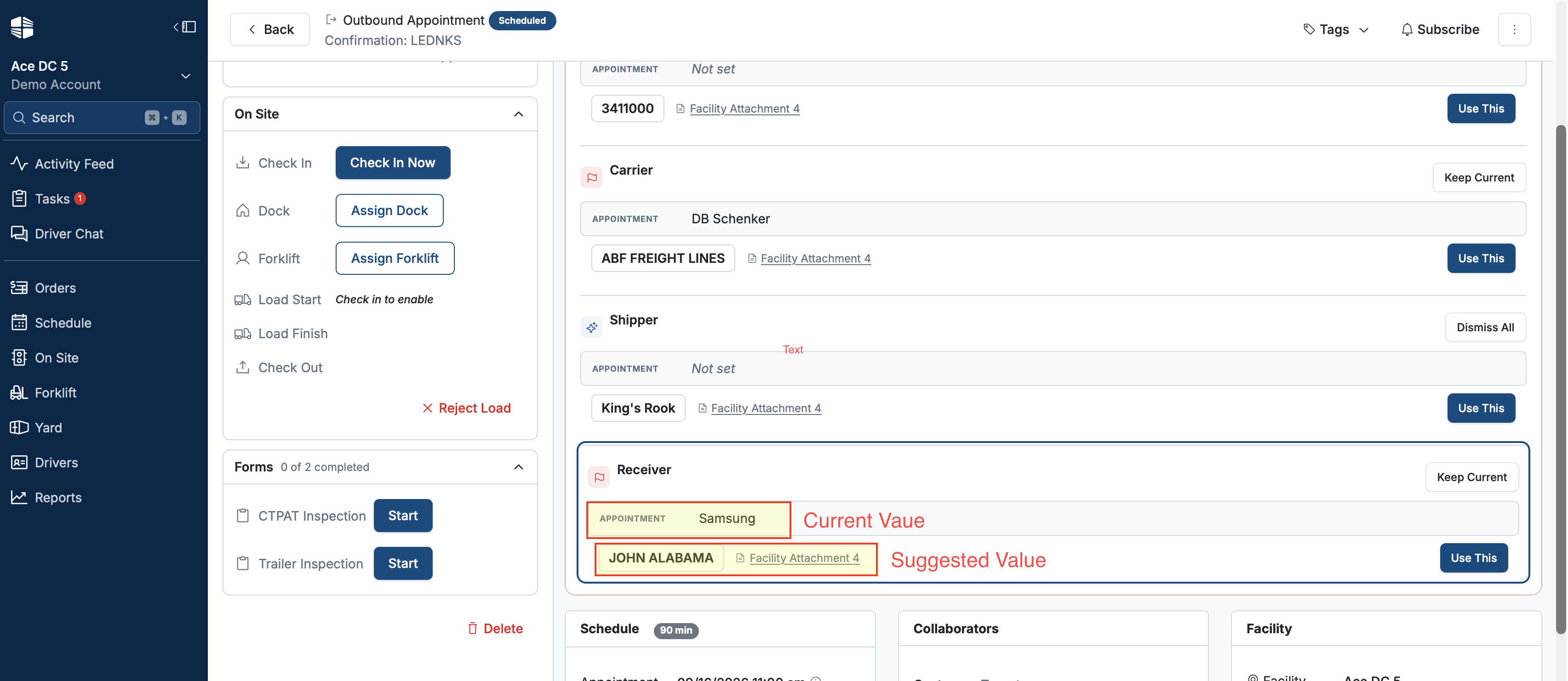
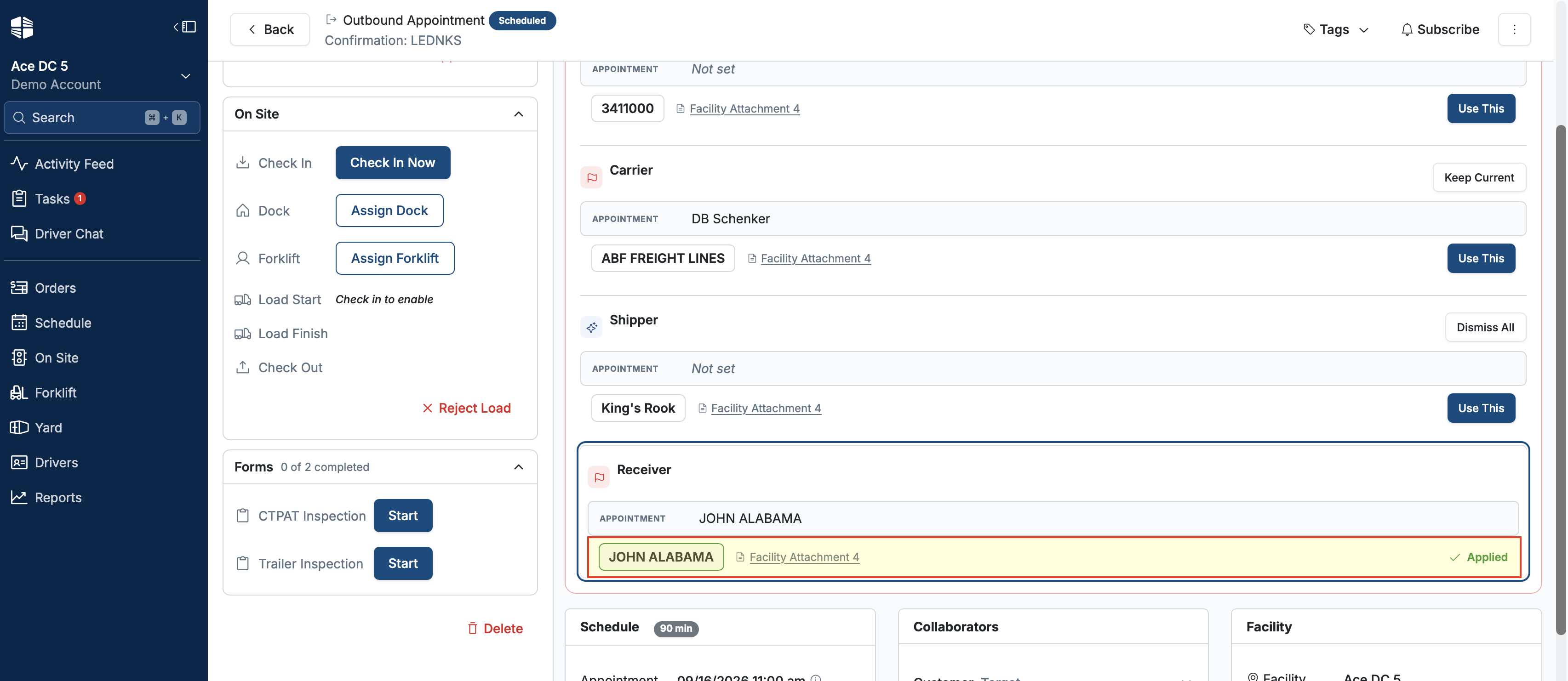
Accept the value you want, or keep what is already on the appointment.
Move to the next suggestion.
Accepting writes the value to the field immediately and the flag icon disappears.
NOTE that keeping the existing value is a real choice, not a deferral. The paperwork is not automatically more correct than what your team entered.
Checking What Was Decided
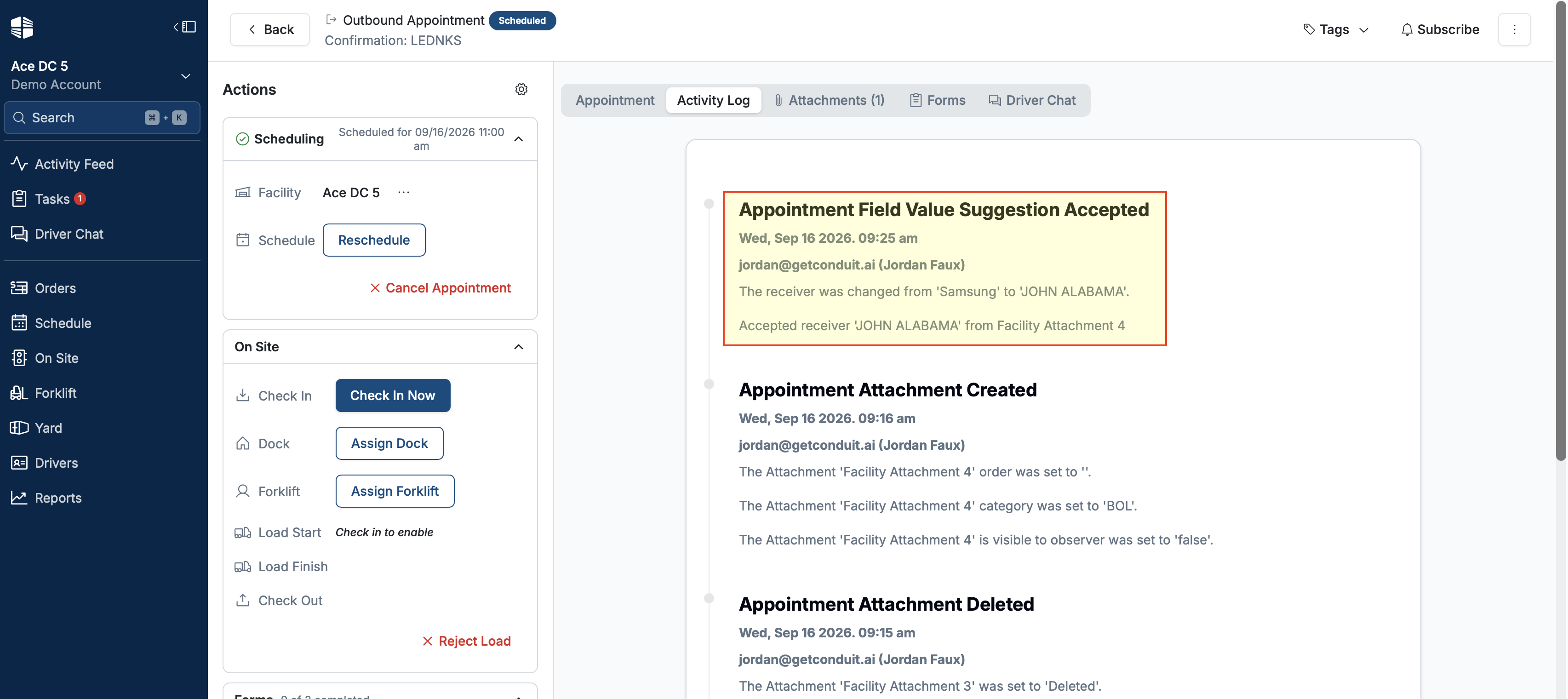
Once every suggestion on an appointment has been accepted or dismissed, a log records what was accepted and what was dismissed. Use it when someone asks why a field on an appointment says what it says.
Frequently Asked Questions
Does accepting a suggestion change anything for the carrier or driver?
No. It updates the field on the appointment. Anything downstream of that field behaves as it would if someone had typed the value in.
I uploaded a driver license and nothing happened. Is it broken?
No. Driver licenses and product photos are not scanned. You will see a Not scanned banner on the attachment. The file is still attached and stored normally.
Two documents disagree with each other. Which one does Conduit pick?
Neither. Conduit shows you both values and waits. Switch to the by-field view to see them next to each other and pick the one you want.
What does the red icon on the appointments list mean?
That the appointment has conflicting documents waiting on someone to resolve them. Hover it for the detail.
Nothing on the field changed after I accepted. What happened?
Check whether the scan had finished. Processing runs in the background, and an appointment can look settled while a second document is still being read.
Can I undo an accepted suggestion?
No. The log shows what was accepted and dismissed.