Conduit Agent
Last updated: October 9, 2026
BETA — This feature is still in active development. It's available to customers who want early access, and behavior may change as we refine it. Interested? Email [email protected].
Conduit Agent is an AI assistant built into the Conduit facility app. Ask it a question in plain language and it answers from your facility's live data, such as appointment volume, carrier performance, turn times, and trends across one site or many. It can also walk you through Conduit, point you to the right help article, and, where your organization allows it, change settings for you after you approve the change.
The Agent follows the same permissions as the rest of Conduit. It only sees the facilities you already have access to, and it cannot change anything you could not change yourself.
Permissions: Who Can Use the Agent and What It Can See
Who Can Use It
Every member of your organization can use the Agent, as long as it is turned on for the organization (see Turning the Agent On or Off below). No separate role or license is needed.
What Data It Can See
The Agent sees exactly what you can see in Conduit, and nothing more:
Only your facilities: The Agent can only read data from facilities you have access to. If you are a Viewer, Editor, or Admin at a facility, the Agent can answer questions about it. If you have no access to a facility, the Agent cannot see it, even if you ask about it by name.
Only the facilities you selected: Each message only covers the facilities selected in the facility selector when you send it (see Choosing Which Facilities to Ask About).
Only your organization: The Agent never sees data from other Conduit customers.
Access changes apply right away: If your access to a facility is removed, the Agent stops reading that facility's data immediately, including in conversations already in progress.
What It Can Change
By default, the Agent can only read data. Three checks must all pass before it can make a change:
Your organization allows changes. An organization admin has turned on Modify settings.
The facility has not opted out. Facility admins can block changes at their facility.
You are an Admin at that facility. Viewers and Editors can ask the Agent questions but cannot use it to make changes.
Even when all three pass, the Agent shows you a preview of the change and waits for you to confirm before anything is saved.
Who Can See Your Conversations
Your conversations and your Agent profile are private to you. Other users in your organization, including admins, cannot see them in Conduit.
Turning the Agent On or Off
The Agent is controlled at two levels: the organization and each facility. A facility can only turn on what its organization allows.
Organization Level
Only organization admins can change these settings.
Go to Organization Settings, then Conduit Agent.
Turn Enable the Conduit Agent off to turn the Agent off for everyone in the organization, at every facility. Turn it on to allow it again.
Turn Modify settings on to let the Agent change facility settings and holidays across the organization. It is off by default.
Save.
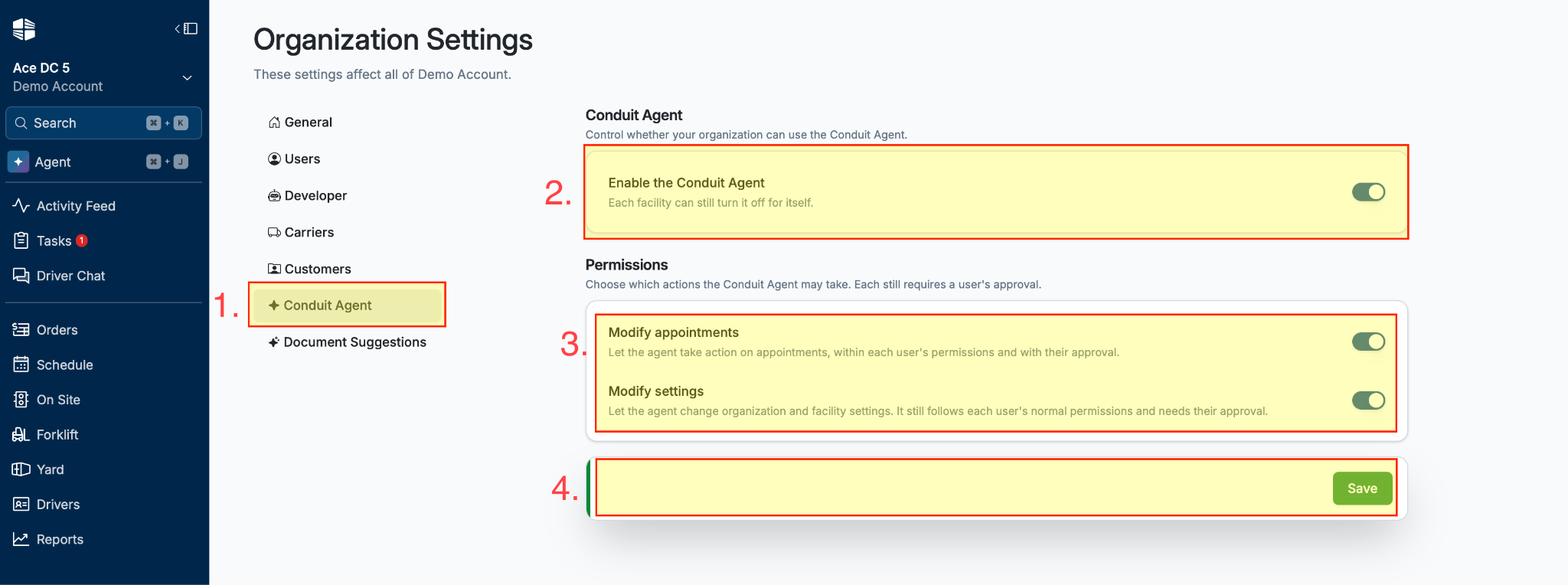
NOTE that turning the Agent off at the organization level stops it completely. No one in the organization can send it messages, from any facility.
Facility Level
Only facility admins can change these settings.
Go to Settings, then Conduit Agent, while working in the facility.
Turn Enable the Conduit Agent at this facility off to hide the Agent while users are working in this facility.
Turn Allow the Conduit Agent to modify data at this facility off to block the Agent from making any changes at this facility, even for admins.
Save.
If a switch shows Disabled, it is turned off for the whole organization, and an organization admin needs to turn it on first.
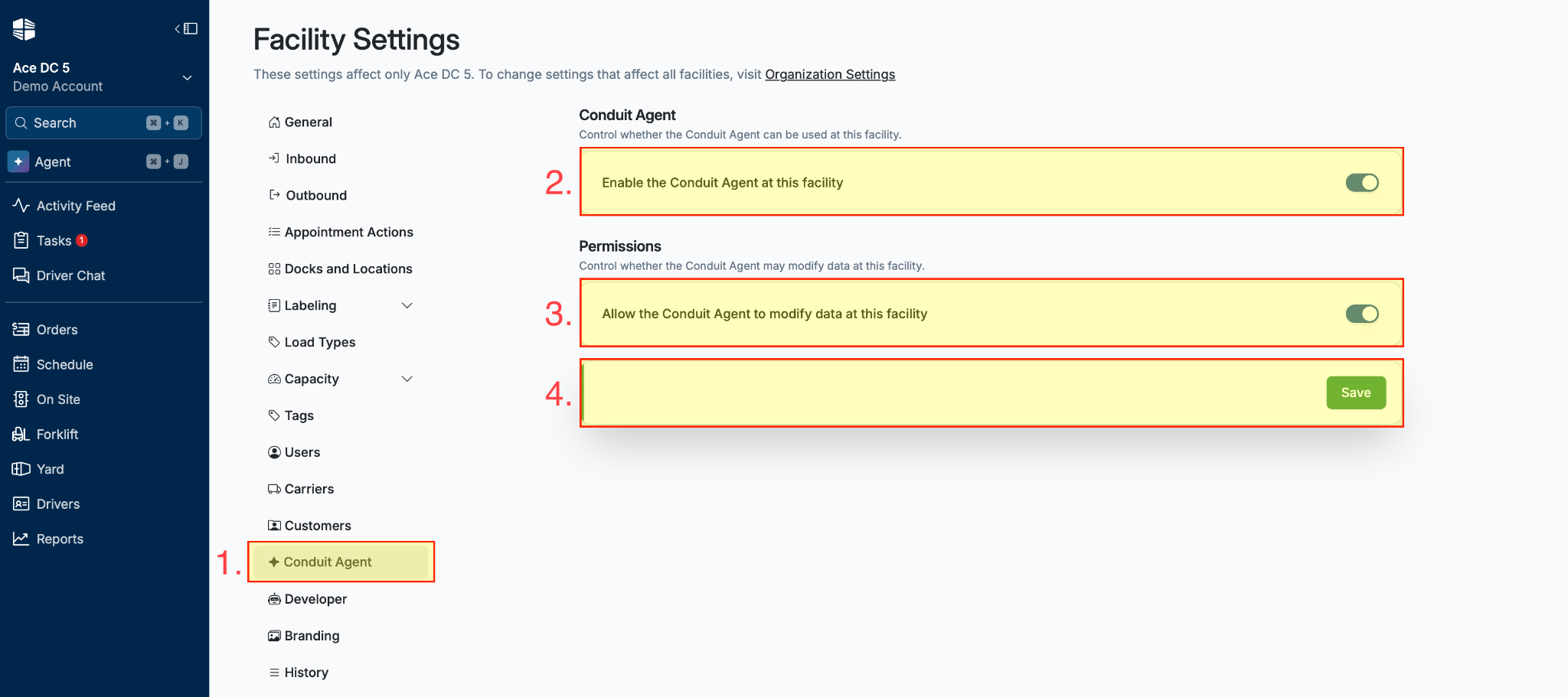
NOTE that turning the Agent off at a facility hides it while users are working in that facility. Users who have access to that facility can still include it in questions asked from another facility. To fully keep the Agent away from a facility's data, remove those users' access to the facility, or turn the Agent off at the organization level.
Using the Agent
Opening the Agent
Click Agent in the left sidebar, or press Cmd + J (Mac) or Ctrl + J (Windows). On mobile, tap the Agent icon in the top bar.
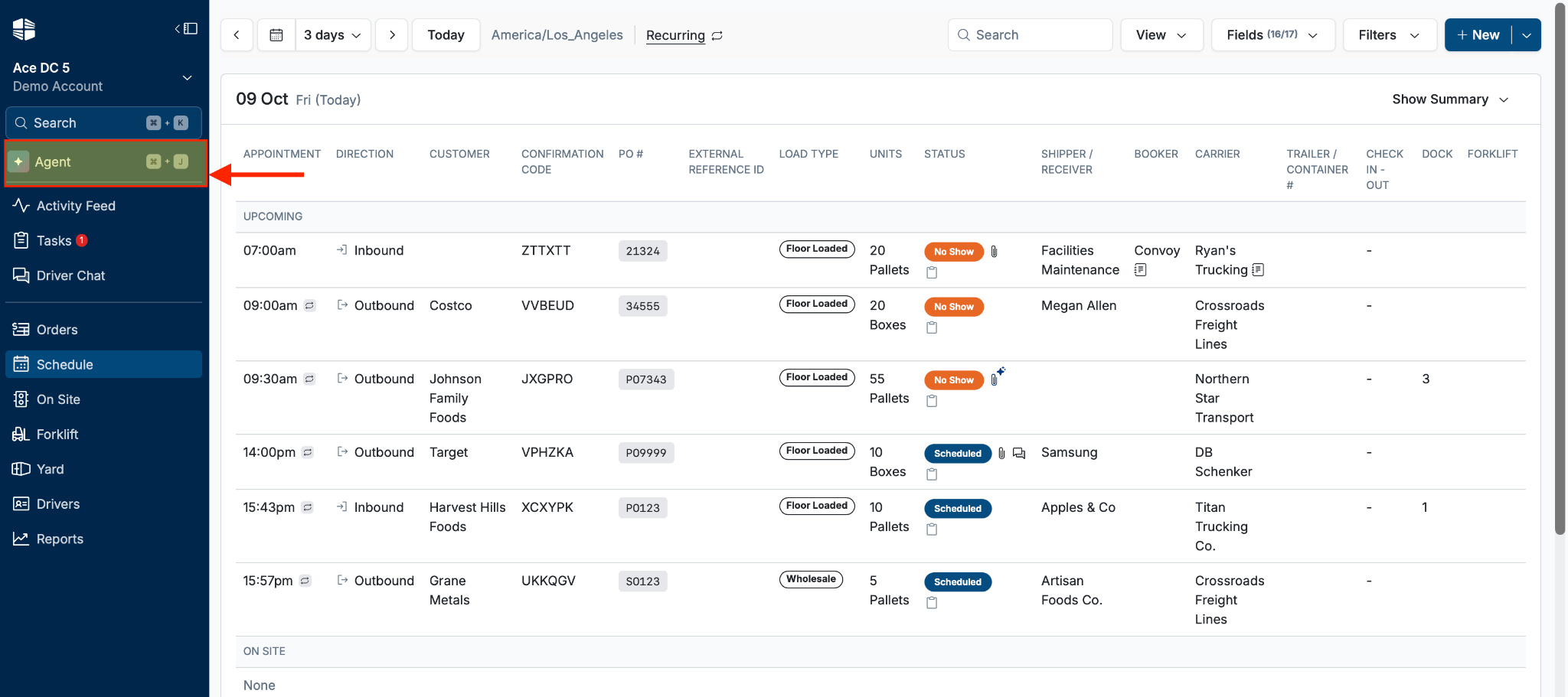
The Agent panel opens on the right side of the screen, so you can keep working on the page you are on.
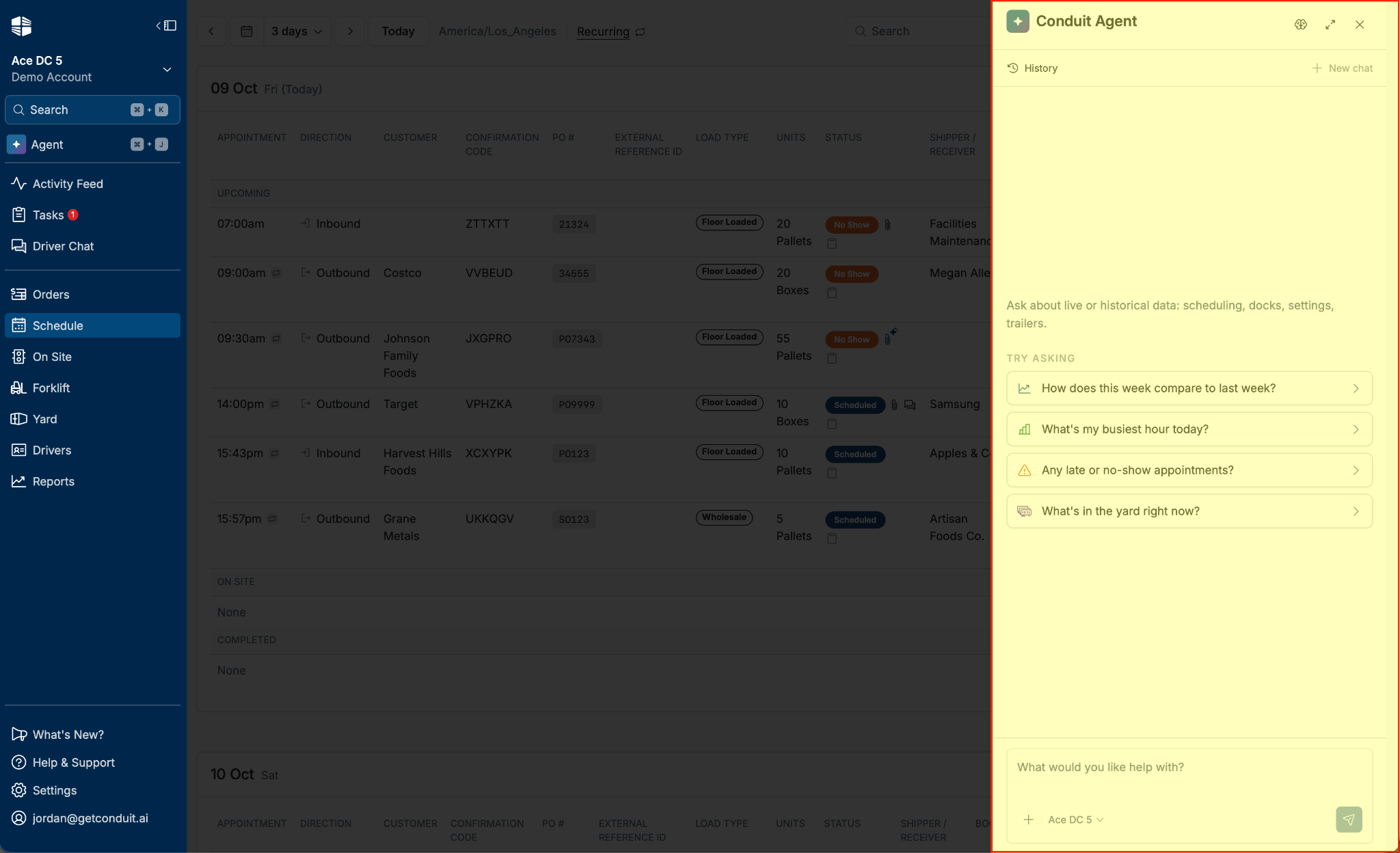
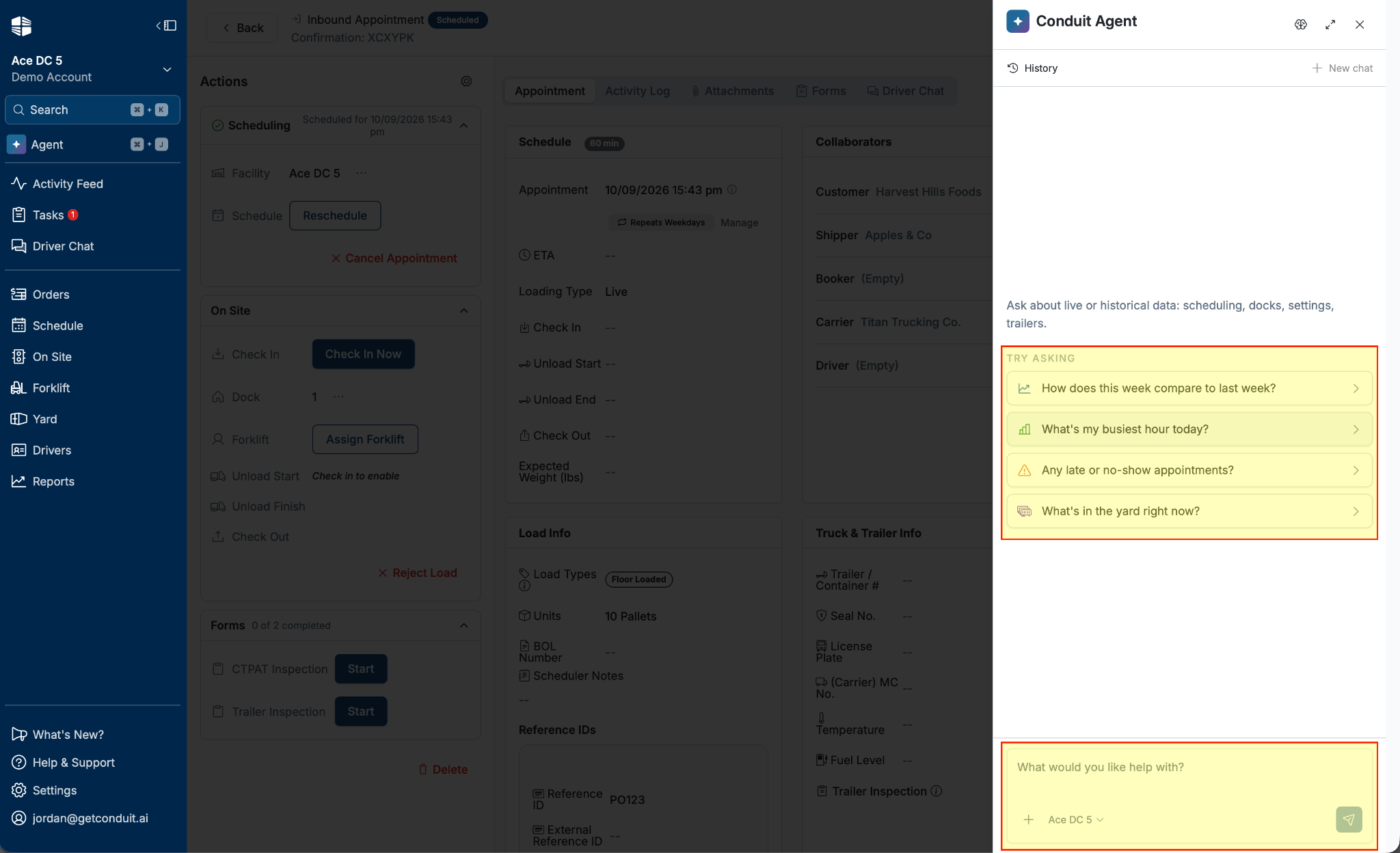
When you start a new chat, suggested prompts appear to help you get started, such as "How does this week compare to last week?" or "Any late or no-show appointments?" Click one to send it, or type your own question.
Asking a Question
Type your question into the message box at the bottom of the panel.
Press Enter or click the send button.
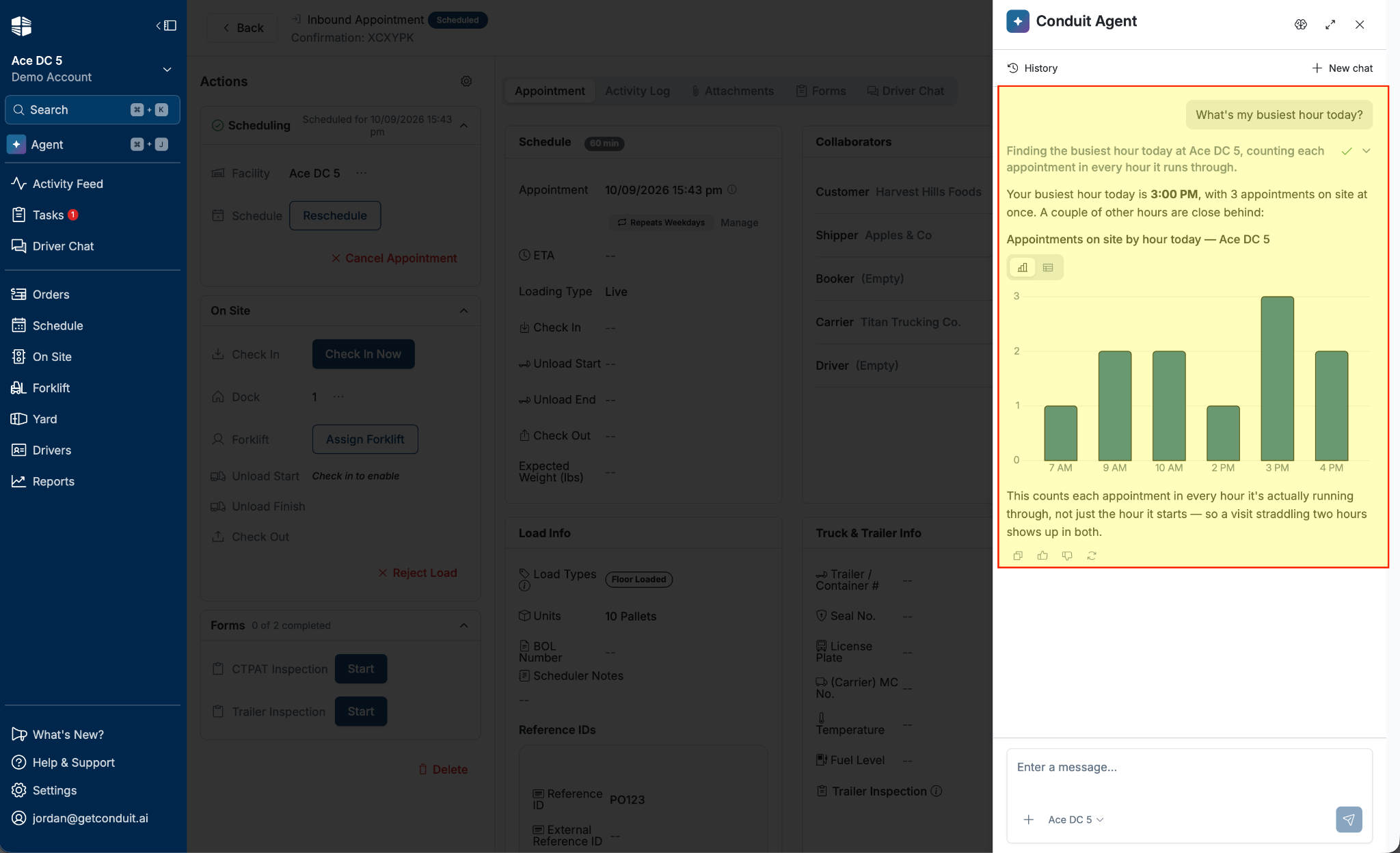
The Agent shows each step it takes while it works, then replies.
Replies can include more than text:
Charts and tables: Questions about volume, trends, or comparisons come back with a bar, line, or donut chart, or a table.
Appointments: When the Agent mentions specific appointments, they appear as cards. Click one to open the appointment.
Reports: Questions that cover a long time range or a large number of appointments come back as a report you can open from the reply.
Help articles: How-to questions include links to the matching help center articles.
Follow-up questions: If your question is unclear, the Agent asks you to pick from a few options before it answers.
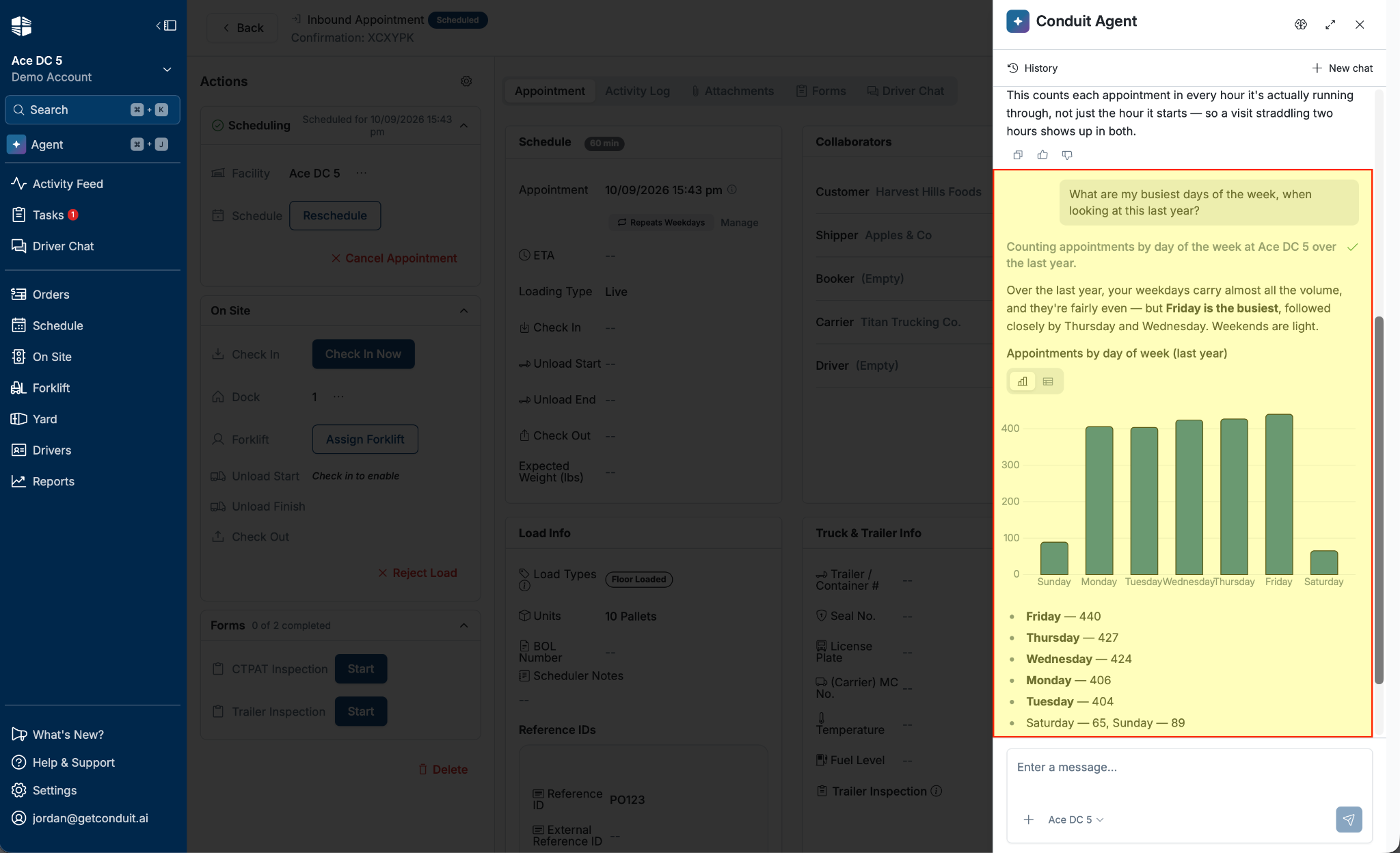
NOTE that the Agent works from the data in Conduit. If appointments are missing information, such as a carrier or a check-out time, answers that rely on it will be incomplete, and the Agent will tell you what it could not account for.
Choosing Which Facilities to Ask About
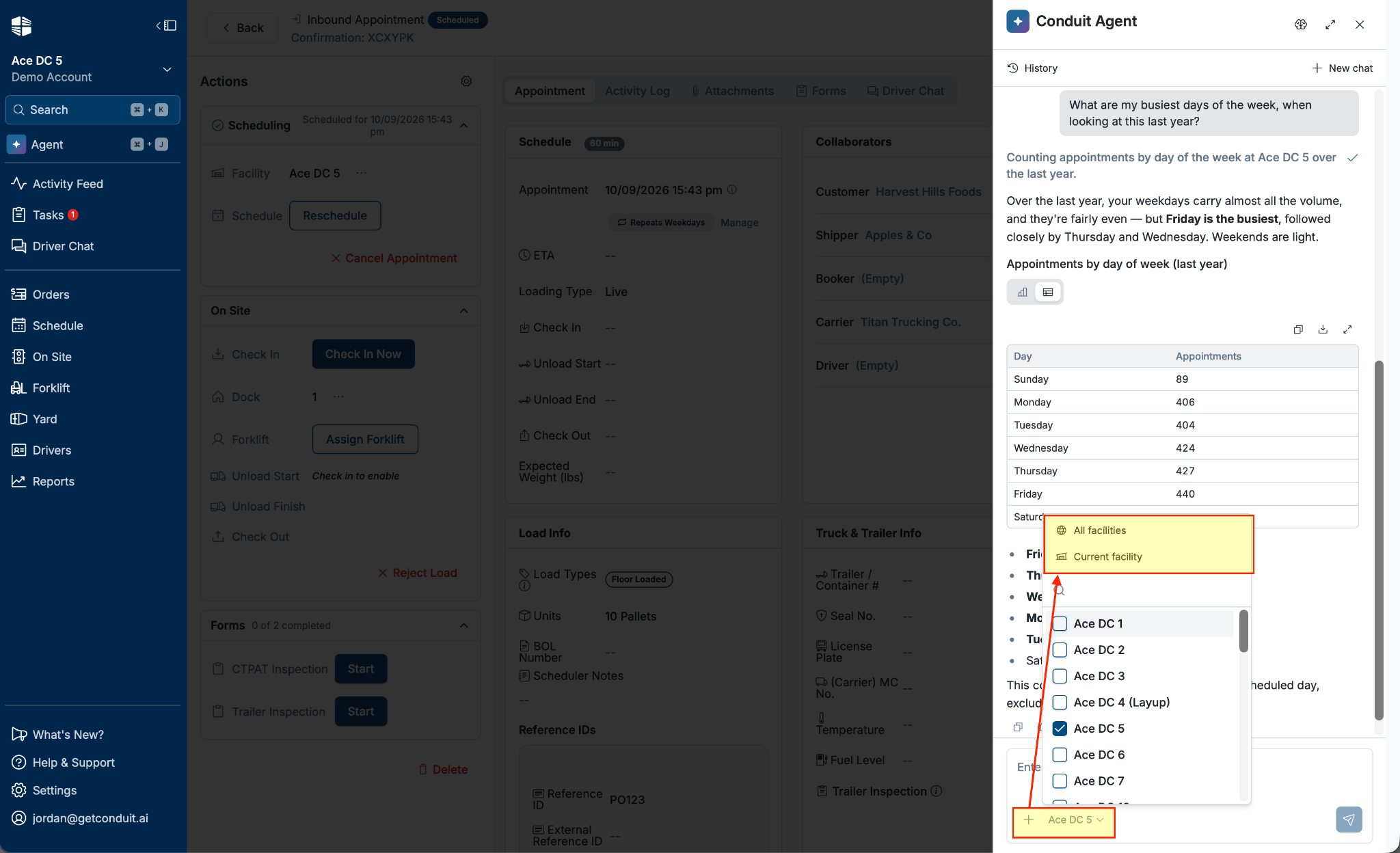
The facility selector next to the message box sets which facilities the Agent looks at for your next message.
When you are working in a facility, that facility is selected by default. Outside a facility, every facility you have access to is selected.
Click the facility selector to add or remove facilities, for example to compare two sites.
The selection applies to each message when you send it, so earlier answers in the chat keep the facilities they were asked about.
Attaching Files
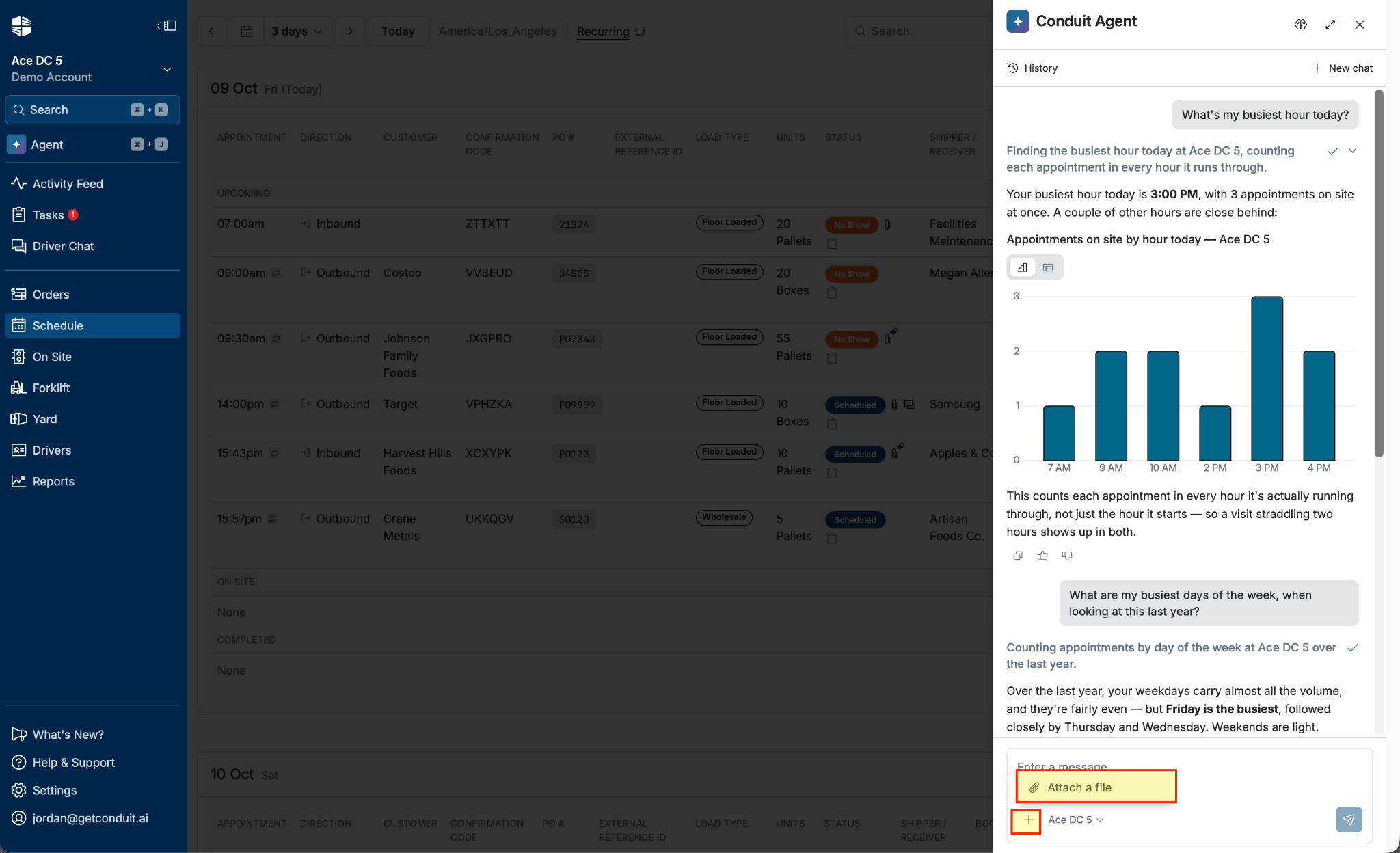
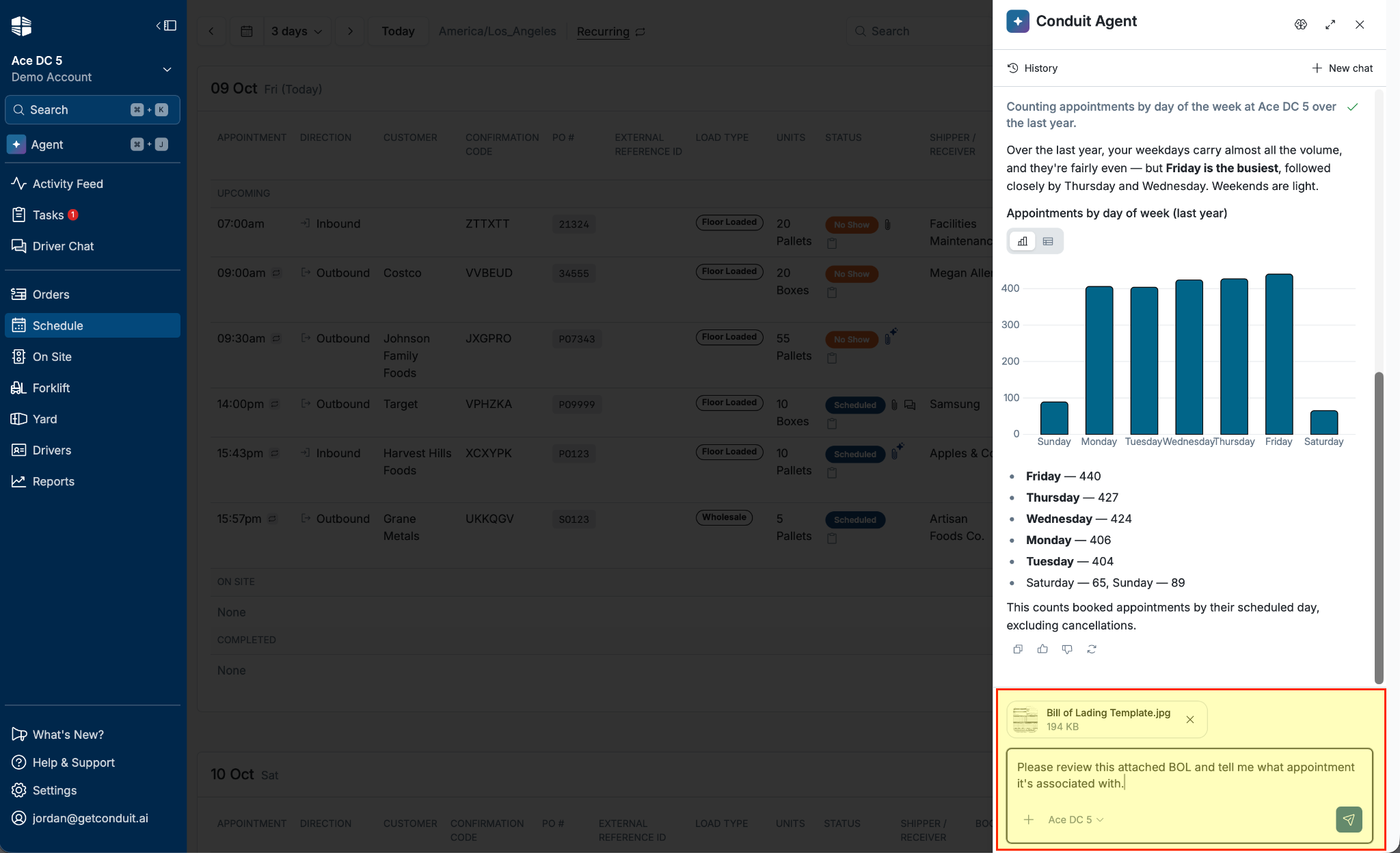
You can attach a file for the Agent to read, such as a carrier scorecard or a photo of a paper BOL.
Click the attachment button in the message box, or drag a file onto the panel.
Wait for the file to finish uploading, then send your message.
Supported file types are images (JPG, PNG, GIF, WebP), PDFs, and CSV or Excel files. Files that are still uploading when you send are left off the message.
Making Changes With the Agent
If changes are turned on (see What It Can Change), the Agent can:
Change facility settings: Settings such as appointment durations, costs, and on/off options.
Set holidays: Close a facility on a date every year, or reopen it.
To make a change:
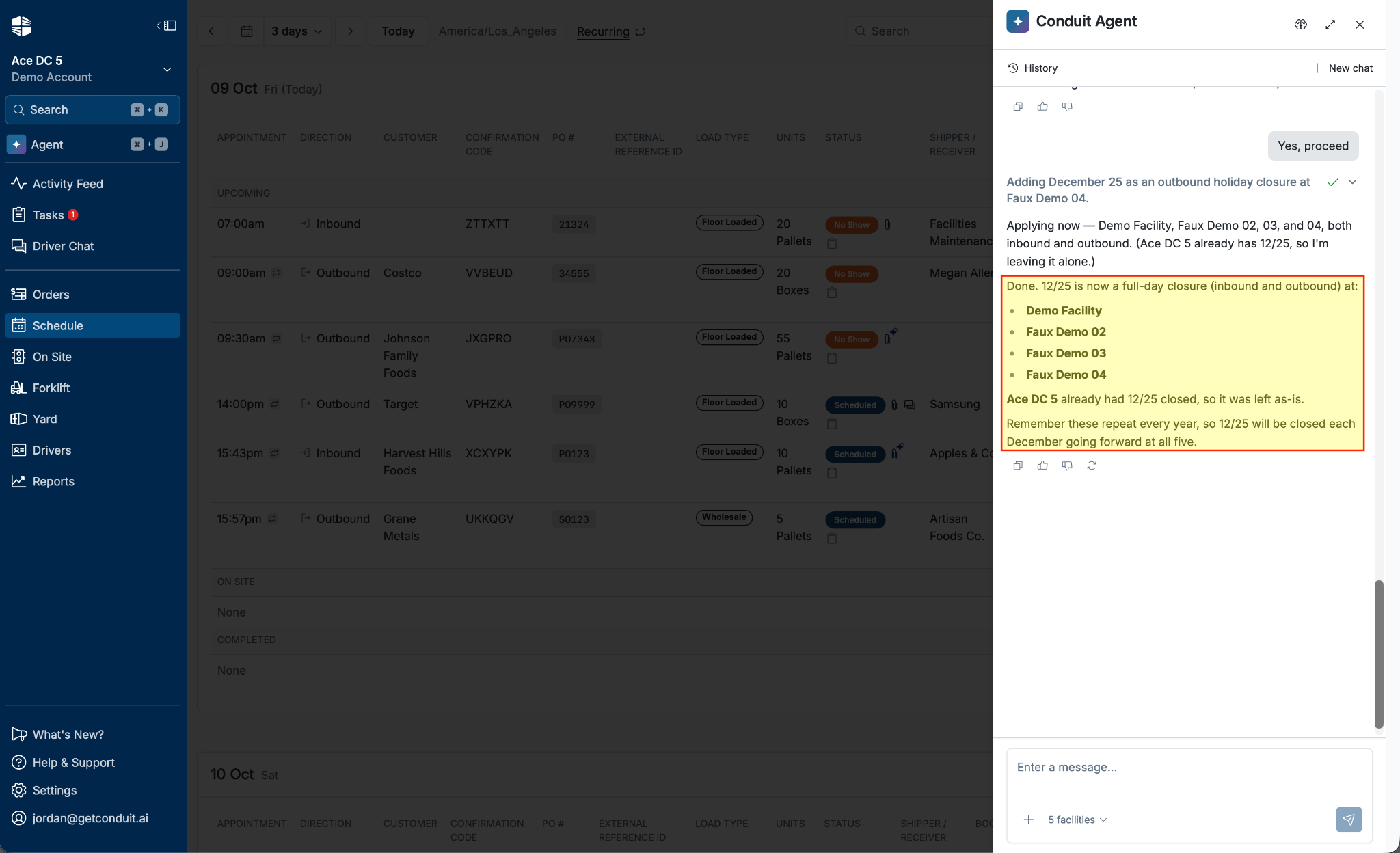
Ask for the change in plain language, such as "Close the facility on December 25th every year."
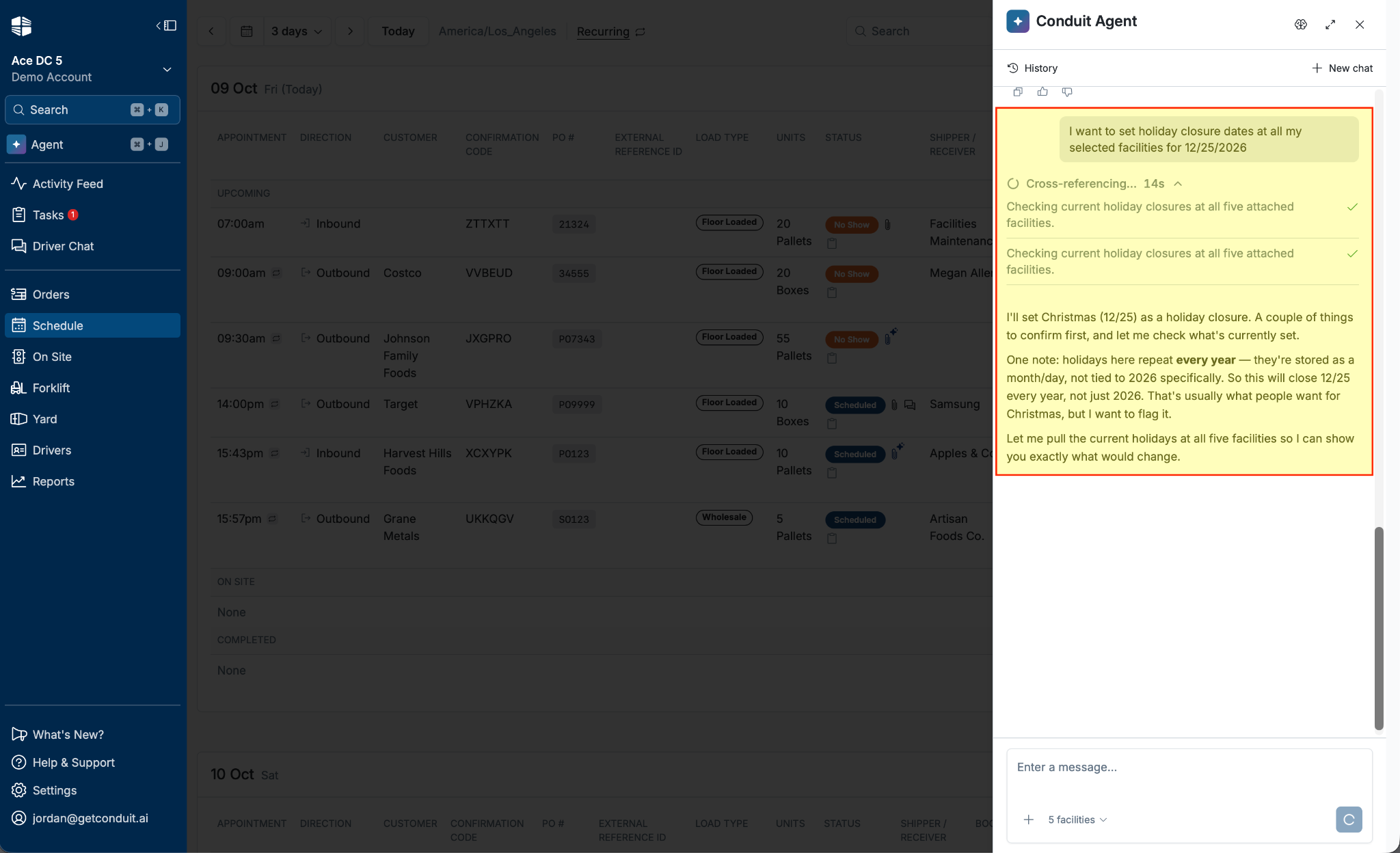
The Agent replies with a preview of exactly what will change, such as the current and new value of each setting.
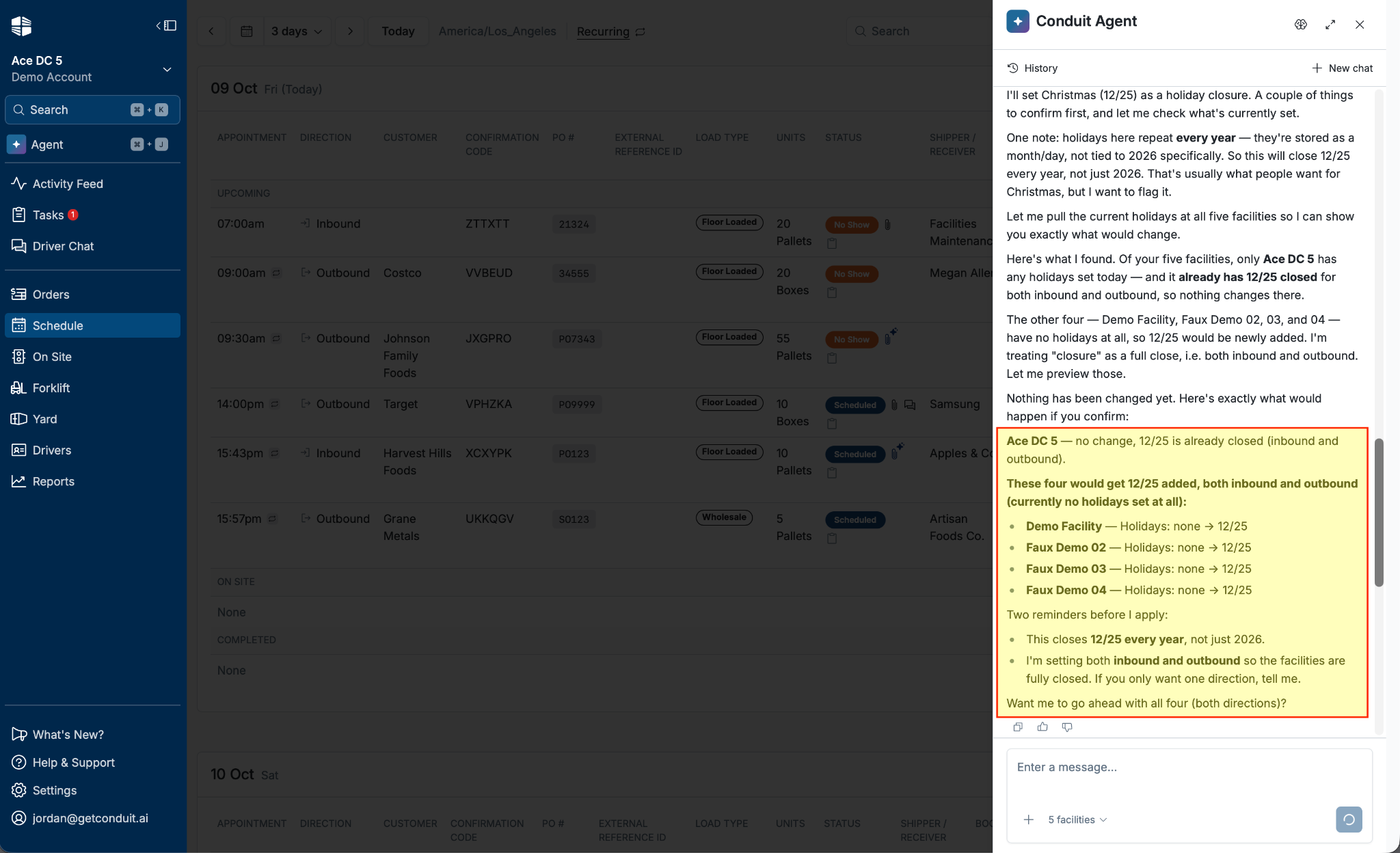
NOTE that nothing changes until you confirm.
Reply yes to apply the change, or tell the Agent what to adjust.
Getting Help From Support
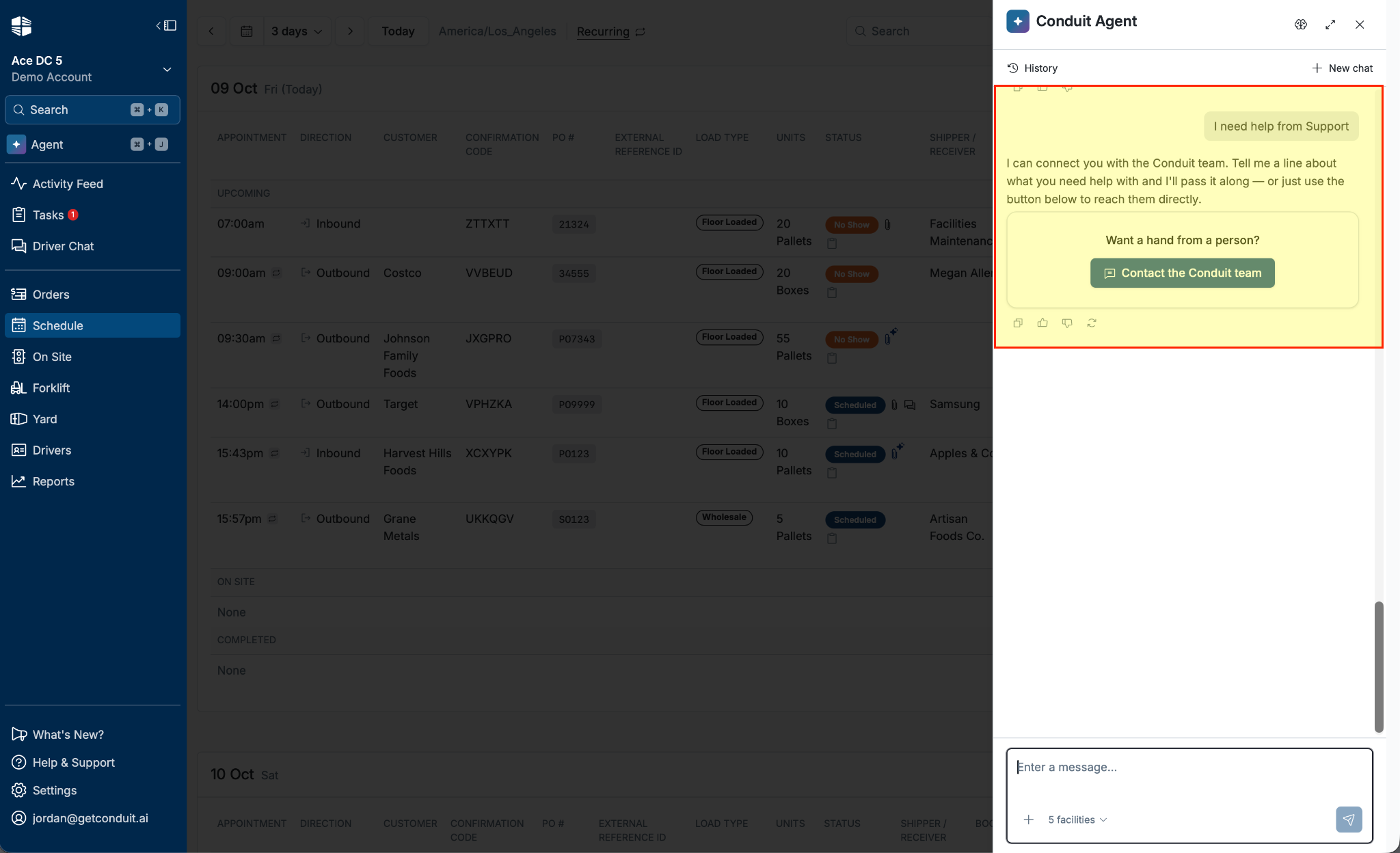
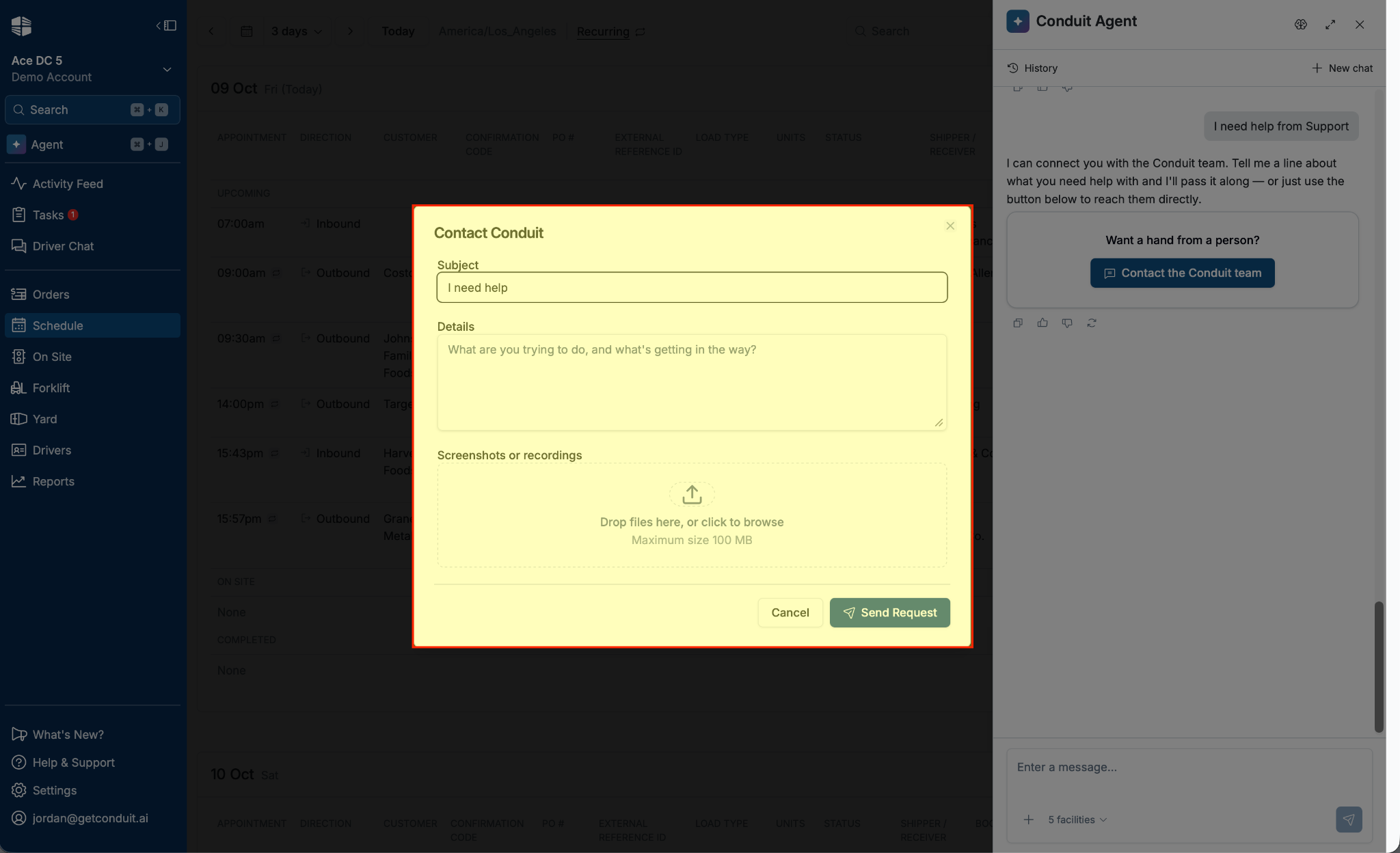
If the Agent cannot resolve your issue, it can draft a support request for you. Review the subject and details it fills in, edit them if needed, and submit. The request goes straight to the Conduit support team.
Rating and Regenerating Replies
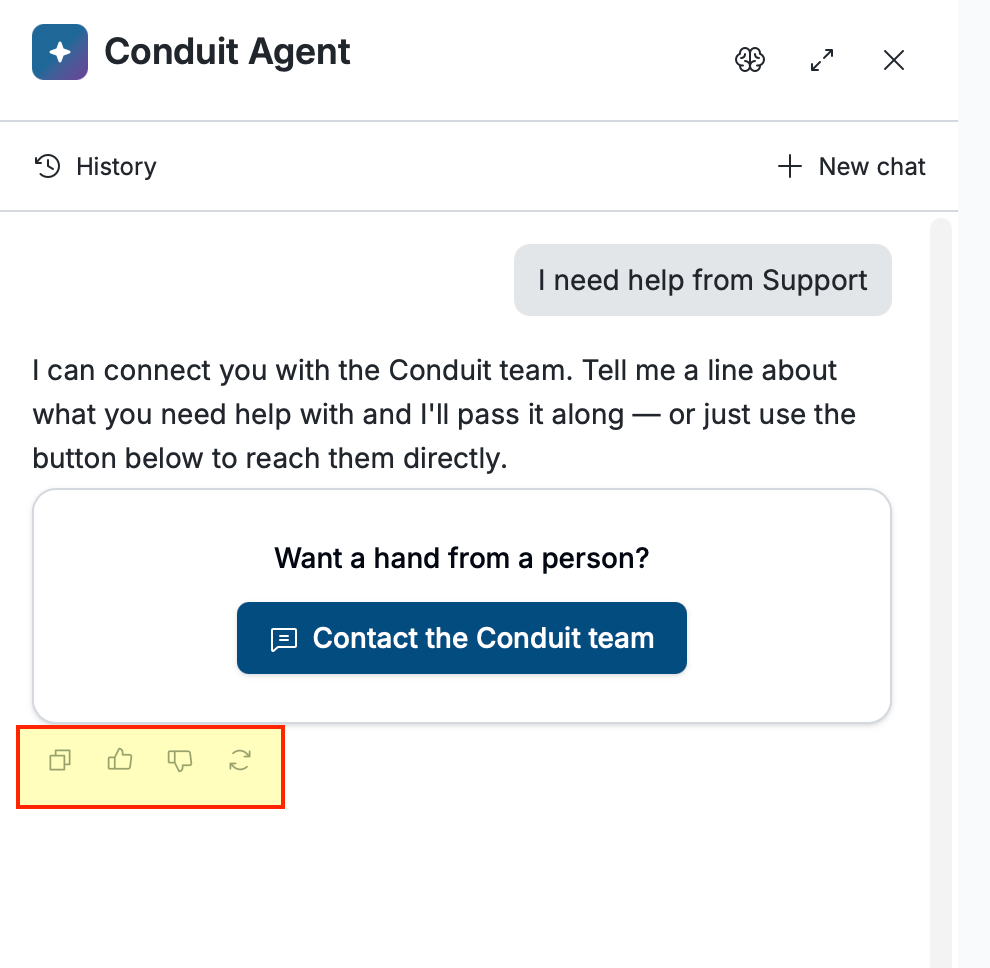
Under each reply you can:
Copy: Copy the reply's text.
Good response / Bad response: Rate the reply, with an optional comment. This feedback goes to the Conduit team and helps improve the Agent.
Regenerate: Ask the Agent to answer the last message again.
Using Chat History
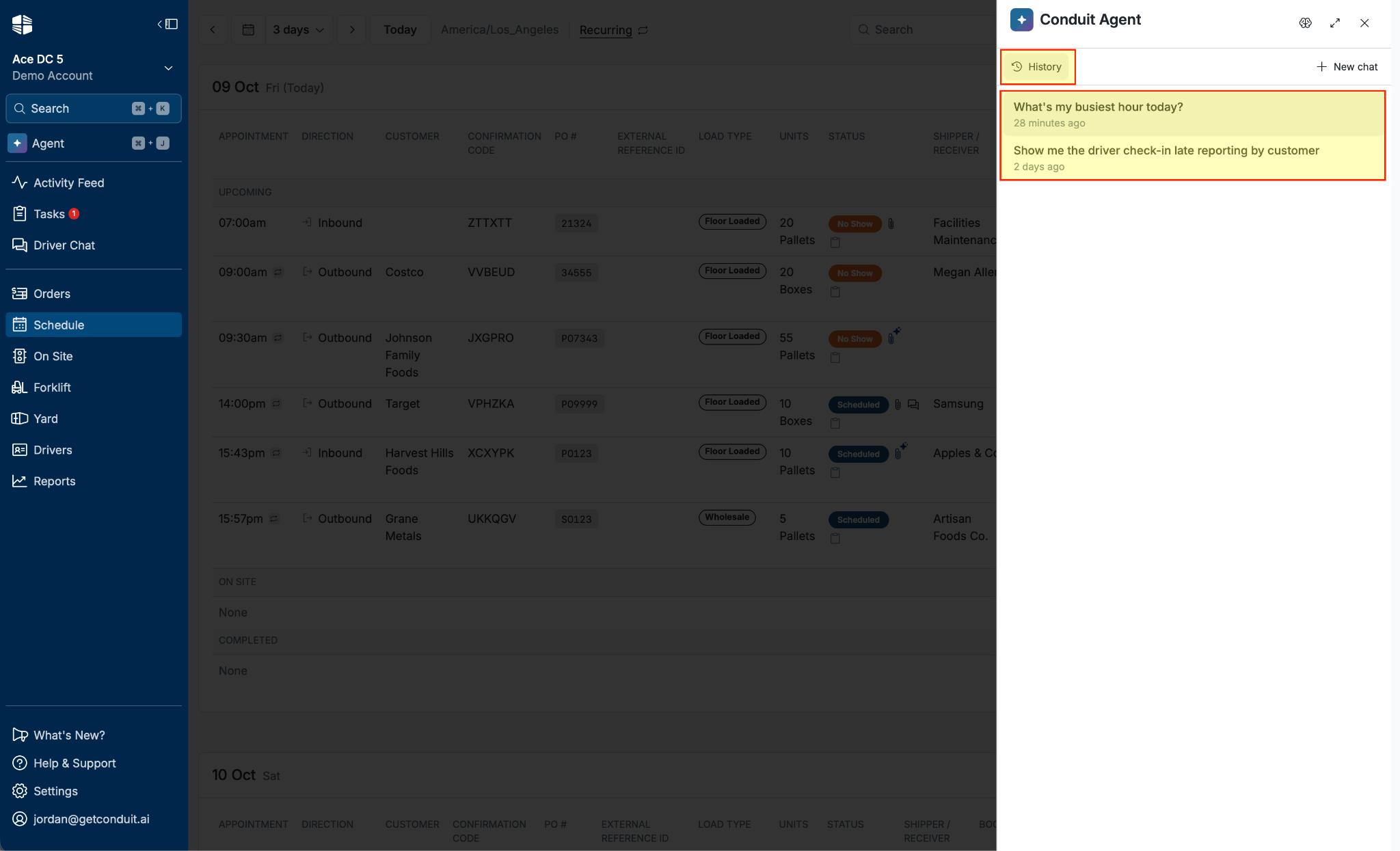
Click History at the top of the panel to see your recent conversations, most recent first.
Click a conversation to reopen it and continue where you left off. Click New chat to start a fresh conversation.
Closing the panel and reopening it brings you back to the conversation you were in. If more than an hour has passed since you last used the Agent, it starts a new chat instead. Your earlier conversations are still in History.
Setting Up Your Profile
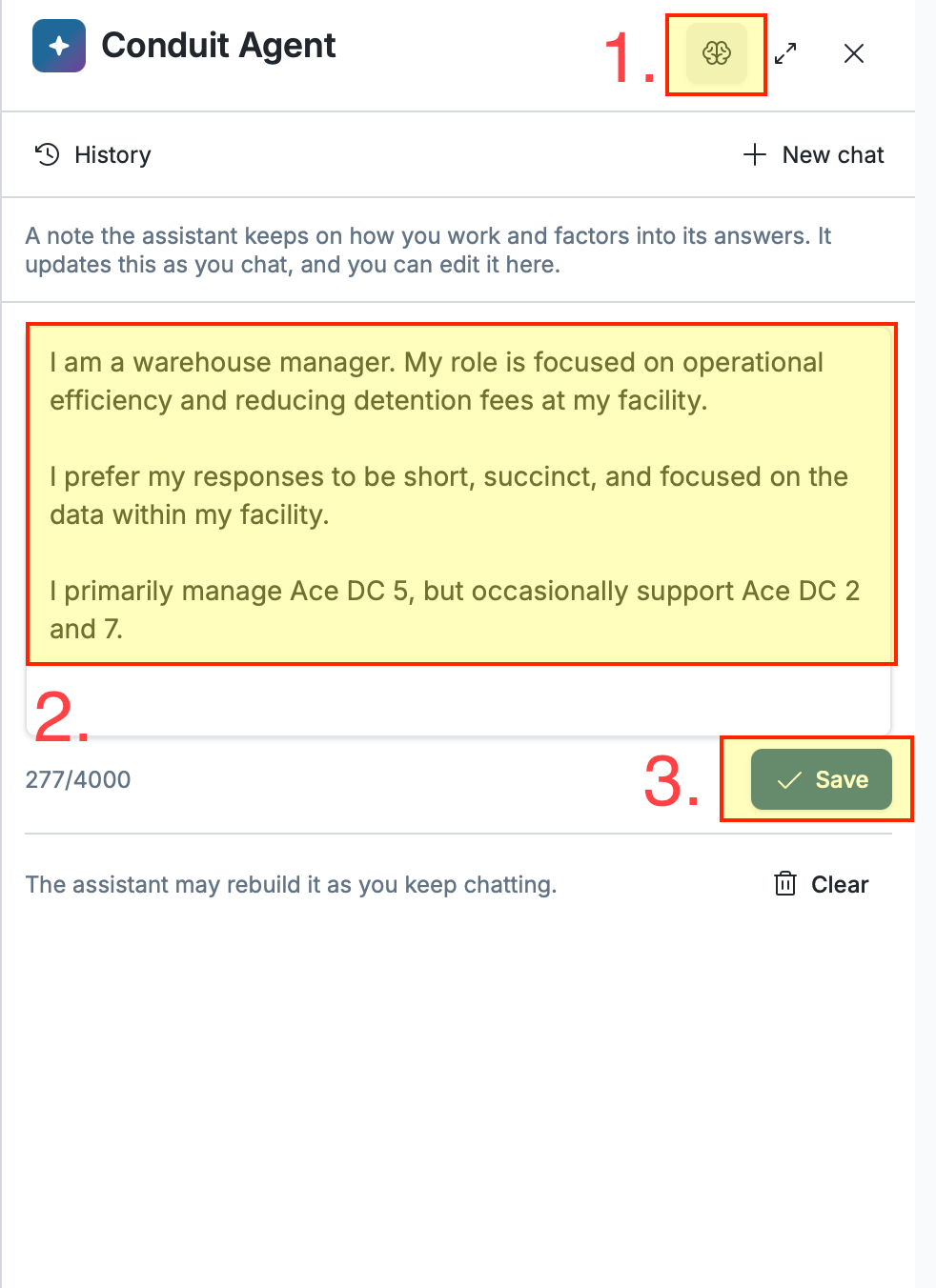
Your profile tells the Agent how you work, so you do not have to repeat it in every chat. For example: "I manage the Dallas and Houston facilities. I care most about carrier on-time performance. Keep answers short."
Click the profile icon (the brain) at the top of the panel.
Write a few sentences about your role, the facilities you focus on, and how you like answers.
Click save. The Agent uses your profile in every new message.
Your profile is private to you and is limited to 4,000 characters. Clear it at any time from the same screen.
Frequently Asked Questions
Can the Agent see facilities I don't have access to?
No. The Agent can only read data from facilities you have access to in Conduit, and only the ones selected for your message.
Will the Agent change anything without asking?
No. Changes are off by default, require an organization admin to turn them on, are limited to facilities where you are an Admin, and always show a preview that you must confirm.
How do I turn the Agent off?
Organization admins can turn it off for everyone under Organization Settings, then Conduit Agent. Facility admins can hide it at their facility under Settings, then Conduit Agent. See Turning the Agent On or Off for the difference between the two.
What can I ask the Agent?
Anything about your facility's data or how to use Conduit. For example: "What's my busiest hour today?", "Which carriers were late most often last month?", "How do I set up a recurring appointment?", or "What's in the yard right now?"
How accurate are the answers?
The Agent answers from your live Conduit data and shows the steps it took while it works. Answers are only as complete as the data behind them. If something looks wrong, rate the reply with Bad response and add a comment so the Conduit team can review it.
Is there a limit on how much I can use it?
Your organization has a weekly message limit. If it is reached, the Agent lets you know, and messages are available again the following week. Under normal usage patterns, we do not expect organizations to hit this limit.
Why don't I see the Agent?
The Agent is being rolled out gradually and may not be available for your organization yet. If it has been made available, it may be turned off for your organization or for the facility you are in. Ask your organization or facility admin, or contact support.