Driver Check In: Work-Ins and Help Requests
Last updated: October 9, 2026
Not every driver arrives with a scheduled appointment on file, and not every check-in goes smoothly. This article covers what happens on both sides (driver and warehouse) when a driver needs a Work-In appointment, or runs into an issue during self check-in and needs to request help.
If a driver arrives onsite without an appointment, they can request a work-in appointment.
Work-Ins
A Work-In is a request from a driver to be worked into your schedule without a pre-existing appointment. Drivers submit basic load info, and your facility decides whether and where to fit them in.
Driver Side
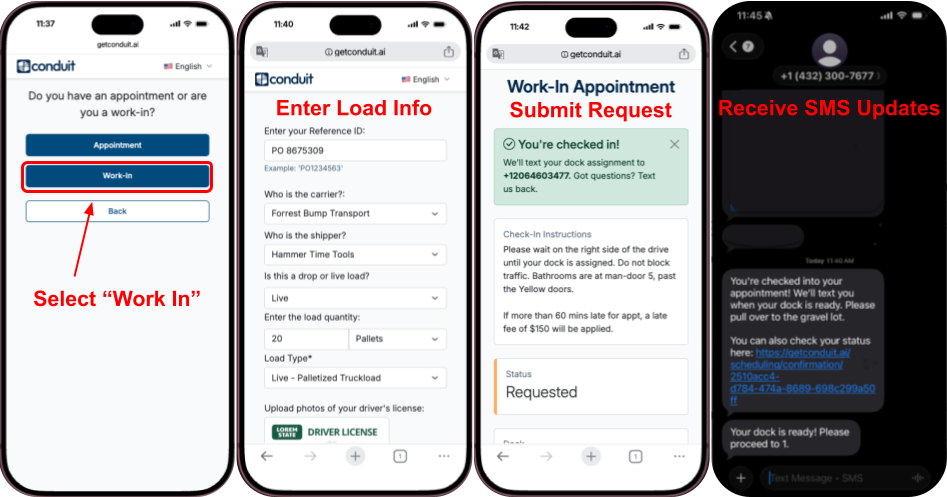
Select Work-In
During self check-in, when asked Appointment or Work-In, the driver selects Work-In.
Enter Load Info
The driver enters basic information about their load (fields are configurable; see Check-In Configurations).
Submit Request
After submission, the driver sees a confirmation page. Their status shows as Requested until the facility responds.
Receive Updates
Once the facility approves the request and assigns a dock, the driver's status updates and they receive a text via Driver Chat with next steps.
Warehouse Side
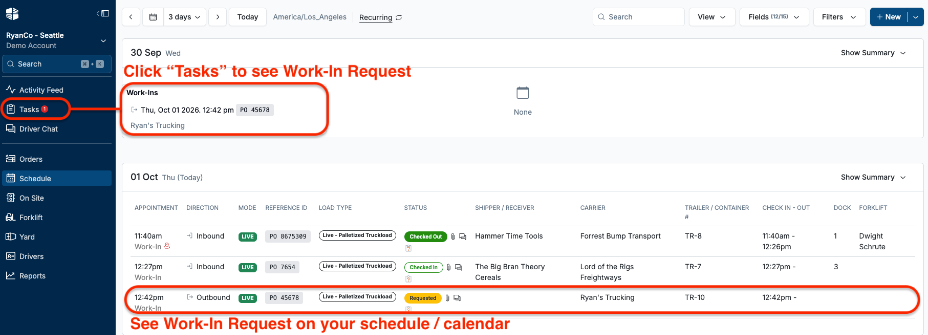
Task Appears
The Work-In request populates on your Schedule in Requested status, and a task notification appears in the left navigation.
Review the Request
Click into the task or the appointment to open the appointment dialog and review the driver's submitted load info.
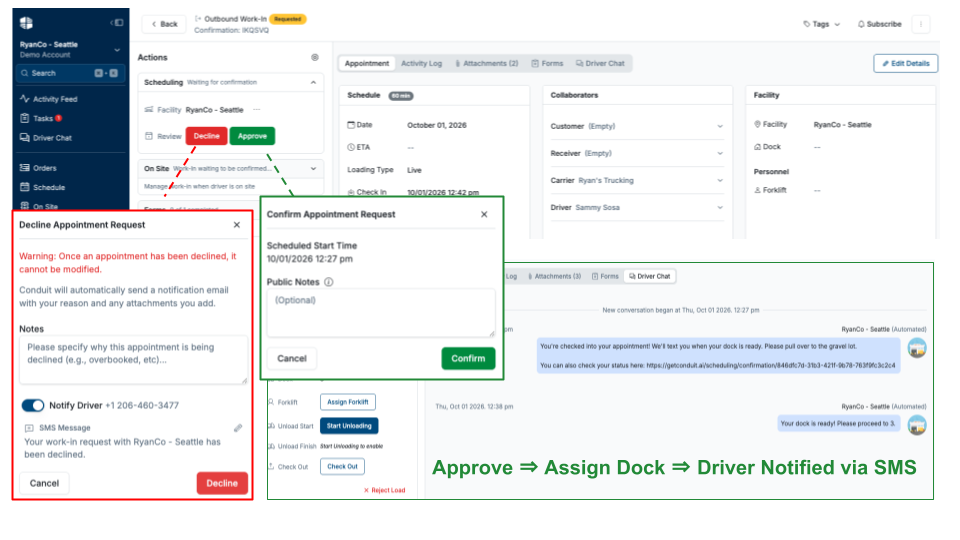
Accept or Decline
Choose to accept the Work-In (assign a dock) or decline it. Declining prompts the driver with next steps.
Driver Is Notified
Once accepted, the driver receives a text confirming their dock assignment via Driver Chat.
Enabling Work-Ins in Facility Settings
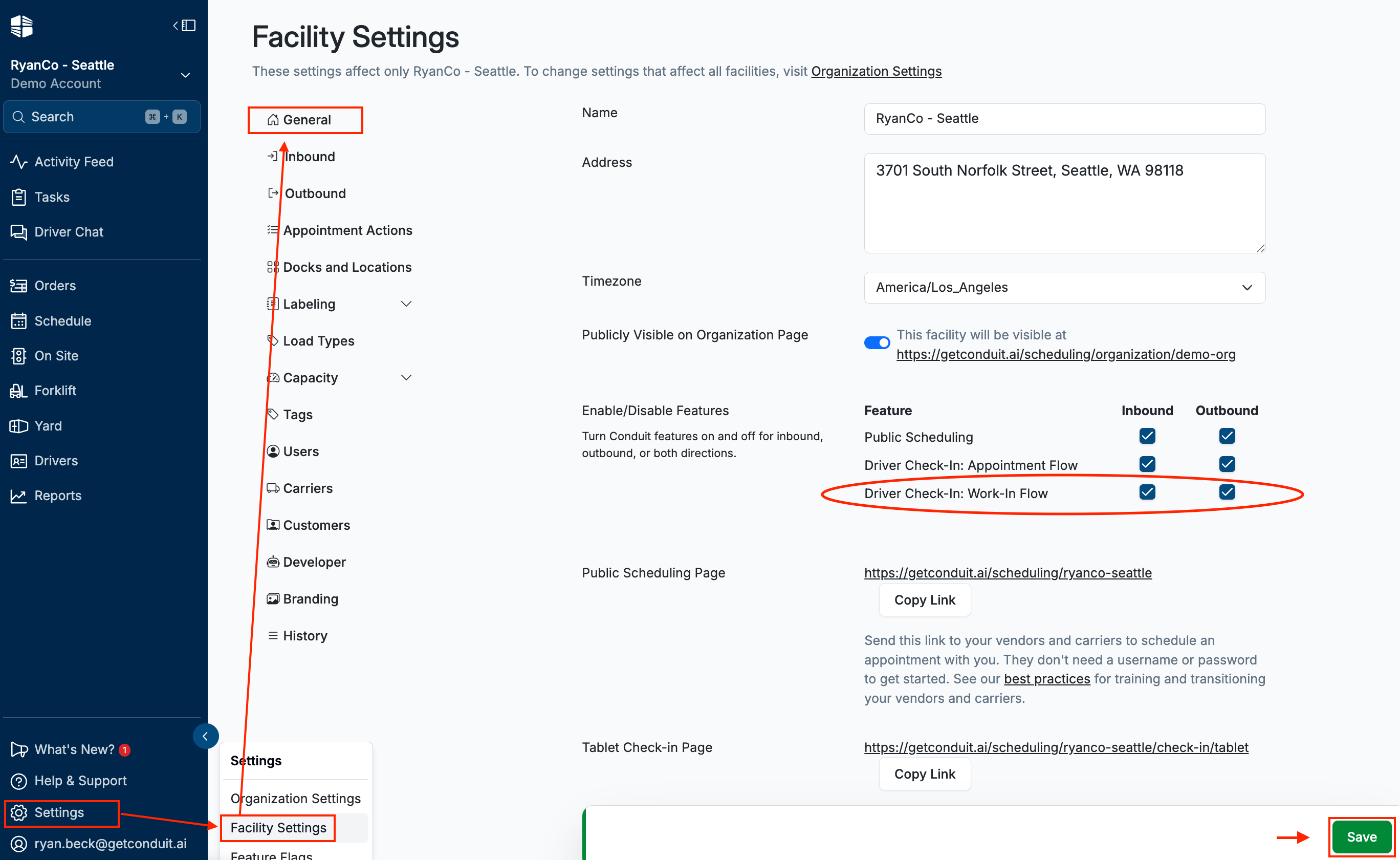
Go to Settings → Facility Settings → General.
Under Enable/Disable Features, check Driver Check-In: Work-In Flow for Inbound and/or Outbound
Click Save.
Help Requests
If a driver gets stuck during self check-in (for example, their confirmation code isn't recognized, or they've arrived too early), they can request help without leaving the check-in flow.
Driver Side
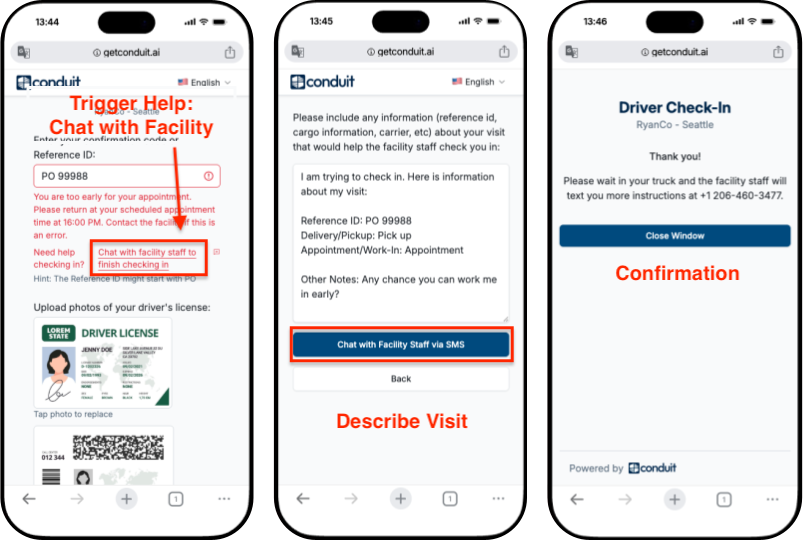
Trigger Help → "Chat with facility staff to finish checking in"
If the system can't proceed (wrong confirmation code, too early for the appointment, etc.), the driver will see an error message prompting them to select the "Chat with facility staff to finish checking in" link.
Describe the Visit → Chat with Facility Staff via SMS
Tapping the link opens a message field where the driver can add any details that will help staff check them in (reference ID, cargo info, carrier, etc.), then taps Chat with Facility Staff via SMS.
Confirmation
The driver sees a thank-you screen and is told to wait in their truck. Facility staff will follow up by text.
Warehouse Side
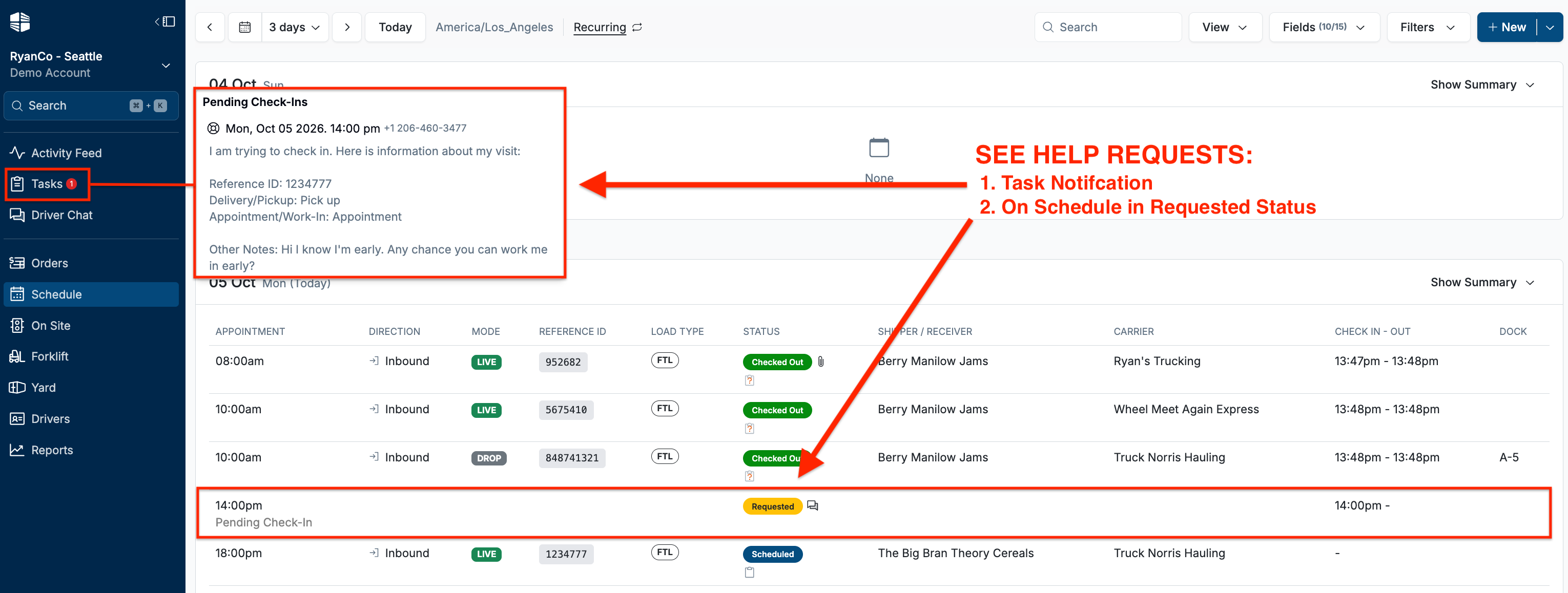
Request Appears ➝ Click Request to Open
The pending check-in appears as a new row on the Schedule in Requested status, with a task notification in the left navigation. Hovering over the row or clicking the task previews the driver's notes.
Clicking the task opens the Pending Check-In dialog, showing the driver's check-in time, phone number, and notes
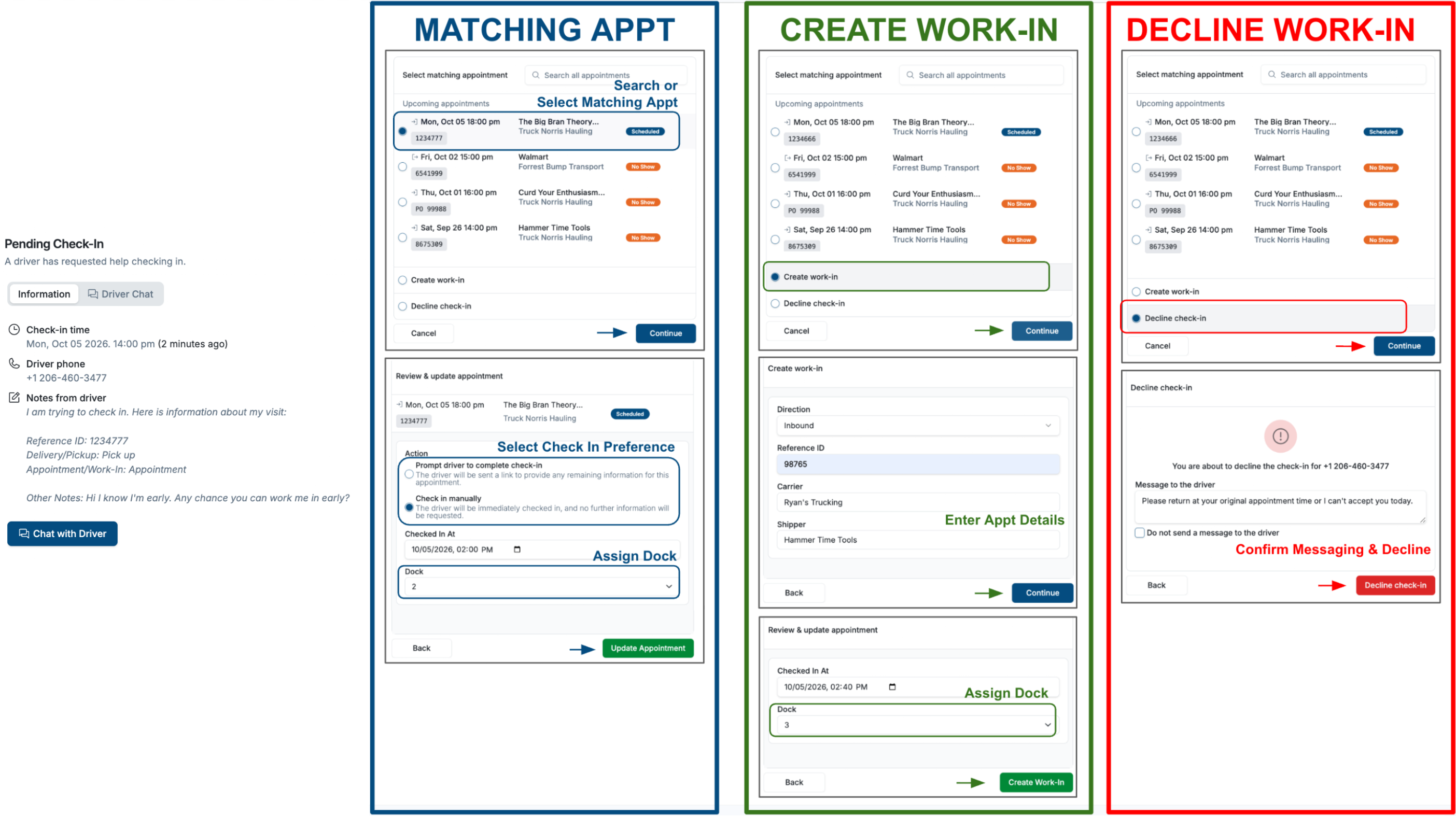
Choose an Option: Match Appointment, Create Work-In, or Decline-In
Match Appointment (approve the request):
Select the matching appointment and click Continue ➝ Prompt driver to complete check-in or check in manually ➝ Assign Dock and click Update Appointment
Create Work-In (driver needs an entirely new appointment):
Select Create work-in and click Continue ➝ enter appointment details (Direction, Reference ID, Carrier, and Shipper/Receiver) and click Continue ➝ Assign Dock and click Create Work-In
Decline Work-In:
Select Decline check-in and click Continue ➝ Optionally enter messaging to send driver and click Decline Check-In
The appointment now shows as Checked In or Declined on the Schedule.
Staff can also click Chat with Driver from within the Pending Check-In dialog to text the driver directly if more information is needed before matching or accepting the request.
Frequently Asked Questions
What's the difference between a Work-In and a Help Request?
A Work-In is a planned request. The driver knowingly doesn't have an appointment and is asking for one. A Help Request happens when a driver believes they have an appointment (or should be checking in) but the system can't confirm it, for example, an unrecognized confirmation code or an early arrival.
Can facility staff message the driver before deciding how to handle the request?
Yes. Use Chat with Driver in the Pending Check-In dialog to text the driver directly.
What happens if the facility declines a Work-In or Help Request?
The driver is notified and prompted with next steps. They can correct their information and resubmit, or contact the facility directly.