Contactless Driver Check In (QR Code)
Last updated: September 12, 2026
How to Check In for your Appointment Online
Scan QR Code ➝ Open Check-In Page
On arrival, the driver scans the QR code signage posted at the facility, opening the check-in webpage on their phone.
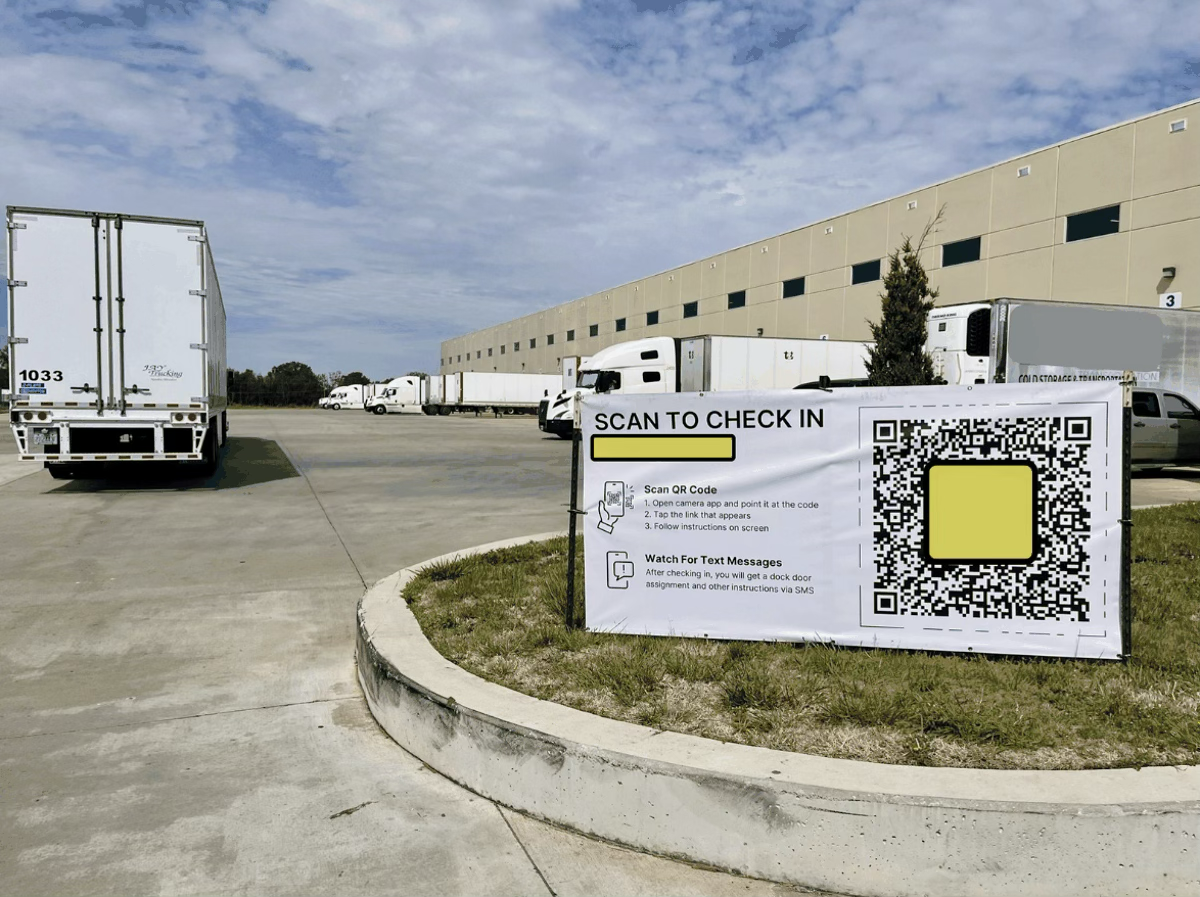
For info on signage options, see article: QR Code Signage for Drivers
Enter Phone Number
Driver enter phone number to begin check in.
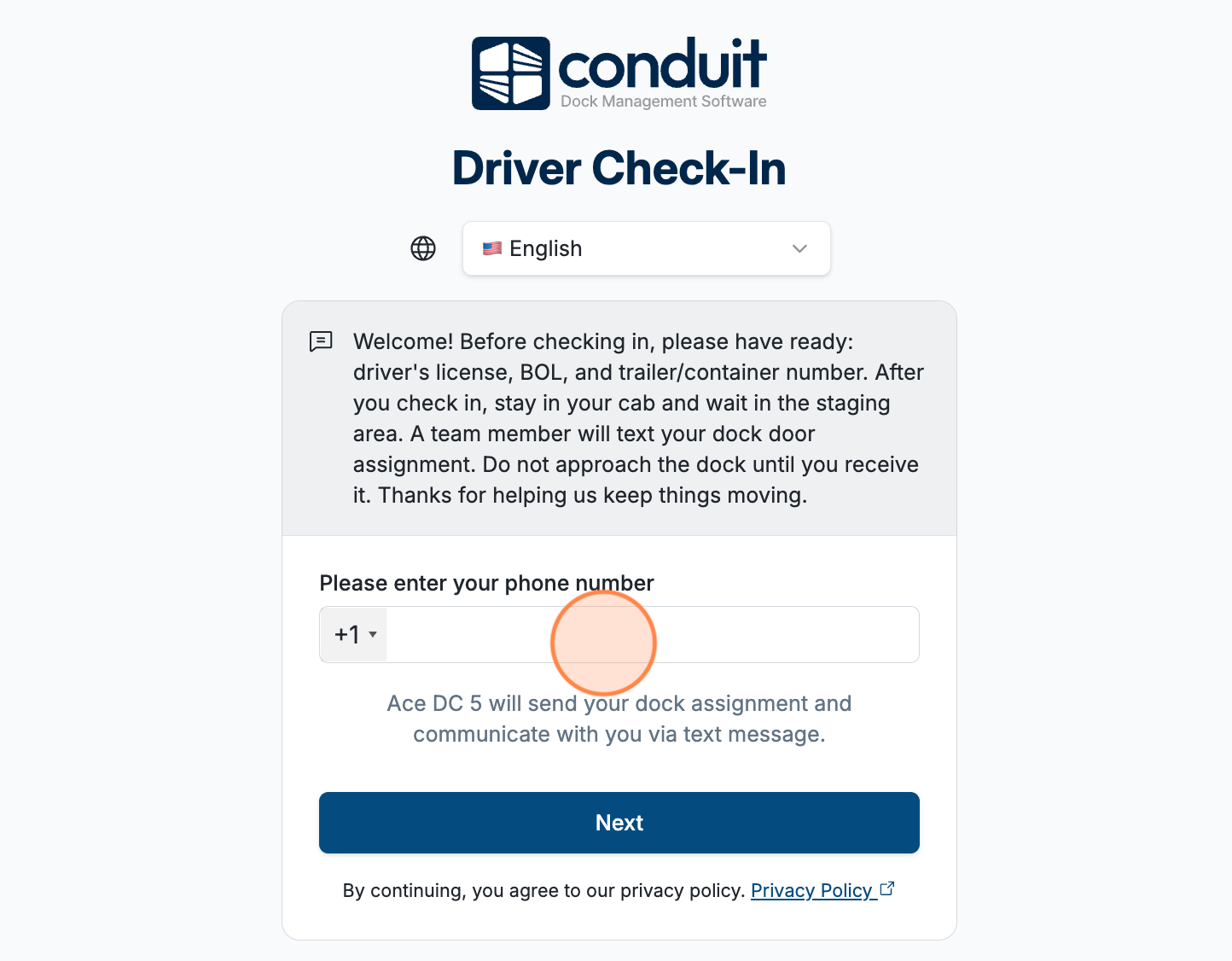
Greeting text is customizable: Facility Settings → Labeling → Global → Driver Check-In Greeting
--
Multiple languages are supported, for info see article: Other Languages
Select Delivering or Picking Up
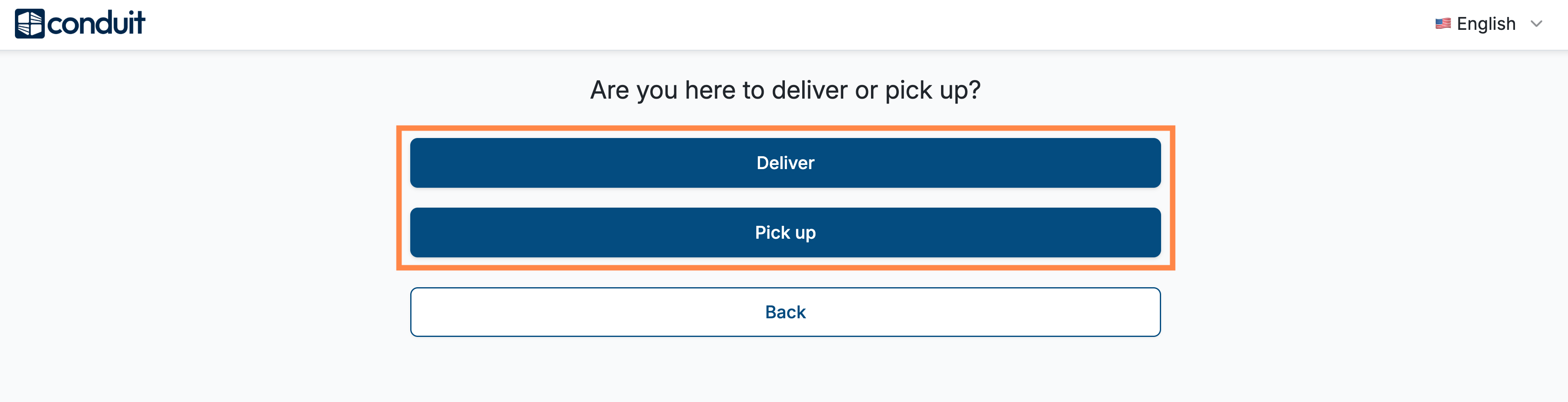
Select Appointment or Work-In
If no appointment on file, the driver selects Work-In and enters info for the warehouse to create one.
Verify Appointment — Upload BOL or Enter Order Info (Appointment Only)
Upload BOL: System scans the document and auto-matches it to an appointment.
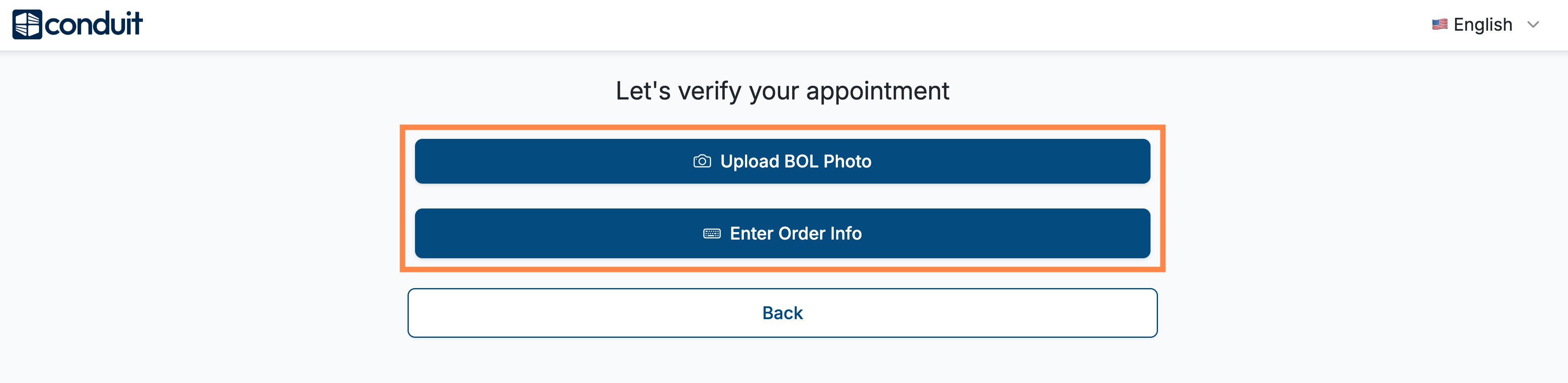
Enter Order Info: Driver enters a PO or confirmation code and listed information fields.
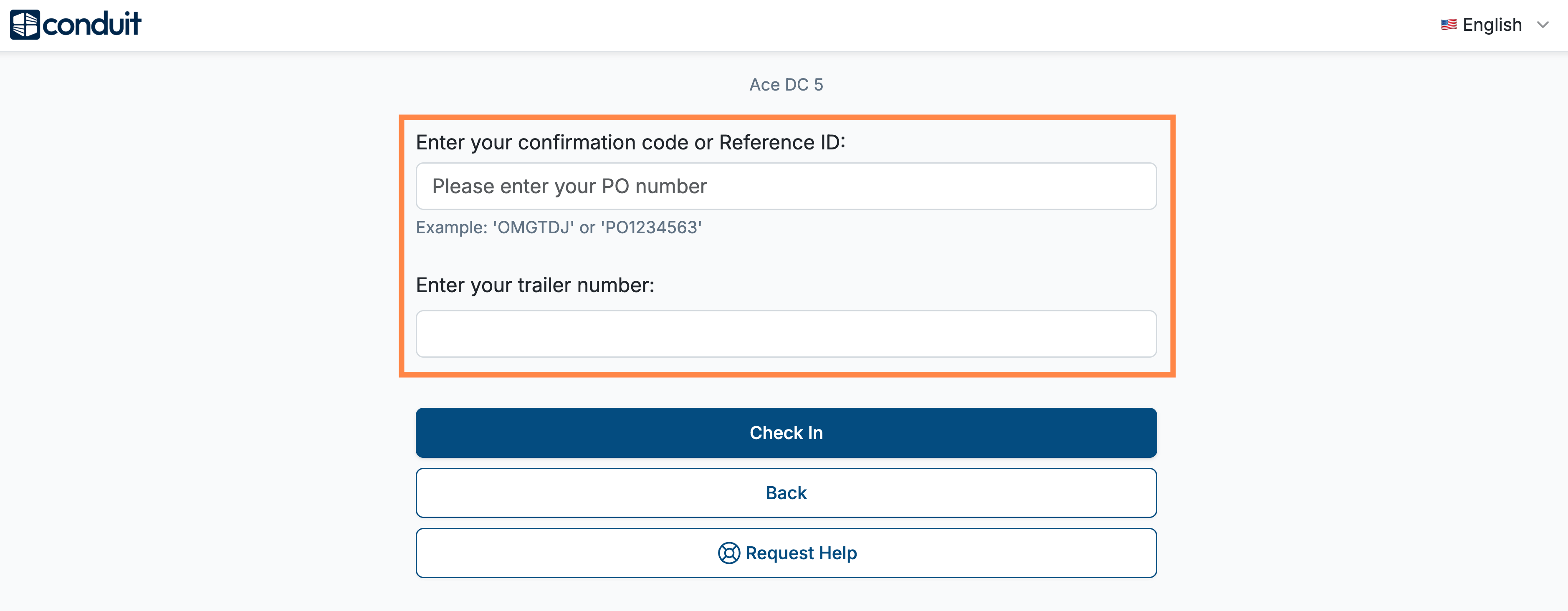
Confirmation codes are issued by Conduit when the appointment is scheduled. See our Scheduling article for more info.
--
The information fields that appear here are configurable: Facility Settings → Inbound or Outbound → Driver Check-In Configuration → select fields to enable.
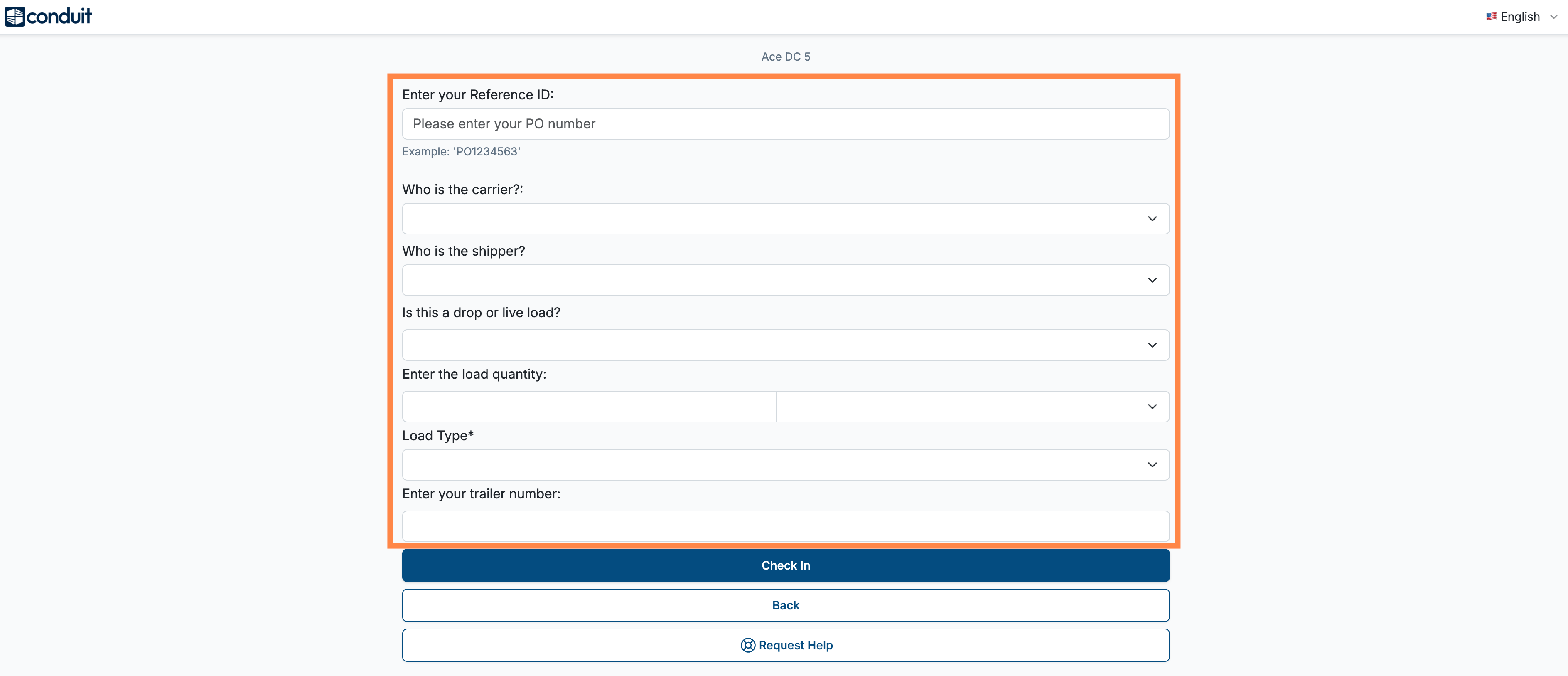
Enter Load Info (Work-In Only)
Driver enters basic load info to include with the Work-In request.
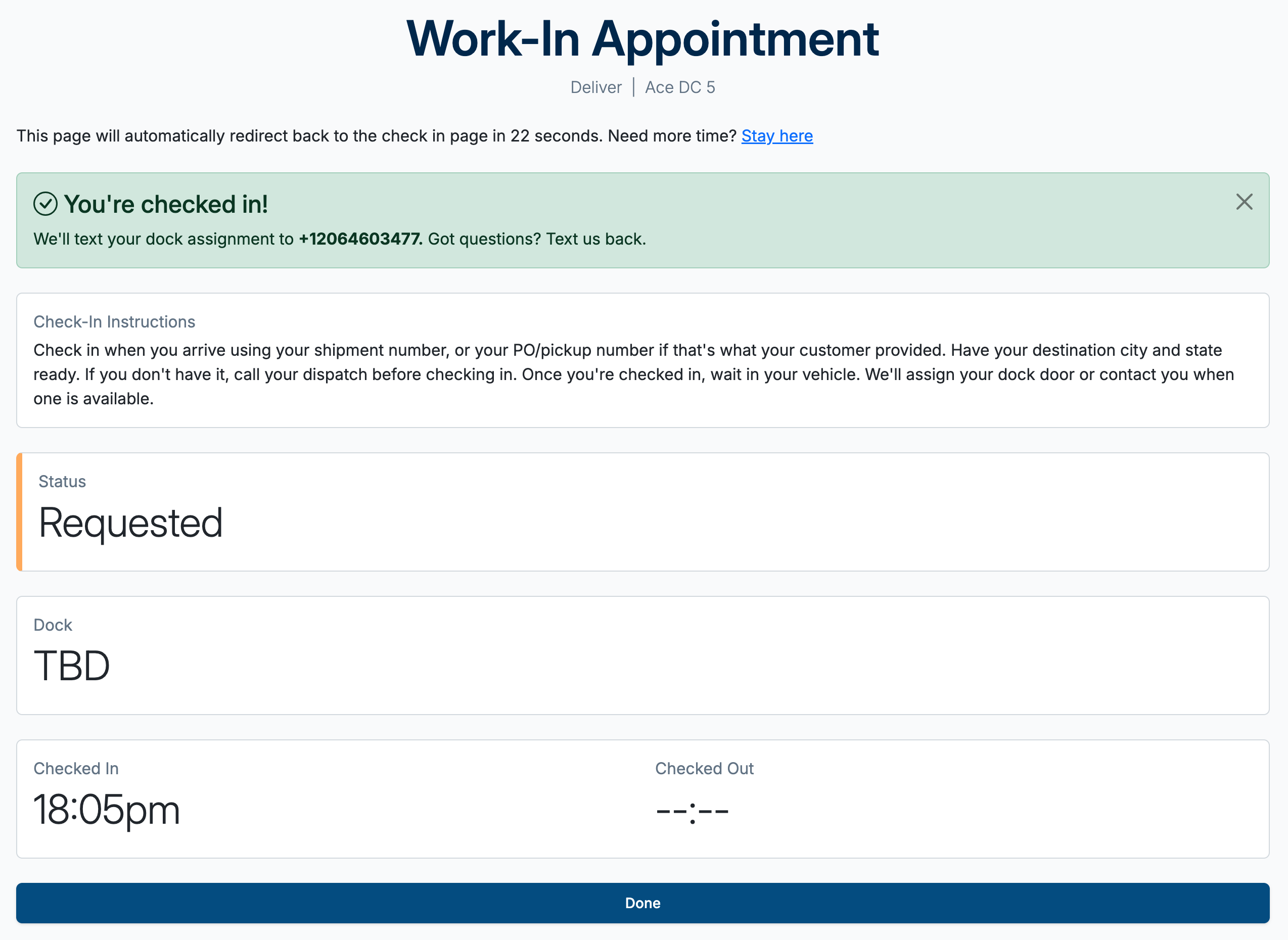
Check-In or Work-In Request Complete
Appointment: Driver checked in and sees a confirmation page.
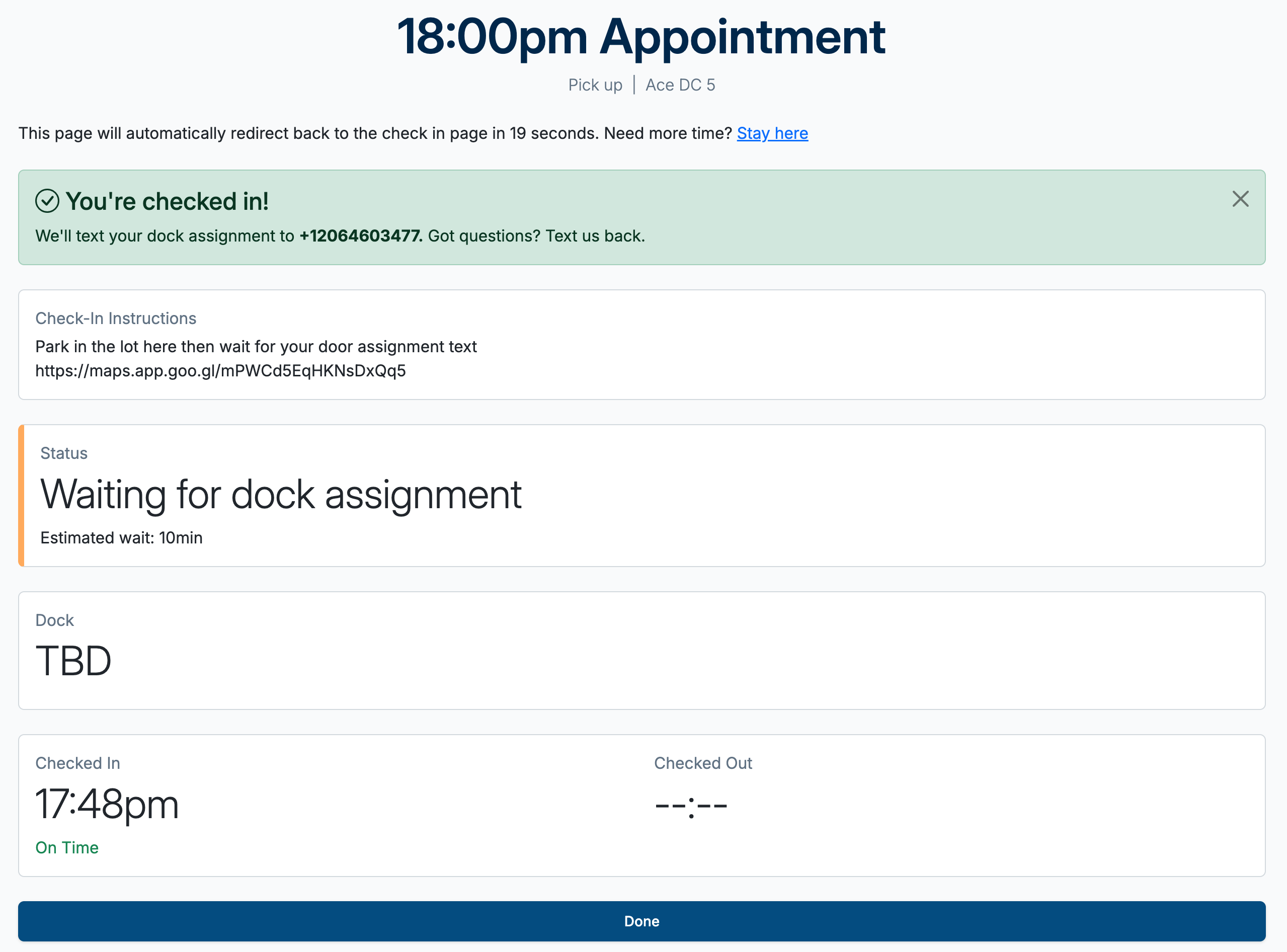
Work-In: Requested is submitted; status shows 'Requested', then updates to 'Waiting for Dock Assignment' if approved.
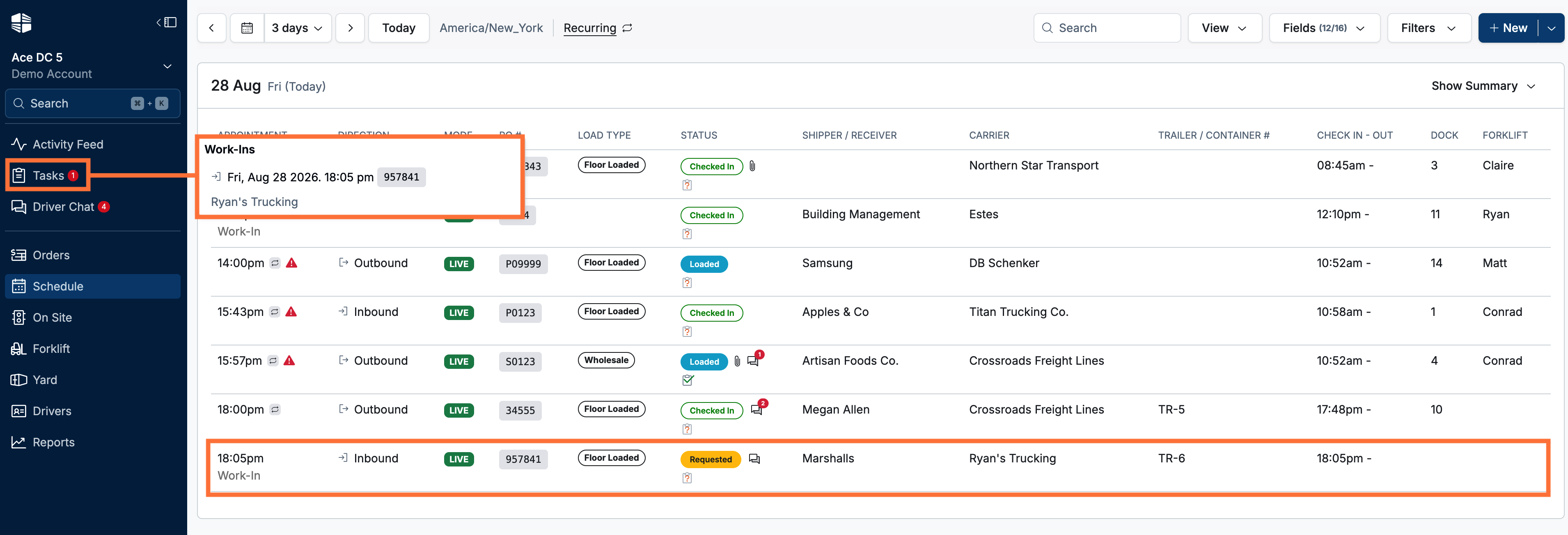
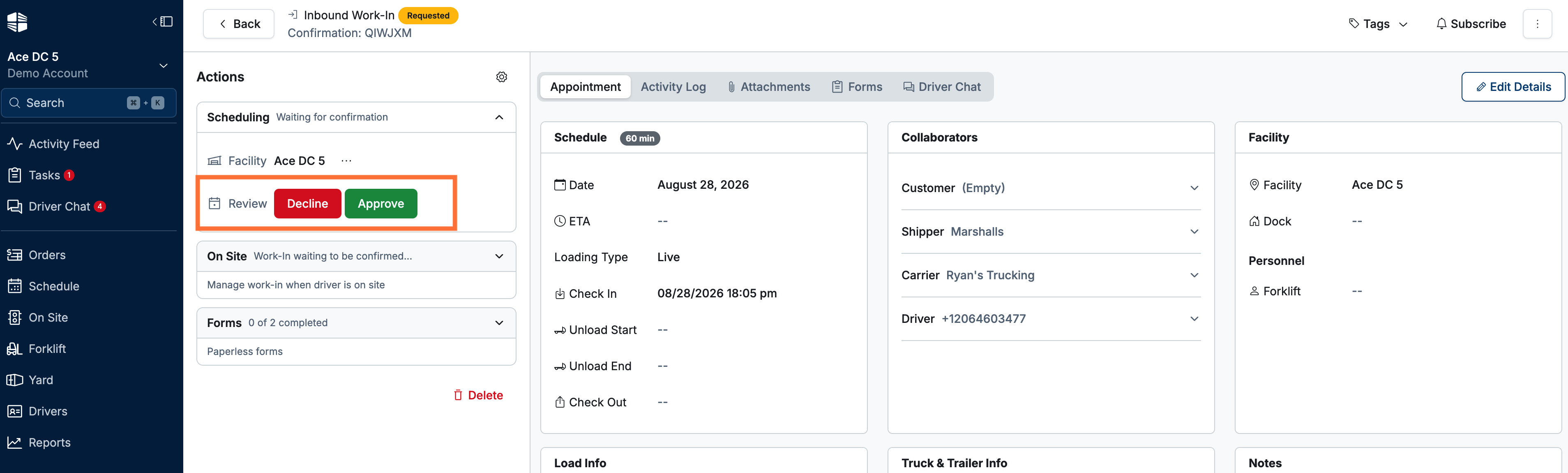
Work-In — Facility Approval: A task is generated and work in request appears on the schedule in 'Requested' status. Click the task or appointment to open the appointment and chose to 'Accept' or 'Decline'.
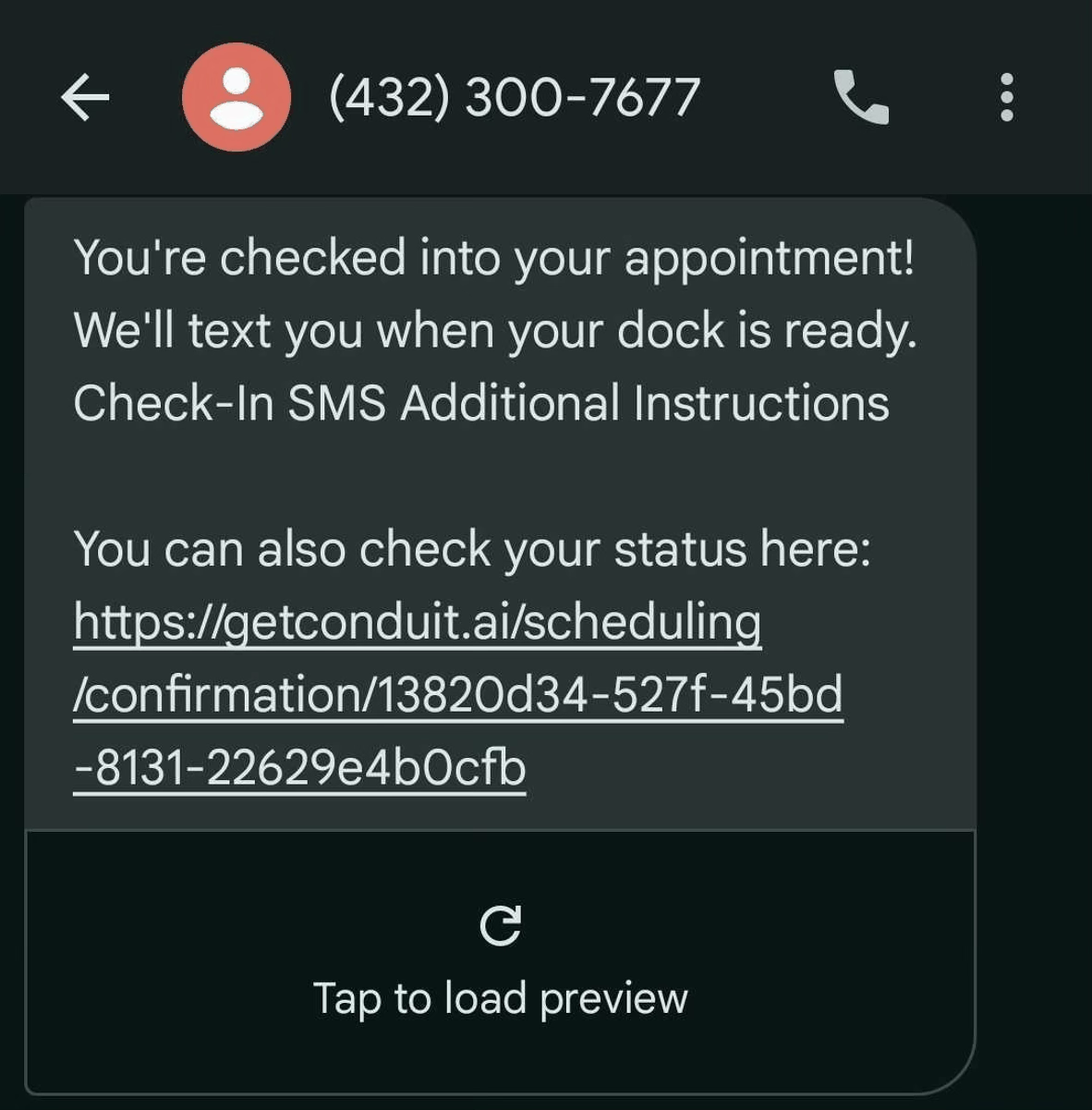
Driver Text Messaging
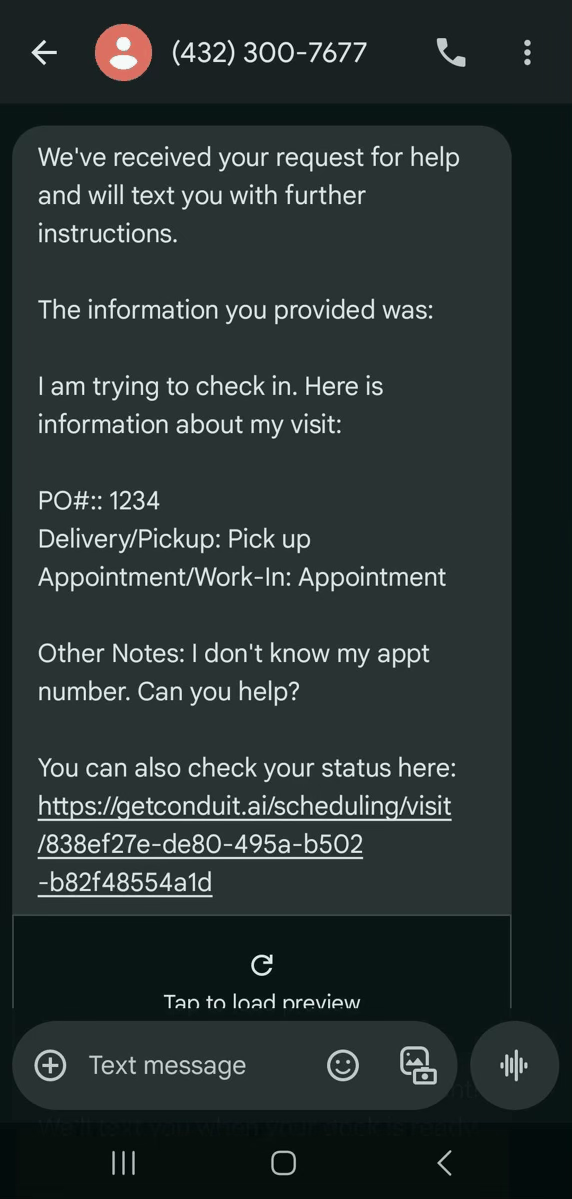
The driver also receives a text to chat with warehouse staff. Replies appear in the appointment within Conduit.
See our Driver Messaging article for more information.
No Matching Appointment Found (Driver's Order Info Not Recognized)
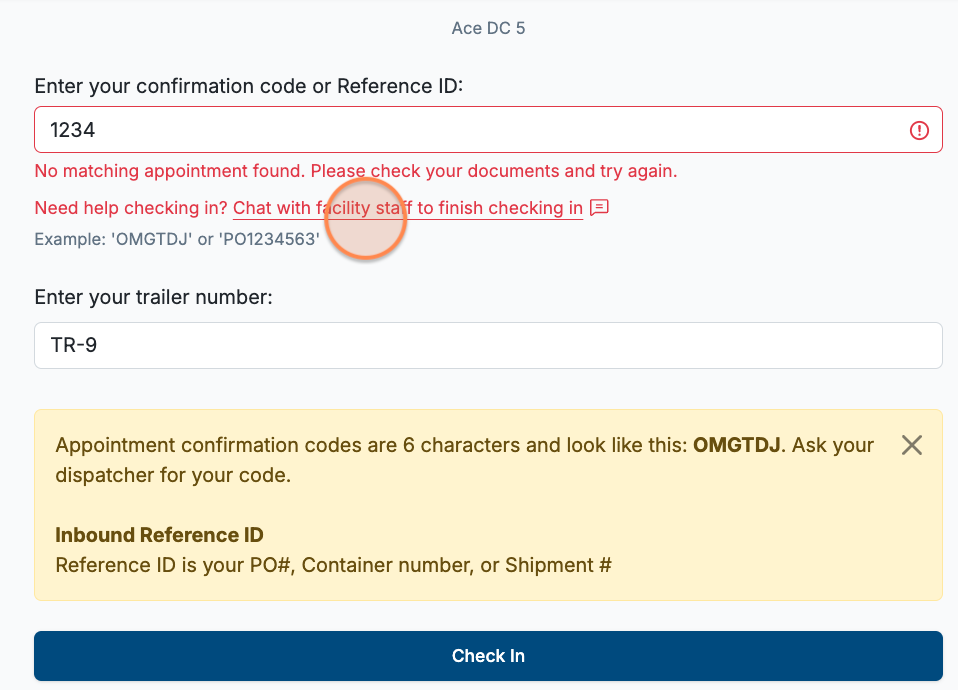
Driver's order info will not be recognized upon check-in attempt if they don't have an appointment scheduled in Conduit for that given day. If that is case, the driver will receive prompts allowing them to contact the warehouse for potential work-in acceptance.
Process is detailed below, post the drivers arrival, providing their given PO # or Confirmation Code and receiving "No matching appointment found" messaging.
Click "Chat with facility staff to finish checking in"
Starts a text message chat with the warehouse team.
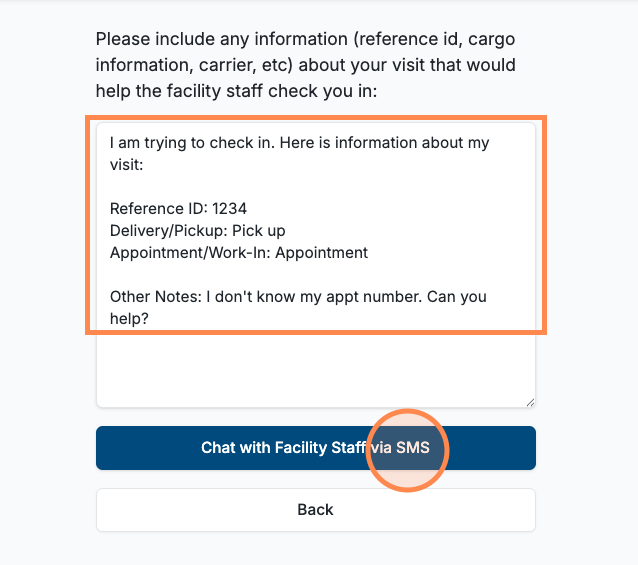
Confirm Load Information ➝ Select "Chat with Facility Staff via SMS"
The driver will be asked to confirm the information they have about the load they are attempting to pick up or deliver, and add any additional information they have.
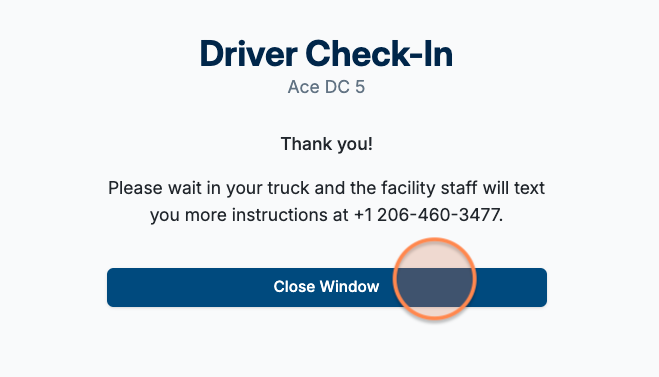
Close Window ➝ Start Texting with Warehouse
Once the driver submits the request, they will receive a text message and a confirmation screen will appear. The driver and the warehouse can now text back and forth to figure out what the load is, and get the driver checked in.
For more information about how a warehouse can view help requests, please read our Driver Messaging article.
Frequently Asked Questions
What fields are configurable for check in?
Choose which fields to require from your drivers at driver in within your inbound and outbound facility setting.
Step-by-step instructions to enable:
Facility Settings → Inbound or Outbound → Driver Check-In Configuration → select fields to enable.
Options:
License Plate (text) | US DOT Number (text) |
BOL Number (text) | MC Number (text) |
BOL Photo (photo) | Driver Self ID Verification (photo) |
Tractor Number (text) | Driver's License (photo) |
Trailer Number (text) |
I don't use PO numbers. Can we use a different number for drivers to look up their appointments?
Yes, we can rename the field "Ref ID number" to be called anything you'd like (e.g., "PO number" or "Shipment ID"). If interested, contact [email protected] with your rename request.
Drivers can also check-in the appointment confirmation number that is supplied by Conduit at the time they scheduled their appointment.
What if a driver doesn't have a cell phone that can take pictures?
In the event that a driver does not have a cell phone that can use a QR code, our check in process can be set up on a tablet or a computer. In that instance, they would need to come to the dock office to check in.
You can find the URL for tablet or computer in your facility settings page. Learn more in our article, Tablet Check-In.
How does a "Request Help" task appear for the warehouse?
Please read our article on Check In Help Requests for the Warehouse.