Downloading the Conduit App
Last updated: November 9, 2026
The Conduit app can be downloaded to your phone, tablet, or computer.
Instructions
Log in to Conduit on your device browser.
Follow the instructions for the browser you're using:
Chrome - Desktop
Video tutorial:
Click the triple dots on the upper right of your tool bar.
In the dropdown that appears, click into "Cast, Save, and Share"
Select "Install Page As App"
The Conduit App is now ready to be used on your device.
Safari
Video tutorial:
Open the share menu (box with an upward arrow in the address bar).
Click "Add to Dock".
Click "Install".
The Conduit App will appear in your Dock.
Firefox
Follow the firefox guide for installing apps from your browser: https://support.mozilla.org/en-US/kb/use-web-apps-firefox-android
Chrome - Mobile
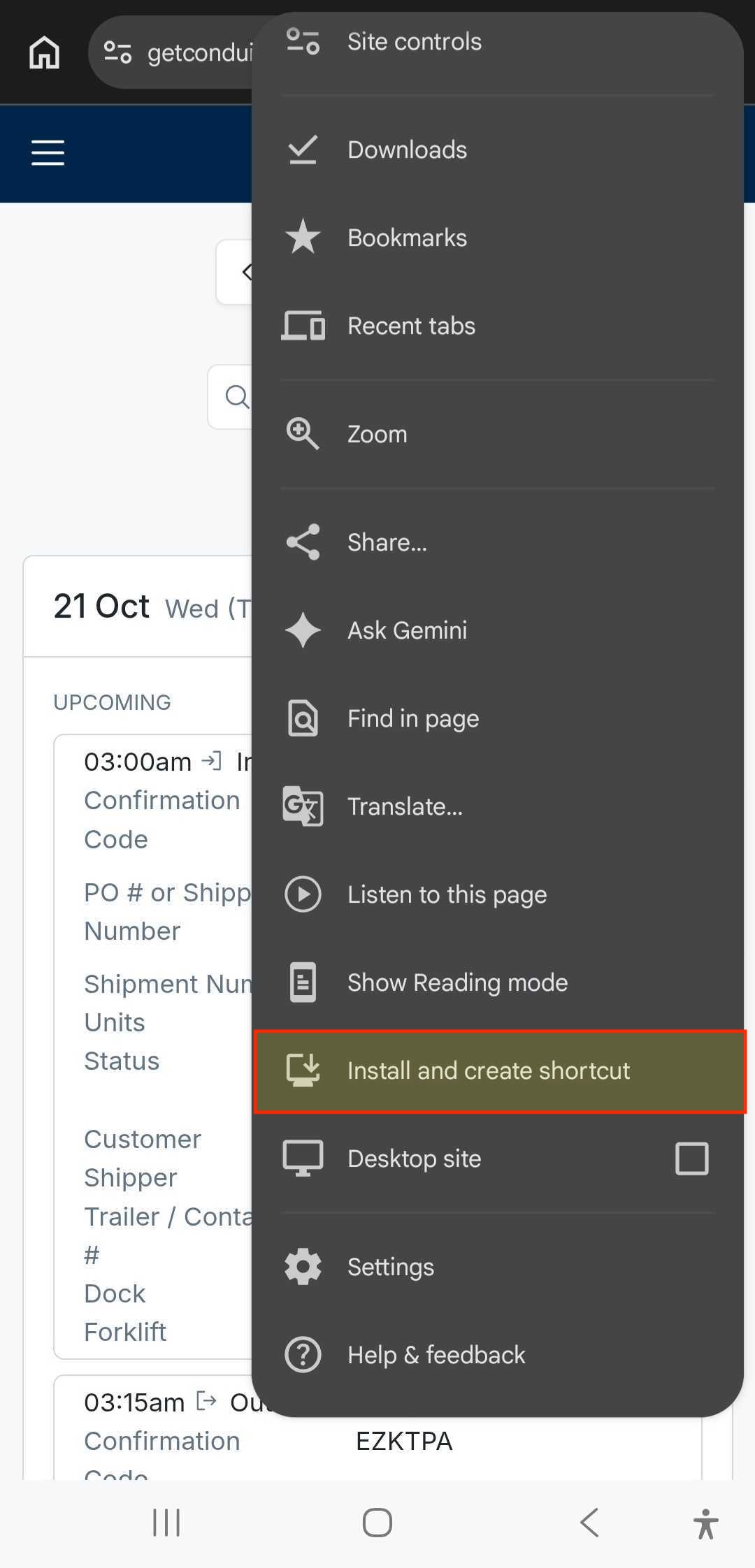
Click the triple dots on the upper right of your tool bar.
In the dropdown that appears, click into "Install and create shortcut"
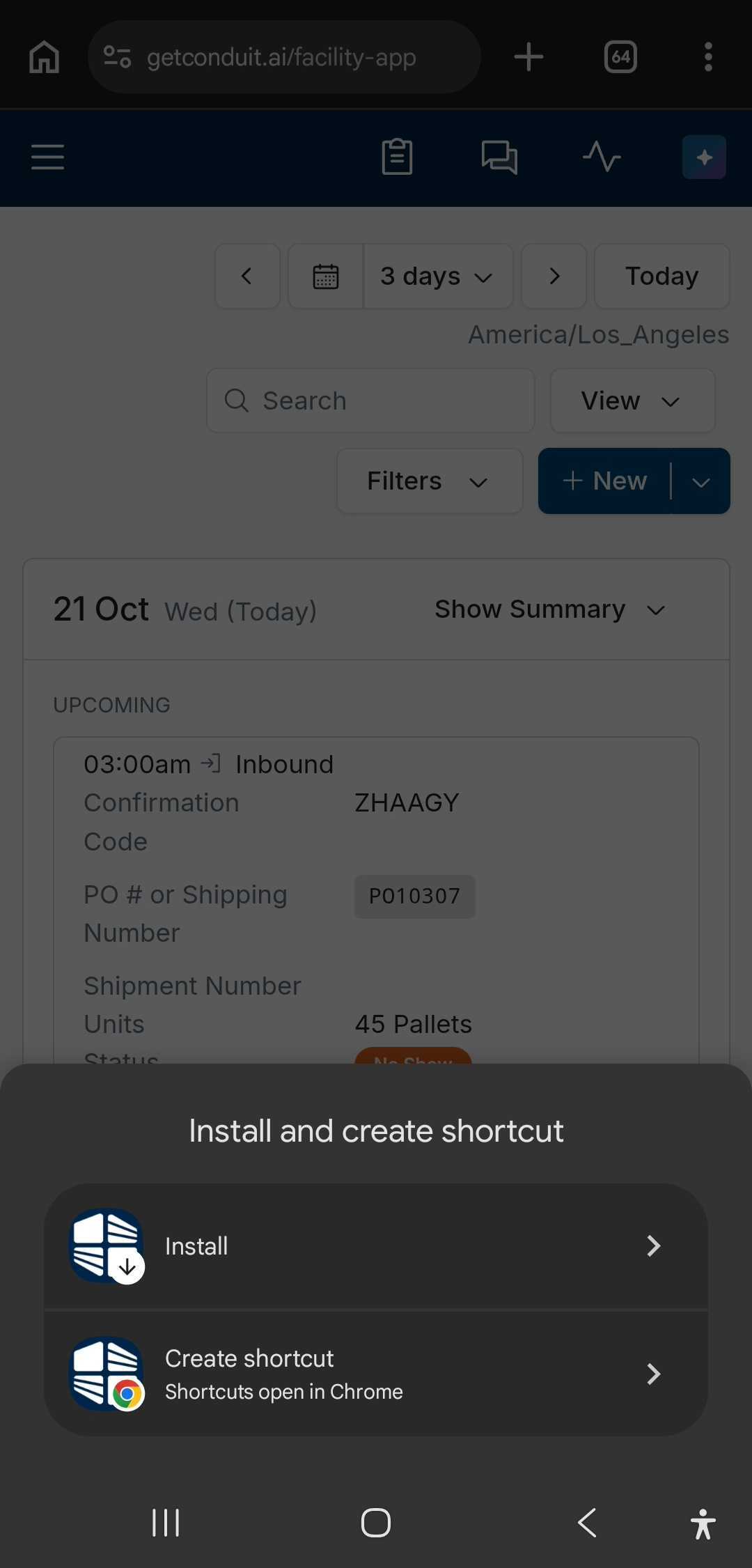
Select Install on the pop up "Install and create shortcut"
The Conduit App is now ready to be used on your device.
Safari - Mobile
1.) Go to app.getconduit.ai in your safari web browser
2.) Click the
share icon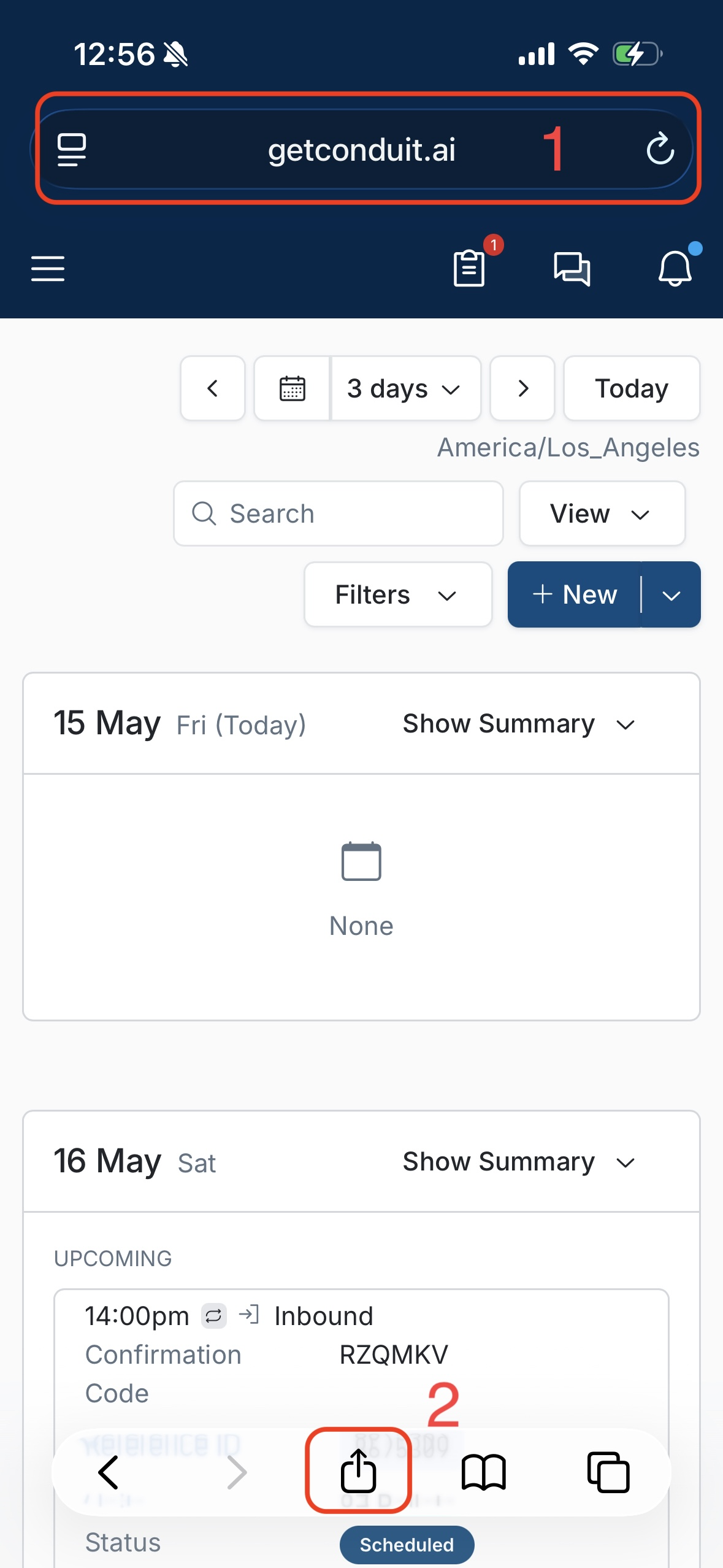
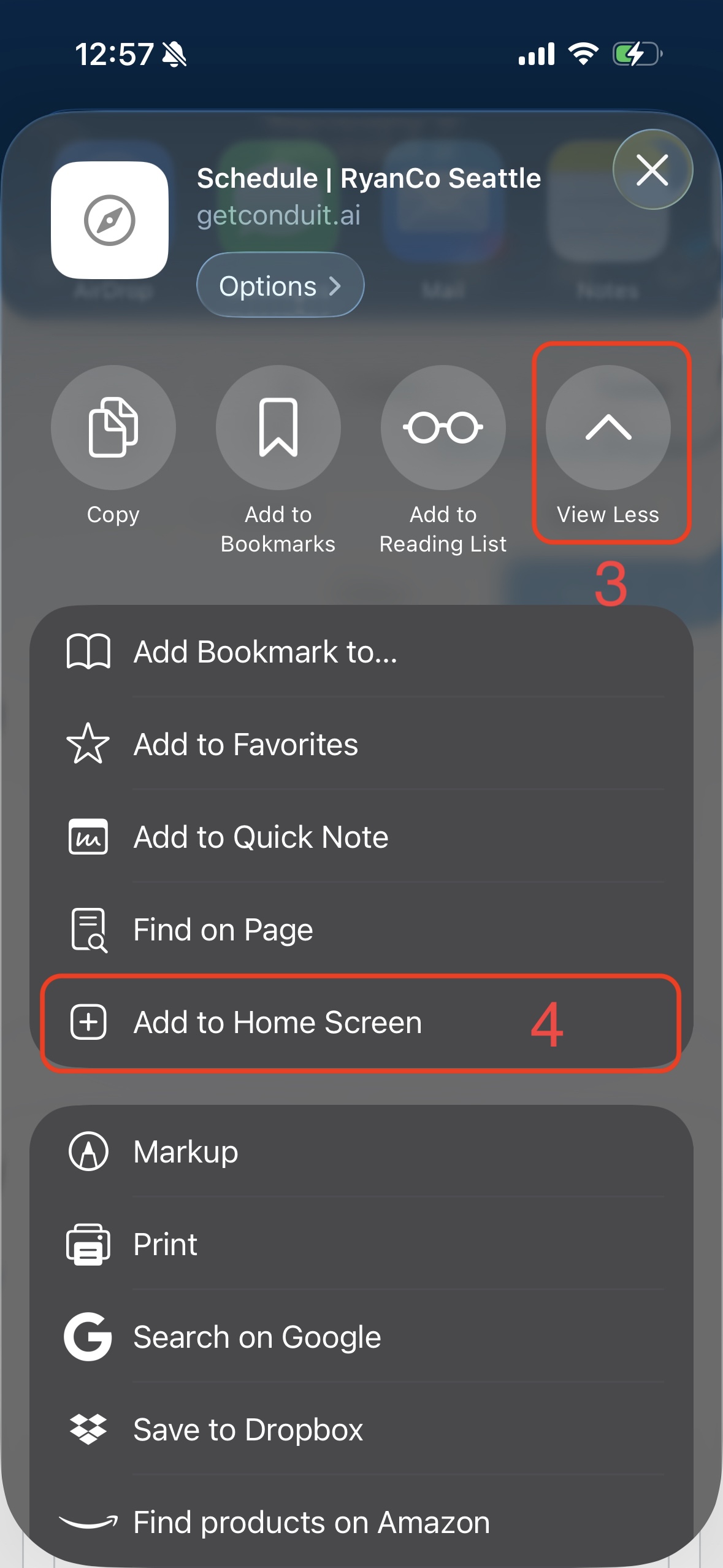
3.) In the menu that appears, select the
View Moredrop down arrow4.) From the view more options, select
Add to Home ScreenThe Conduit App is now ready to be used on your device!
Frequently Asked Questions
Can I use other browsers?
Yes. If you are using a different browser, you will need to find instructions for how to download a "react app".
Does the app work the same as the website?
Yes. The app works exactly the same way as the website. All of the same functionality is available in the app, and will look the same as on our website.
Can I use the app offline?
No. Our software requires an internet connection in order to function.
Can I use the Check In portal as an app?
Yes. To use Driver Check In as an app on a check in tablet:
Install the app using the instructions above.
Once you've installed the app, reopen your browser.
From the browser, open your tablet check in link.
Follow the same steps for downloading the app, from the check in page.
It will give you the option to open this page in the app.
Once you've opened the check in workflow in the app, it will stay on that workflow. It will not refresh into the warehouse page.